Translate


Problem
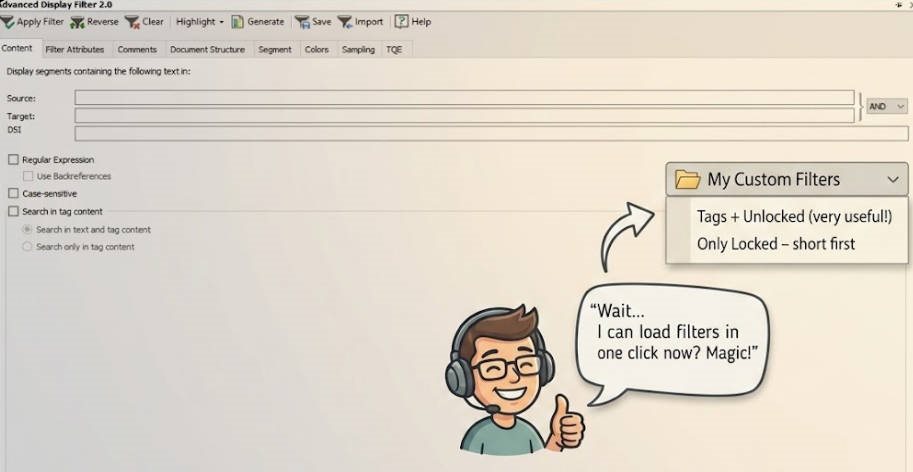
Currently, in Trados Studio’s Advanced Display Filter, you can save custom filters and later import them. However, every time you need to load a saved filter, you must manually browse to the folder where you stored it, locate the file, and import it again.
-
You have to remember where you saved each filter.
-
The process is repetitive and breaks workflow, especially when switching between multiple custom filters (e.g., “Segments with Tags + Unlocked”, “Only Locked”, “Long Target”, etc.).
-
There is no way to define a default filters folder or see a simple dropdown list of your saved filters inside the UI.
Why this is important
-
Speed – A translator might apply a custom filter dozens of times per project. Browsing every single time is a significant time sink.
-
User experience – A dropdown is a standard UI pattern for quick access. It would align with other Studio panels (e.g., saved searches in Find/Replace).
-
High-demand filters – Some advanced combinations, such as “Segments containing tags + Unlocked”, are very difficult to recreate manually each time. Being able to save such a filter and load it in one click is a highly requested feature.
-
Organization – If the dropdown could also support categories/folders (e.g., “QA filters”, “Length filters”, “Tag filters”), that would be ideal for power users.
Proposed solution
-
Add a setting in Advanced Display Filter preferences:
-
Default custom filters folder – user browses once to select a folder. Ideally Trados would remember the path of this folder every time and not have to make the user browser for it everytime Studio is opened.
-
-
Add a dropdown list next to the “Load”/“Import” button (or replace the current file‑browse action with a dropdown).
-
The dropdown automatically lists all *.sdladfsettings filter files found in that folder.
-
Selecting an item from the dropdown loads the filter instantly.
-
-
(Optional but ideal) Allow subfolders inside the main folder to appear as categories in the dropdown (e.g., via indentation or a nested menu).
Example use case
A user saves a filter called Tags + Unlocked - Medium Length.tdf in their default folder. Later, they open the Advanced Display Filter, click the dropdown, see that filter name, select it – and the filter is applied immediately. No browsing, no hunting.