
 Translate




In this release we have focused on two main problems:
- Keyword Searching: When performing a keyword search in the CCMS and Portal, the searched keyword is highlighted in the search results, but when using this search result to navigate to the content view, the keyword is not highlighted. Finding the text related to your keyword search is both time consuming tedious.
- Managing Content and tracking changes: To date, it has been difficult to identify content where changes have been made, changes need to be made or content needs to be grouped to help you understand and work with your content. In this release we have improved how you can mange this in the CCMS with the Content Dashboard.
Keyword Searching
The Portal search feature is one of the most important features within the platform. It allows the user search across all publications within the organization or within an individually selected publication without needing to know the location of a particular keyword, phrase, component, section, or chapter in the selected collection. On performing a search from either the Instant Search pane or the All Results page, you can navigate directly to the matched results. When navigating to the match term on the content view, the search term\keyword is not highlighted and you have lost the context that was available in the search results preview. On the content view, you need to manually scan the content, which can be troublesome in a large component, or use the browser find feature to locate terms.
The Solution
In the release we have altered the search term functionality to highlight the first match on the search Keyword\Term found. A Next\Previous option will be provided that will allow the user to navigate through matches found within the documents of the selected Publication. A search that includes multiple keywords or phases where the AND operator is assumed will include the next\previous for each of the terms. The highlighting ok the critical search terms will allow user to easily find the sentence in the content view that directly related to their search without having to read the full content of the document.
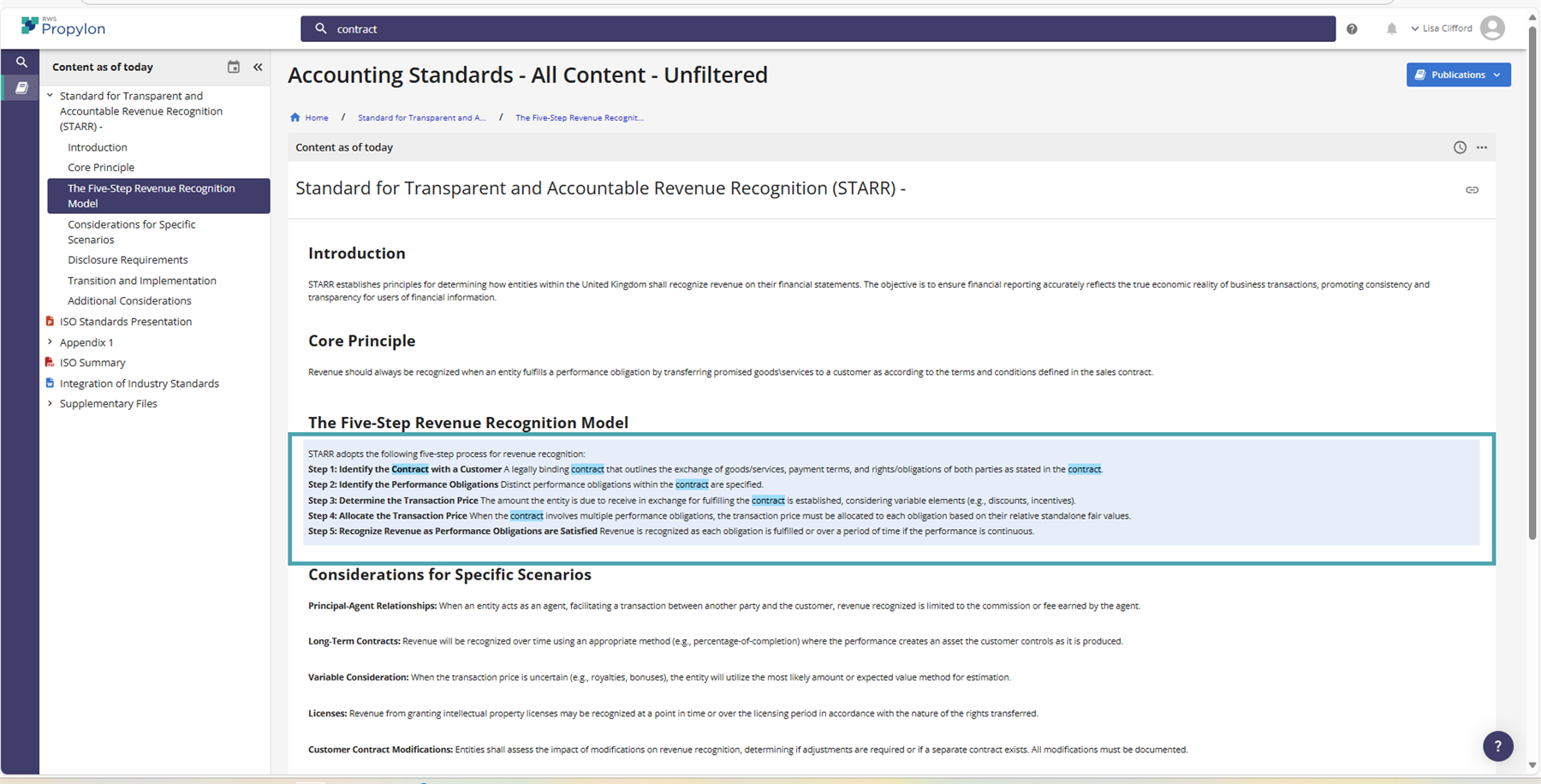
As you can see from the image above, the keyword or search term is now highlighted in blue, making it immediately recognizable by the user and directly them to the relevant text based on their search.
Please note the following:
- A search that was not initiated via a keyword or phrase such as based on metadata values and\or a last change date parameter will not highlight any search matches on the Content view.
- A search that is initiate using the NOT, OR or Boolean operators (*\&) will not highlight any search matches on the Content view.
The Content Dashboard
The Content Dashboard is a centralized report for CCMS users to track changes in components, documents, and folders over a specific timeframe. It also provides visibility into content relationships (external components and related content) to ensure content stays up to date with recent publications. To date, it has been challenging to manage content through this dashboard without multiple repetitive tasks and several pain points for users.
The Solution:
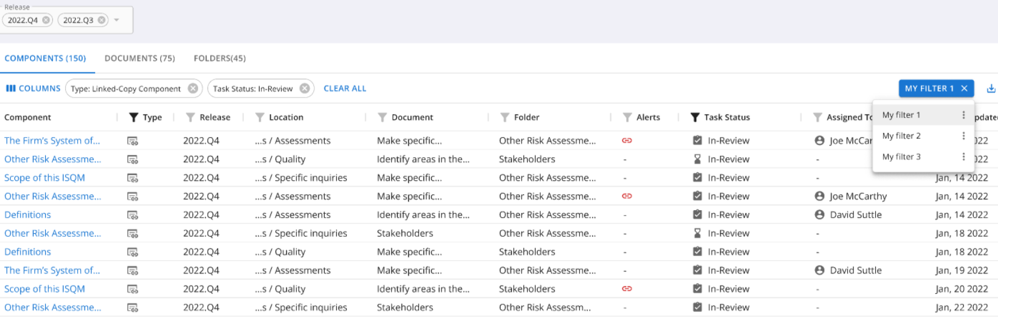
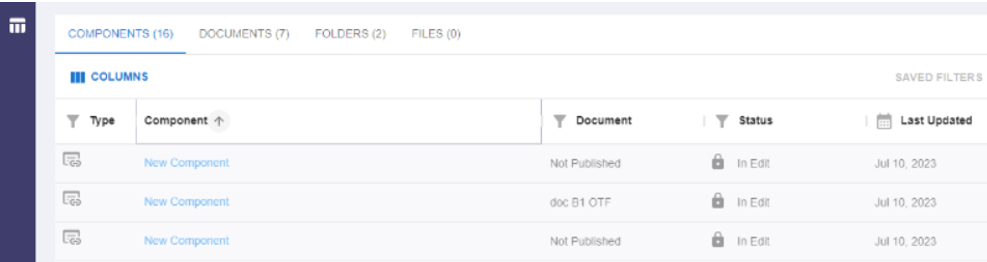
In the release we have introduced functionality to allow users to view, sort, and filter information for each component, document, and folder within a Collection release. They can also customize displayed columns, with preferences retained for future visits. In addition we have extended the information available to include system information (e.g., date updated, component type, task status) and metadata. Users can also export this data for external processing. Finally, this release, includes changes to the UI, filtering, and sorting to enhance dashboard usability.
Saved Filters
Improved Sorting
Other Update(s)
| Change Proposal Improvements |
|
|
Publishing Stability Improvements |
|
|
Cookie Notice |
A cookie notice has been introduced that will allow users set their initial specific preferences and subsequently edit them if required. |
|
Unauthenticated Access to Specific Content |
It is possible to make specific Collections available to users who are not registered Portal users. Please Note: This must be configured by Propylon, please contact your customer service representative if you require more information. |
Issue Log
|
The last publication filter should not be deleted. |
User should not be able to delete all publication filters. |
|
CCMS Logout through Cognito was not working |
SAML and OIDC logout workflows have been fixed and texted |
|
Publication duplicate email |
User email displayed as duplicated on the manage releases page when user kicks off new publish. Fixed and tested |
|
Unlink icon not displayed on metadata fields |
Permissions Issue. Tested and Fixed. |