
 Translate




In this release introduced:
- Document Template Management: Document Templates serve as a foundational feature in any content management systems to streamline the creation of structured documents. Up until now, the absence of template creation functionality in TimeArc CCMS presents significant challenges for users.
- Improved Table of Contents Usability (Portal and CCMS): The Table of Contents (ToC) plays a critical role in simplifying navigation within documents, particularly on the CCMS (Component Content Management System) and Portal platforms. In this release we have introduced new feature to streamline and simplify the users experience.
Document Template Management
Document Templates serve as a foundational feature in content management systems to streamline the creation of structured documents. By automating repetitive and pattern-based tasks, templates reduce the likelihood of human error, improve efficiency, and enhance user satisfaction. Up until now, the absence of template creation functionality in TimeArc CCMS presents significant challenges for users. The reliance on manual processes to create strawman documents exacerbates frustrations and inefficiencies, as users are burdened with repetitive tasks prone to errors. Introducing robust template functionality within TimeArc is the first step to address these challenges and improving the overall authoring experience.
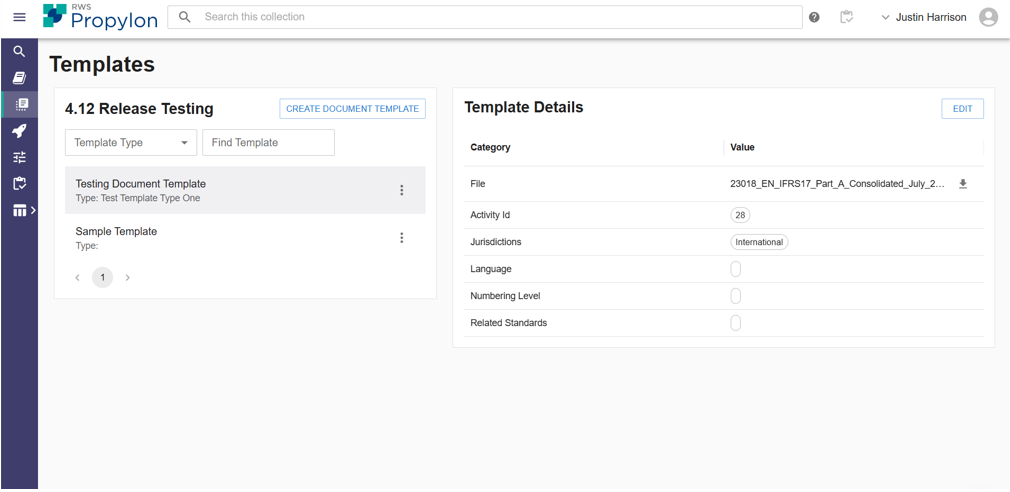
Template Library
The Template Library is accessible through a new "Templates" tab in primary navigation. It enables users to create, manage, and organize templates efficiently.
- Features: Template list with filtering by Name/Type, detailed view for each template, and allow access to workflows to create, edit, and delete templates.
- Sample Template: Users can download a sample template to assist in template creation.
These enhancements aim to improve efficiency, usability, and user productivity through streamlined and centralized template management.
Create a Template
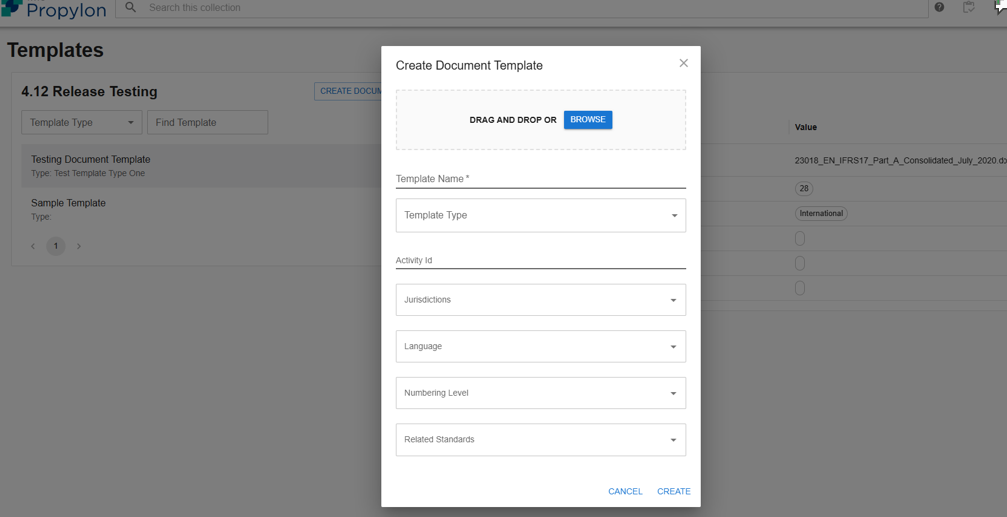
The Create Template feature enables users to create templates within TimeArc CCMS by transforming Word documents with headers, sub-headers, and text into structured templates stored in the system. It enhances usability and consistency in document management.
- Users initiate template creation in the Template Library via a dialog window.
- Prepare a Word document with headers and text.
- Transform the document into a template.
- Save the completed template in the system.
- Key data Point are:
- Document Type: Category of the document.
- Document Name: Unique identifier for the template.
- Document Schema: Structural template derived from the Word document.
Please note: The following functionality is not available in this release:
- Viewing templates within the CCMS.
- Editing template content directly in the CCMS.
Using a Template when authoring a Document
This feature focuses on enabling users to seamlessly utilize a pre-made template when creating a new document within the current workflow. By introducing the option to select a relevant template, we aim to enhance efficiency while ensuring minimal user burden during the file creation process.
- Template Selection Workflow
- When you select Add Document the Add Document dialog appears. The user can select a template from a populated list in the “New Document” section
- The User us required to select a Template Type and then a Template. Selecting the template type, will filter the template options available.
- Default Behavior
- If "no template" is set as the default option, users can start a document without selecting a template
- If no templates exist in the system, the template selection control will be hidden, ensuring a clutter-free user interface.
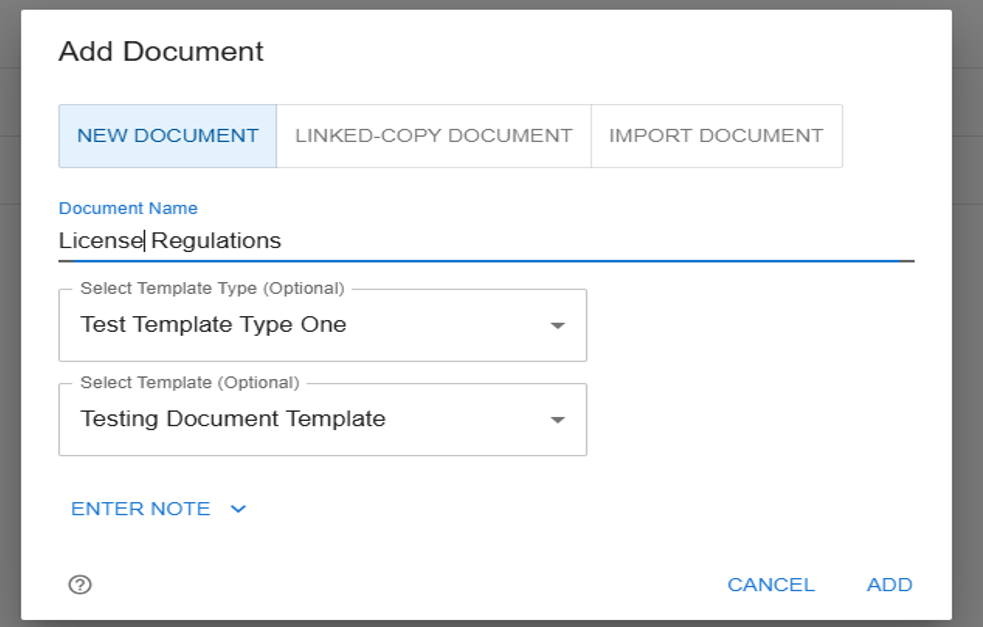
Table of Contents: Usability Improvements
The Table of Contents (ToC) plays a critical role in simplifying navigation within documents, particularly on the CCMS (Component Content Management System) and Portal platforms. Its current functionality requires additional functionality to meet user expectations and provide a simple navigation experience. This initiative aims to enhance the ToC experience both in terms of navigation and editing.
CCMS ToC Changes:
In this release addresses two key issues:
- Simplicity in filtering the ToC: The hierarchical nature of the ToC often makes it challenging for users to locate specific sections, especially in documents with deeply layered content trees. To address this, we have included the ability to refine the ToC based on keyword searches.
- Viewing the Folder in the content body: It is often difficult for users to traverse the ToC and negate through folders. In addition, when you select a folder, the content body is empty. In this release we have used the content body to provide quicker access to the content of a folder when you click on it
Portal ToC Changes:
- Refine Table of Contents: On viewing content, you can refine the entries in the Table of Contents based on a full or partial keyword. On adding text into the "Refine table of contents" field, the Table of Contents will immediately be refined to display headings\subheadings that match that text. The search text is highlighted for each Table of Contents entry that matches and the Table of Contents expands to the entry.
- Viewing the Folder in the content body: As with the CCMS, Portal users also struggle to navigate the ToC at times. The solution applied tot he CCMS has also been applied to the Portal, providing a consistent experience across both platforms and help all users locate the content they wish to access
Improved Keyword Search Functionality: CCMS
TimeArc currently provides keyword search functionality, complemented by metadata filters, to help users locate rules or standards across collections, folders, and files. While these features enable users to find relevant content, the current state of the search functionality falls short of user expectations in two key areas:
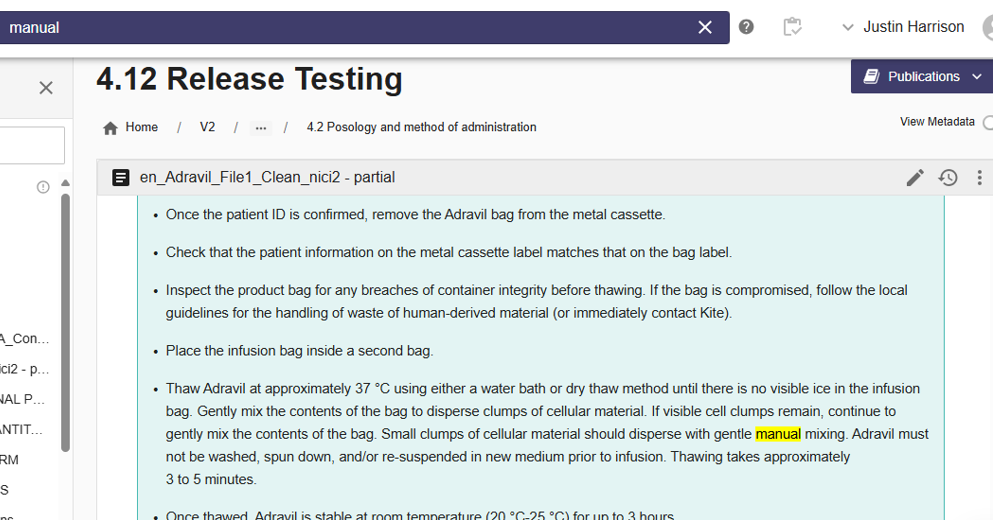
- Lack of Keyword Highlighting: In the CCMS, search results currently do not highlight the matching keywords within documents or files. This omission forces users to spend additional time and effort identifying the specific section of the content that relates to their query. The absence of visual cues leads to a suboptimal user experience and increases cognitive overhead.
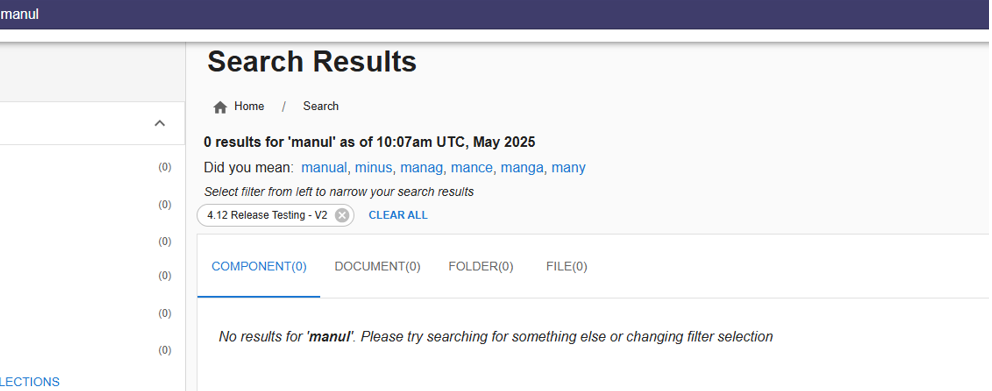
- Misspelling Handling: TimeArc's search does not account for user misspellings. Misspelled keywords are treated as correct entries, leading to failed searches and frustration when users cannot locate the desired content. Despite being a user error, modern search systems mitigate this issue by offering autocorrect or "Did you mean?" suggestions, reducing the impact of spelling mistakes on search outcomes.
To address the identified challenges and improve the user experience, Release 4.12 now include the following two features:
Keyword Highlighting in Results
Introduce visual keyword highlighting in search results to draw attention to the sections of documents or files that match the user's query. This feature will streamline the search process by making it easier for users to pinpoint relevant content within seconds.
Misspelling Handling and Suggestions
Incorporate functionality to detect common misspellings and provide suggestions for alternative terms. Features such as autocorrect or "Did you mean?" prompts will empower users to locate content despite minor input errors, aligning the search experience more closely with modern standards.
Issue Log
| Prevent/Automatically resolve nonsequential ordering data issue | Critical publication issue resolving non-sequential ordering issue. |
| Accessibility | Accessibility updates to the User Interface |
| UI Improvement | Search Results Link Icon - anchored to far right of All Search Results page |
| Search Keystroke Usability Improvement | Pressing the enter key does not open the full results page during quick search results |
| Content Visuals Improvement | Include line breaks on Supporting Comment of a Change Proposal |