Installation of InformationBox plugin caused Studio 2022 to crash

Per a client's request, I opened Trados Studio 2022 and found and installed the InformationBox plugin for that version, but after exiting Trados Studio, I get this error message when I try to open it again:
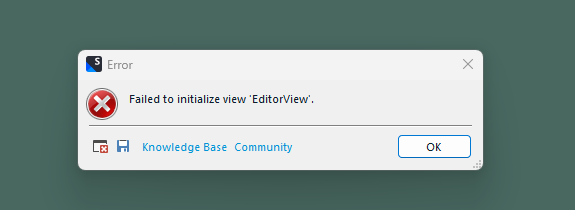
Error message in Trados Studio: 'Failed to initialize view EditorView' with options for Knowledge Base, Community, and an OK button.

Clicking OK results in nothing, that is, I can't open Trados at all now, which is a serious problem. Any help would be much appreciated.


Removed AI Suggestion
[edited by: Anna Haxen at 1:27 PM (GMT 0) on 24 Feb 2026]

emoji
  • Probability score: 0.7  

    Question improvement suggestion: Provide the exact error message you receive when trying to open Trados Studio after the crash, as well as the version of the InformationBox plugin you installed.  

    In the meantime, based on the information you have provided, here is a suggested answer to your question:  

    Hello,  

    It seems you're experiencing a crash with Trados Studio 2022 after installing the InformationBox plugin. Here are some steps you can follow to resolve this issue:  

    **Step 1:** Close Trados Studio completely.  

    **Step 2:** Navigate to the following directory in Windows Explorer:  

    `C:\Users\%username%\AppData\Roaming\Trados\Trados Studio\17\Plugins\Packages`  

    (Note: If you can't find the path, ensure that hidden items are visible in Windows Explorer by checking the "Hidden Items" checkbox under the View tab.)  

    **Step 3:** Look for the InformationBox plugin in this directory and delete it.  

    **Step 4:** After deleting the plugin, you may want to run a repair installation of Trados Studio. To do this, go to Control Panel > Programs > Programs and Features, find Trados Studio 2022, right-click on it, and select "Repair."  

    **Step 5:** Restart your computer and then try to open Trados Studio again.  

    If the issue persists, consider resetting Trados Studio to its default settings by renaming the `Studio17` folder located at `C:\Users\%username%\AppData\Roaming\Trados\Trados Studio\` to `Studio17_old`. This will reset your settings and may resolve the crash.  

    If you continue to experience problems, please provide the exact error message you receive when trying to open Trados Studio, as this will help in diagnosing the issue further.  

    I hope this answer addressed your question. If not, please reject the answer, add the question improvement suggestion information, and click the RWS Community AI checkbox on the right to try again.  

    RWS Community AI

    emoji
  • I deleted the plugin and ran the repair, but Trados 2022 still won't open. No error message appears. A start-up window appears briefly and then disappears after which nothing happens.

    emoji
  • Probability score: 0.8  

    Question improvement suggestion: Provide any additional details about your system configuration, such as the operating system version and whether any recent updates were applied before the issue started.  

    In the meantime, based on the information you have provided, here is a suggested answer to your question:  

    Hello,  

    It seems that Trados Studio 2022 is still not opening even after deleting the plugin and running a repair. Since you mentioned that no error message appears and the startup window disappears quickly, here are some additional steps you can try to resolve the issue:  

    **Step 1:** Close all RWS applications completely.  

    **Step 2:** Navigate to the following directory in Windows Explorer:  

    `C:\Users\%username%\AppData\Roaming\Trados\Trados Studio\`  

    Here, rename the `Studio17` folder to `Studio17_old`. This will reset your settings to default.  

    **Step 3:** Check the Local AppData folder as well:  

    `C:\Users\%username%\AppData\Local\Trados\Trados Studio\`  

    Rename the `17` folder to `17_old` as well.  

    **Step 4:** If you have any plugins installed, consider renaming the `Plugins` folder in both the Roaming and Local directories to `Plugins_old` or deleting it.  

    **Step 5:** After performing these steps, restart your computer and try to open Trados Studio again.  

    **Step 6:** If the issue persists, ensure that your .NET Framework is up to date, as Trados Studio relies on it. You can check for updates in Windows Settings under Update & Security.  

    If you continue to experience issues, please provide any additional details about your system configuration, such as the operating system version and whether any recent updates were applied before the issue started. This information can help in diagnosing the problem further.  

    I hope this answer addressed your question. If not, please reject the answer, add the question improvement suggestion information, and click the RWS Community AI checkbox on the right to try again.  

    RWS Community AI

    emoji
  • I did as instructed, but Trados still doesn't open. The window 'Loading application modules...' appears briefly, then disappears, and nothing happens. I can't find .NET Framework under Programs & Features or Installed Apps.

    emoji
  • Probability score: 0.9  

    Question improvement suggestion: Provide details about your operating system version and any recent updates that may have been applied, as this information can help diagnose the issue further.  

    In the meantime, based on the information you have provided, here is a suggested answer to your question:  

    Hello,  

    It seems that Trados Studio 2022 is still not opening, and the 'Loading application modules...' window appears briefly before disappearing. Here are some additional steps you can take to troubleshoot this issue:  

    **Step 1:** Close all RWS applications completely.  

    **Step 2:** Navigate to the following directory in Windows Explorer:  

    `C:\Users\%username%\AppData\Roaming\Trados\Trados Studio\`  

    Rename the `Studio17` folder to `Studio17_old`. This will reset your settings to default.  

    **Step 3:** Check the Local AppData folder as well:  

    `C:\Users\%username%\AppData\Local\Trados\Trados Studio\`  

    Rename the `17` folder to `17_old` as well.  

    **Step 4:** If you have any plugins installed, consider renaming the `Plugins` folder in both the Roaming and Local directories to `Plugins_old` or deleting it.  

    **Step 5:** After performing these steps, restart your computer and try to open Trados Studio again.  

    **Step 6:** Since you mentioned that you can't find the .NET Framework under Programs & Features or Installed Apps, you may need to install or repair it. You can do this by going to the Windows Features settings:  

    - Type "Turn Windows features on or off" in the Start menu search.  

    - In the Windows Features window, check if the .NET Framework 4.7.2 or later is listed. If not, you may need to download and install it from the Microsoft website.  

    If the issue persists after these steps, please provide details about your operating system version and any recent updates that may have been applied. This information can help in diagnosing the problem further.  

    I hope this answer addressed your question. If not, please reject the answer, add the question improvement suggestion information, and click the RWS Community AI checkbox on the right to try again.  

    RWS Community AI

    emoji
  • We will be pleased to help you with this problem so have logged a support case on your behalf. We do prioritise customers who have a support contract so please keep in mind it could take up to 48 hours, especially over a weekend, but rest assured we will contact you as soon as we can. You will be contacted at the email address used for this Community. Support Case Id : CS0040902.

    Anca Stoian RWS Group

    emoji