Studio 2022 will not start.

I have deleted app folders, repaired, reinstalled, uninstalled installed from scratch. I have removed everything related to sdl or trados and reinstalled a new download.

Nothing works. I cannot work. This is costing me money and spoiling my client relationships.

I need a solution. This is my third request.

Regards

Peter Guest

emoji
Parents
  •   

    Maybe you can provide some information to explain what happens, what operating system you have etc?

    Just telling us it doesn’t work isn’t very helpful.

    Paul Filkin | RWS

    Design your own training!
    You've done the courses and still need to go a little further, or still not clear? 
    Tell us what you need in our Community Solutions Hub

    emoji
  • This my 3rd message on the subject. I have Windows 10 and Studio 2022 will not start after not using the computer for 1 week.

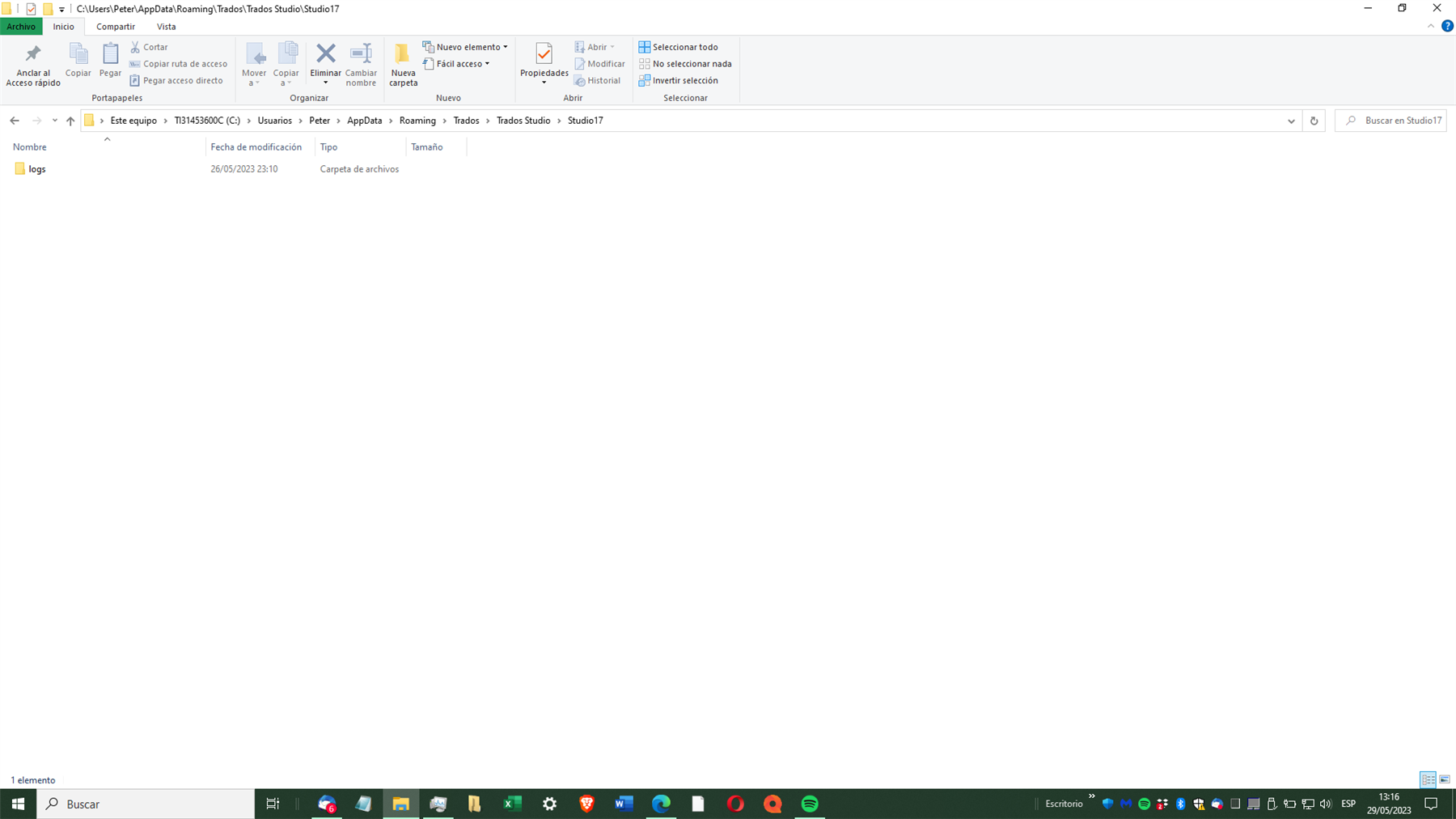
    I have tried opening as administrator. I have deleted the apps folders and everything else and reinstalled, to no avail. On clicking on the icon or exe file it disappears, the small blue icon swirls and disappears and nothing happens. Nothing appears in the task manager. This is what is in the Trados folder.

    Regards

    PeterScreenshot of a Windows file explorer window showing the Trados Studio folder with a single subfolder named 'logs'. No error messages are visible.

    emoji


    Generated Image Alt-Text
    [edited by: Trados AI at 2:05 PM (GMT 0) on 4 Mar 2024]
  •  

    I don't know anything about your other posts, but this post suggests you may not have done everything you could have done.  You won't get help from support until tomorrow anyway so try to help yourself... this is probably what they will do anyway.

    Clean install... try the following.

    1. Uninstall Studio
    2. Uninstall MultiTerm

    Now manually delete these folders if they are still there (back up your TMs, Termbases, AutoSuggest Dictionaries and Projects first in case you make a mistake):

    c:\ProgramData\Package Cache\Trados\TradosStudio2022\
    c:\ProgramData\Package Cache\Trados\MultiTermDesktop2022\
    c:\Program Files (x86)\Trados\Trados Studio\Studio17\
    c:\Program Files (x86)\Trados\MultiTerm\MultiTerm17\
    c:\Users\%username%\AppData\Local\Trados\Trados Studio\17\
    c:\Users\%username%\AppData\Local\Trados\Trados Studio\Studio17\
    c:\Users\%username%\AppData\Local\Trados\MultiTerm\MultiTerm17\
    c:\Users\%username%\AppData\Local\Trados\Trados Studio\17\
    c:\Users\%username%\AppData\Roaming\Trados\Trados Studio\Studio17\
    c:\Users\%username%\AppData\Roaming\Trados\MultiTerm\MultiTerm17\
    c:\Users\%username%\Documents\Studio 2022\Project Templates\
    c:\Users\%username%\Documents\Studio 2022\Projects\projects.xml

    I think that's about it for a clean install. Then reinstall.

    Paul Filkin | RWS

    Design your own training!
    You've done the courses and still need to go a little further, or still not clear? 
    Tell us what you need in our Community Solutions Hub

    emoji
Reply
  •  

    I don't know anything about your other posts, but this post suggests you may not have done everything you could have done.  You won't get help from support until tomorrow anyway so try to help yourself... this is probably what they will do anyway.

    Clean install... try the following.

    1. Uninstall Studio
    2. Uninstall MultiTerm

    Now manually delete these folders if they are still there (back up your TMs, Termbases, AutoSuggest Dictionaries and Projects first in case you make a mistake):

    c:\ProgramData\Package Cache\Trados\TradosStudio2022\
    c:\ProgramData\Package Cache\Trados\MultiTermDesktop2022\
    c:\Program Files (x86)\Trados\Trados Studio\Studio17\
    c:\Program Files (x86)\Trados\MultiTerm\MultiTerm17\
    c:\Users\%username%\AppData\Local\Trados\Trados Studio\17\
    c:\Users\%username%\AppData\Local\Trados\Trados Studio\Studio17\
    c:\Users\%username%\AppData\Local\Trados\MultiTerm\MultiTerm17\
    c:\Users\%username%\AppData\Local\Trados\Trados Studio\17\
    c:\Users\%username%\AppData\Roaming\Trados\Trados Studio\Studio17\
    c:\Users\%username%\AppData\Roaming\Trados\MultiTerm\MultiTerm17\
    c:\Users\%username%\Documents\Studio 2022\Project Templates\
    c:\Users\%username%\Documents\Studio 2022\Projects\projects.xml

    I think that's about it for a clean install. Then reinstall.

    Paul Filkin | RWS

    Design your own training!
    You've done the courses and still need to go a little further, or still not clear? 
    Tell us what you need in our Community Solutions Hub

    emoji
Children