


Unable to update Trados TM

Hello team,

I have been trying to update my Trados TM with my SmartCat TM but I have not been able to as I got the below error message.

I am ahppy both my Trados and SmartCat TM (on email since the files are big and heavy) and would really appreciate if someone can guide me how this can be fixed.

Big thanks in advance.
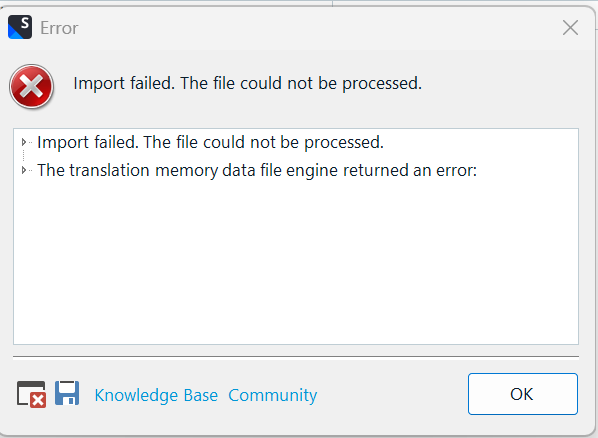
Error message window with a red cross icon stating 'Import failed. The file could not be processed.' and 'The translation memory data file engine returned an error.'


Removed AI Suggestion
[edited by: kushali varma at 12:04 PM (GMT 0) on 21 Jan 2026]
emoji
Parents
  • Probability score: 0.6  

    Question improvement suggestion: Please provide the exact error message you received when trying to update your Trados TM, as well as the version of Trados Studio you are using. This will help in diagnosing the issue more effectively.  

    In the meantime, based on the information you have provided, here is a suggested answer to your question:  

    Hello,  

    It sounds like you're experiencing difficulties updating your Trados Translation Memory (TM) with your SmartCat TM. Here are some steps you can take to troubleshoot and potentially resolve the issue:

    **Step 1:** Check the Error Message  

    Make sure to note the exact error message you received when attempting the update. This information is crucial for diagnosing the problem.

    **Step 2:** Upgrade Translation Memories  

    Instead of using the default import option, try using the "Upgrade Translation Memories" option. This can often resolve issues related to importing TMs. You can find more information about this in the Trados Studio help documentation.

    **Step 3:** Verify File Compatibility  

    Ensure that the TM files you are trying to import are compatible with your version of Trados Studio. If you are using legacy TM files, make sure you have all the necessary files (e.g., *.tmw, *.iix, *.mdf, *.mtf, and *.mwf) for the import to work correctly.

    **Step 4:** Check for Updates  

    Make sure that your Trados Studio is updated to the latest version. You can check for updates by going to Help > Check for Updates within the application.

    **Step 5:** Clean Up the TMX File  

    If you are importing a TMX file, consider cleaning it up by removing overly long translation units, as this can sometimes cause import failures.

    **Step 6:** Test with a Simple Path  

    If your TM is located on a network drive, try copying it to your local C:\ drive and attempt the import from there. This can help avoid issues related to network paths.

    If you continue to experience issues after trying these steps, please provide the exact error message and the version of Trados Studio you are using for further assistance.  

    I hope this answer addressed your question. If not, please reject the answer, add the question improvement suggestion information, and click the RWS Community AI checkbox on the right to try again.  

    RWS Community AI

    emoji
Reply
  • Probability score: 0.6  

    Question improvement suggestion: Please provide the exact error message you received when trying to update your Trados TM, as well as the version of Trados Studio you are using. This will help in diagnosing the issue more effectively.  

    In the meantime, based on the information you have provided, here is a suggested answer to your question:  

    Hello,  

    It sounds like you're experiencing difficulties updating your Trados Translation Memory (TM) with your SmartCat TM. Here are some steps you can take to troubleshoot and potentially resolve the issue:

    **Step 1:** Check the Error Message  

    Make sure to note the exact error message you received when attempting the update. This information is crucial for diagnosing the problem.

    **Step 2:** Upgrade Translation Memories  

    Instead of using the default import option, try using the "Upgrade Translation Memories" option. This can often resolve issues related to importing TMs. You can find more information about this in the Trados Studio help documentation.

    **Step 3:** Verify File Compatibility  

    Ensure that the TM files you are trying to import are compatible with your version of Trados Studio. If you are using legacy TM files, make sure you have all the necessary files (e.g., *.tmw, *.iix, *.mdf, *.mtf, and *.mwf) for the import to work correctly.

    **Step 4:** Check for Updates  

    Make sure that your Trados Studio is updated to the latest version. You can check for updates by going to Help > Check for Updates within the application.

    **Step 5:** Clean Up the TMX File  

    If you are importing a TMX file, consider cleaning it up by removing overly long translation units, as this can sometimes cause import failures.

    **Step 6:** Test with a Simple Path  

    If your TM is located on a network drive, try copying it to your local C:\ drive and attempt the import from there. This can help avoid issues related to network paths.

    If you continue to experience issues after trying these steps, please provide the exact error message and the version of Trados Studio you are using for further assistance.  

    I hope this answer addressed your question. If not, please reject the answer, add the question improvement suggestion information, and click the RWS Community AI checkbox on the right to try again.  

    RWS Community AI

    emoji
Children
No Data
