Erasing project templates in the Apply Studio Project Template drop down list

Hello!

I want to erase all of the template that are now in the drop down list in Apply Studio Project Template (see first screen cap). Is there a way to do it?

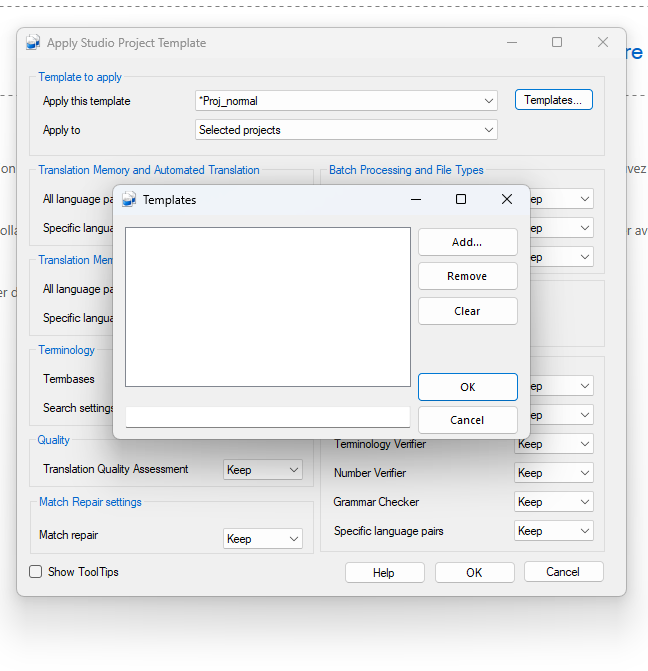
I have tried with the Templates button, but no template is there (second screen cap), so I cannot remove them.

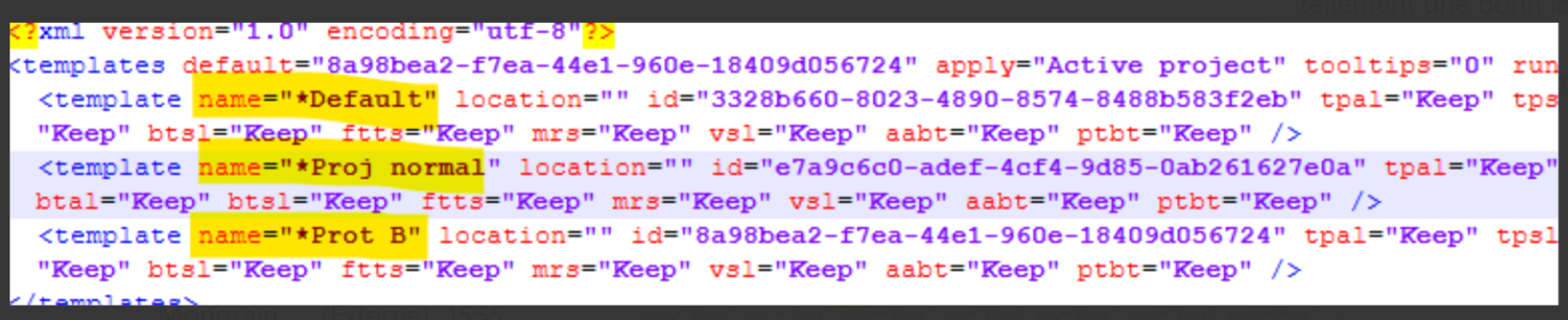
I have tried uninstalling and reinstalling the plug-in. I have deleted the ASPT.xml file in C:\Users\[USERNAME]\AppData\Roaming\SDL\ASPT.xml with no luck. I even tried modifiying the ASPT file, same result (see third screen cap).

Lastly, I enven tried resetting Studio by deleting the .xml files in C:\Users\UserName\AppData\Roaming\Trados\Trados Studio\Studio18. 

Nothing changes. The templates are still there in the Apply Studio Project Template list.

Is there a way to change them?

Thank you!
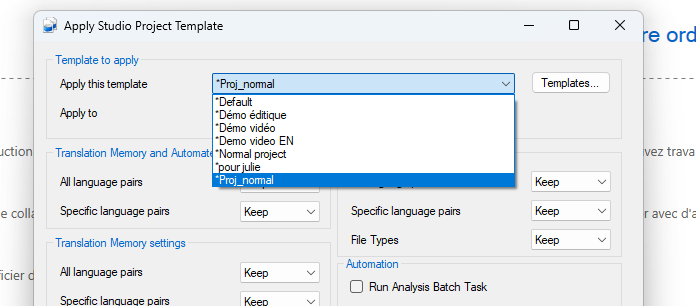
Apply Studio Project Template window showing a dropdown list with template options such as Default, Demo video, and Proj_normal.

Apply Studio Project Template window with the Templates button clicked, showing an empty Templates dialog with Add, Remove, and Clear buttons.

XML file snippet showing template definitions with attributes such as name, location, and id. Highlighted templates include Default, Proj normal, and Prot B.


Generated Image Alt-Text
[edited by: RWS Community AI at 4:35 PM (GMT 1) on 6 Jul 2025]
emoji
  • Probability score: 0.8  

    Question improvement suggestion: Provide the exact version of Trados Studio you are using, as well as any specific error messages you may have encountered during your attempts to remove the templates.  

    In the meantime, based on the information you have provided, here is a suggested answer to your question:  

    Hello!  

    It sounds like you've already taken several steps to try to remove the templates from the "Apply Studio Project Template" dropdown list. Here’s a step-by-step guide to help you further:

    **Step 1:** Ensure Trados Studio is completely closed before making any changes.  

    **Step 2:** Navigate to the templates folder specific to your version of Trados Studio. The path generally looks like this:  

    - For Trados Studio 2022: `C:\Users\%username%\Documents\Studio 2022\Project Templates`  

    - For Trados Studio 2021: `C:\Users\%username%\Documents\Studio 2021\Project Templates`  

    - Adjust the path according to your version.  

    **Step 3:** In the Project Templates folder, look for any files that may correspond to the templates you want to remove. If you find them, delete those files.  

    **Step 4:** If you have already deleted the `ASPT.xml` file and it did not resolve the issue, try renaming the entire Project Templates folder (e.g., to `Project Templates_old`) and then reopen Trados Studio. This will force the application to recreate the folder and its contents.  

    **Step 5:** After reopening Trados Studio, check the "Apply Studio Project Template" dropdown list to see if the templates have been cleared.  

    **Step 6:** If the templates still appear, consider resetting Trados Studio to its default settings by renaming the relevant XML files in the AppData folder as mentioned in your previous attempts.  

    **Step 7:** Lastly, if none of the above steps work, you may want to check for any updates for Trados Studio, as sometimes bugs are fixed in newer versions.  

    I hope this answer addressed your question. If not, please reject the answer, add the question improvement suggestion information, and click the RWS Community AI checkbox on the right to try again.  

    RWS Community AI

    emoji
  • One thing to check is if the project templates are also installed under File / Setup / Project templates. It also pulls them from there. I'm not sure if you can remove them from the app if the project templates are also listed here.

    emoji