Automated pretranslation with Azure OpenAI not working in Studio 2024

Hello,

I am using Trados Studio 2024 - 18.0.2.3255. I have a supscription to Azure OpenAI. Everything works perfectly fine when I translate segment by segment manually, but pre-translation with AI when creating a project does not work. It doesn't work when I activate the batch task "Pre-translate Files with OpenAI provider for Trados" either. I get the error message: "Unexpected exception when configuring file multiFileConverter for task 'Pre-translate Files with OpenAI provider for Trados': Only Exception type is allowed." I tried to pre-translate adding a local TM along with the OpenAI provider, as well as using only the OpenAI provider, but neither of these options work.
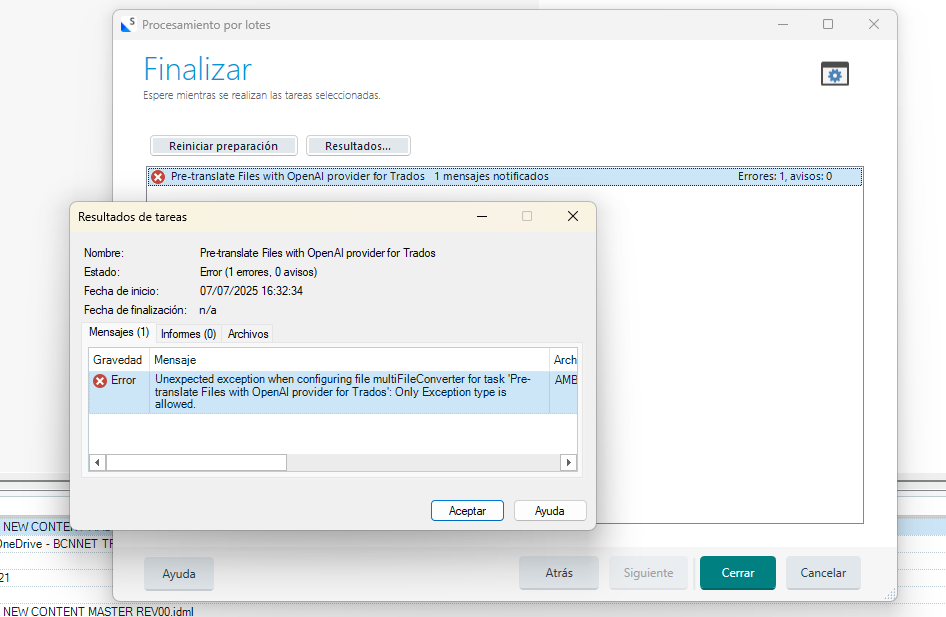
Trados Studio error window showing 'Pre-translate Files with OpenAI provider for Trados' task with an error message: 'Unexpected exception when configuring file multiFileConverter for task Pre-translate Files with OpenAI provider for Trados: Only Exception type is allowed.'

Thank you for your help!


Generated Image Alt-Text
[edited by: RWS Community AI at 2:46 PM (GMT 1) on 7 Jul 2025]
emoji
  • Probability score: 0.7  

    Question improvement suggestion: Provide the exact steps you took to set up the pre-translation task and any specific configurations you made in Trados Studio 2024.  

    In the meantime, based on the information you have provided, here is a suggested answer to your question:  

    Hello,  

    Step 1: Ensure that you have the latest updates for Trados Studio 2024 installed. Sometimes, issues can arise from using outdated software.  

    Step 2: Verify your Azure OpenAI subscription and ensure that it is correctly configured within Trados Studio. Check that the API keys and settings are properly set up.  

    Step 3: Before running the pre-translation task, run a 'Verify Files' task to identify any potential issues that might cause exceptions. This can help you catch formatting or language code errors.  

    Step 4: When creating your project, try to pre-translate using only the Language Weaver Cloud provider. If you have other Translation Memories (TMs) enabled, disable them and see if that resolves the issue.  

    Step 5: If the error persists, consider creating the project using only Group Share TMs first, then run the batch task 'Pre-translate' again with the Language Weaver Cloud provider.  

    Step 6: If you continue to encounter the error message, it may be beneficial to restart Trados Studio or even your computer, as this can sometimes resolve temporary glitches.  

    If these steps do not resolve the issue, please provide more details about your setup and any specific configurations you have made, as this will help in diagnosing the problem further.  

    I hope this answer addressed your question. If not, please reject the answer, add the question improvement suggestion information, and click the RWS Community AI checkbox on the right to try again.  

    RWS Community AI

    emoji
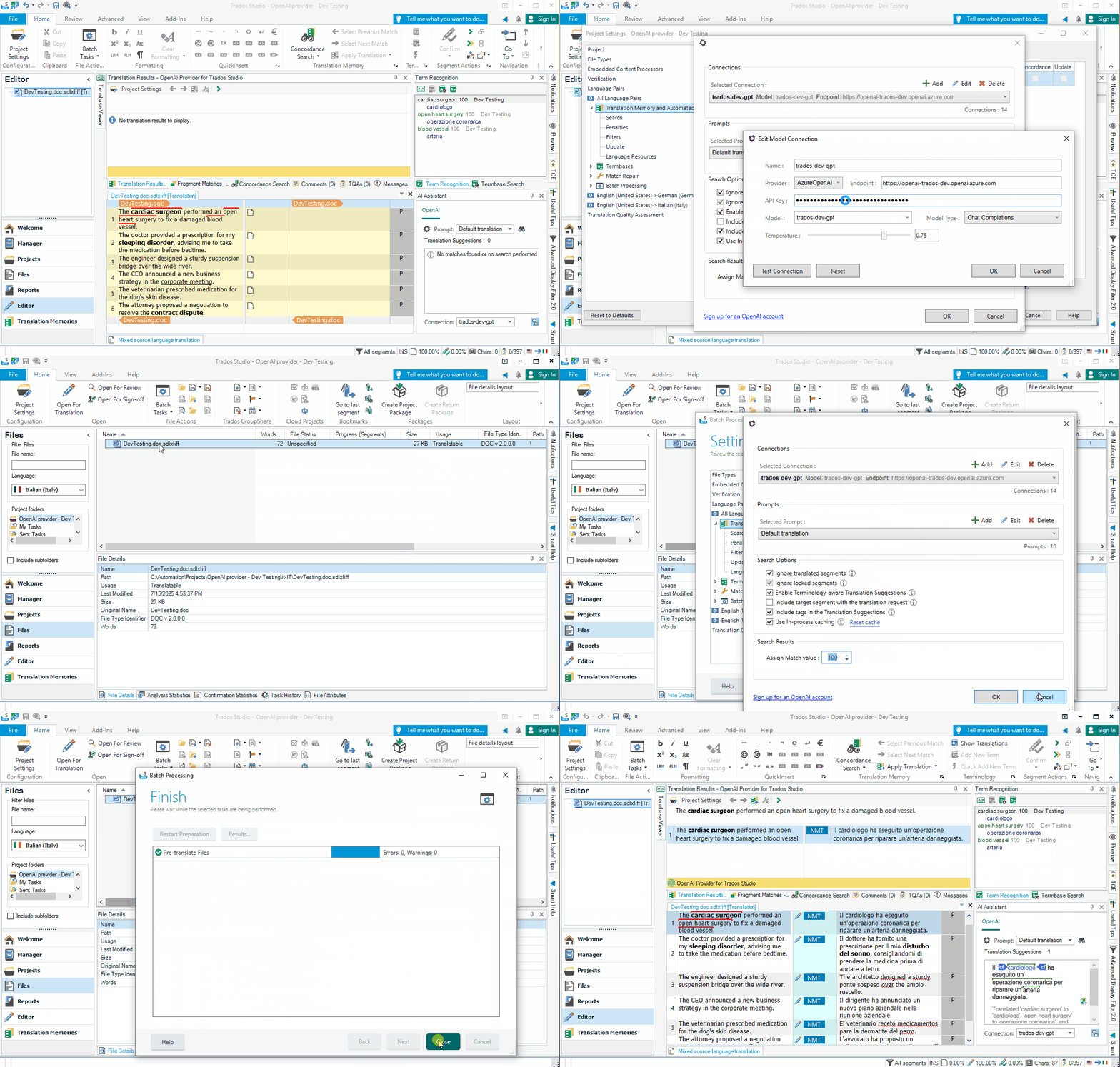
  • Hi  , Stange that it works in the editor interactive workflow but not in the batch-task workflow.  The only thing I see you doing differently is that you are selecting '"Pre-translate Files with OpenAI provider for Trados' batch task. The batch task "Pre-translate Files with OpenAI provider for Trados" is intended for a very specific scenario: it's meant to be run after a pre-existing machine translation (MT) or translation memory (TM) process, so that the OpenAI provider can further refine the already-translated segments. It isn't designed to be used as the main pre-translation engine directly on raw source content during initial project creation.

    For typical workflows where you want Trados to pre-translate your source files using your Azure OpenAI connection, you should select the usual "Pre-translate" batch task during project setup. Here’s what you should do:

    • Go to Batch Tasks.
    • Select the standard "Pre-translate Files" task (not the special OpenAI one).
    • Ensure your Azure OpenAI provider is enabled and prioritized in your Translation Memories and Machine Translation list.
    • Important: remember to set the 'Assign match value' percentage (from the provider settings) to be higher than the 'Minimum match value' of the pre-translate batch task settings.
    • Run the task:

    try this and let me know how it goes,

    I have attached here a quick demo:
    Trados Studio editor view showing a document with highlighted text 'The cardiac surgeon performed an open heart surgery to fix a damaged blood vessel' and no translation results displayed.

    Patrick Andrew Hartnett | Developer Experience | Team Lead | RWS Group

    emoji


    Generated Image Alt-Text
    [edited by: RWS Community AI at 3:28 PM (GMT 1) on 15 Jul 2025]