Translate



- Trados Studio 2024 - 18.0.2.3255
- Multilingual Excel FileType plugin - 2.0.2.1
I am trying to use the Multilingual Excel File Type to generate output in 10 languages in the same file (instead of copying-pasting language per language as we have done until now).
The Worksheet Mapping seems to be okay.
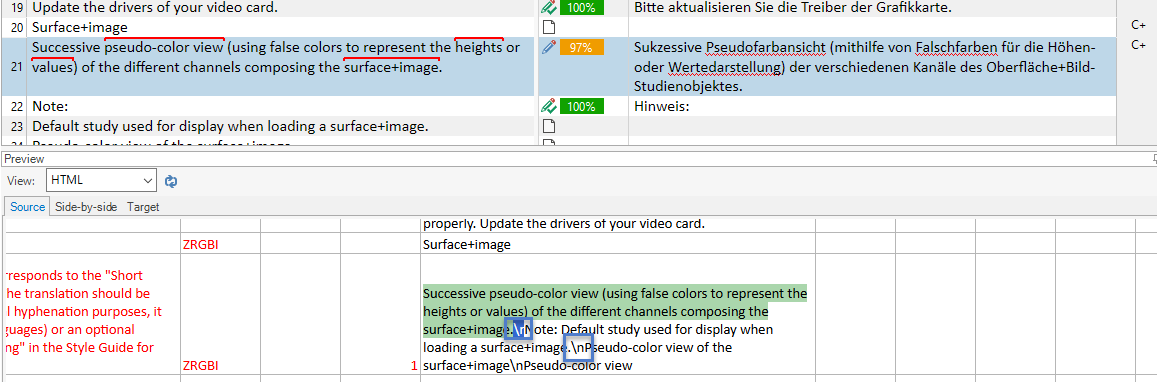
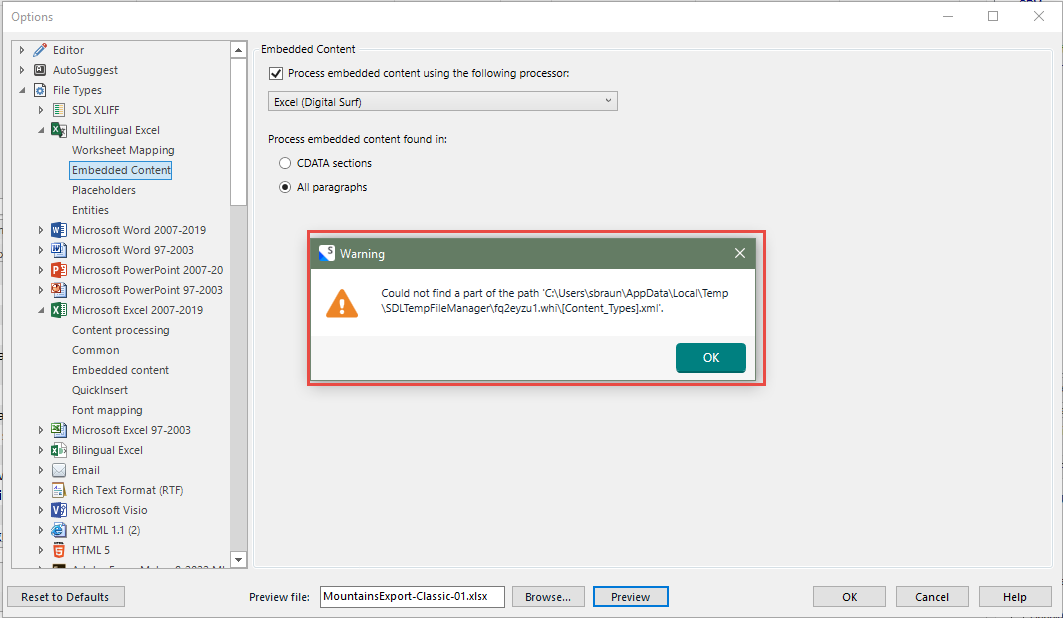
I want to use the same custom "Embedded content" settings as those that we have defined for Microsoft Excel 2007-2019, mainly for segmentation purposes between text segments in strings composed of several segments:
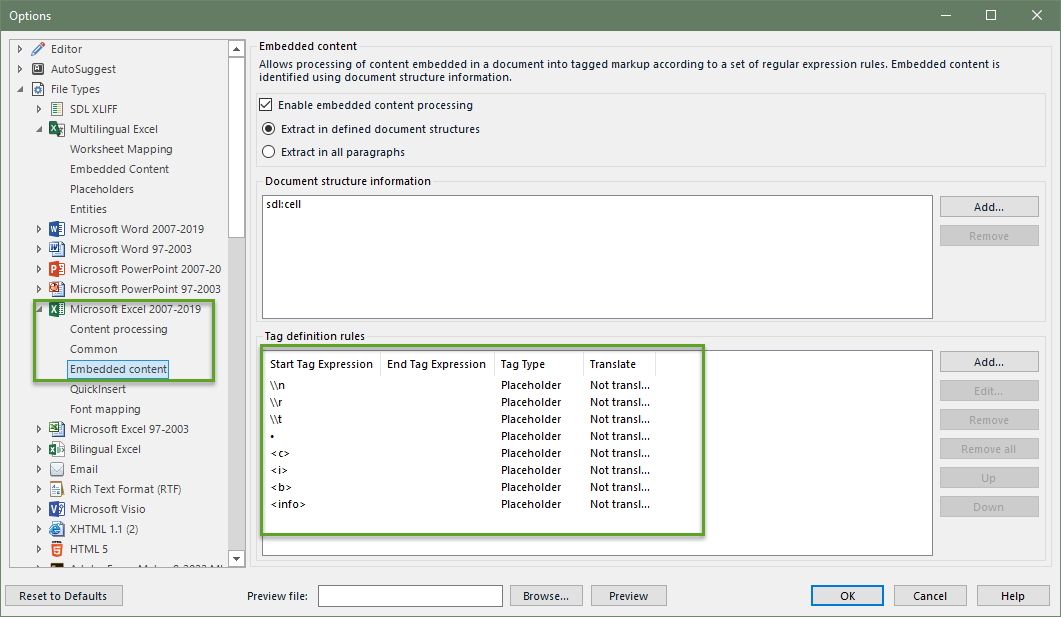
I created (by copying) a new custom embedded content processor for the "Multilingual Excel" File Type: "Excel (Digital Surf)"
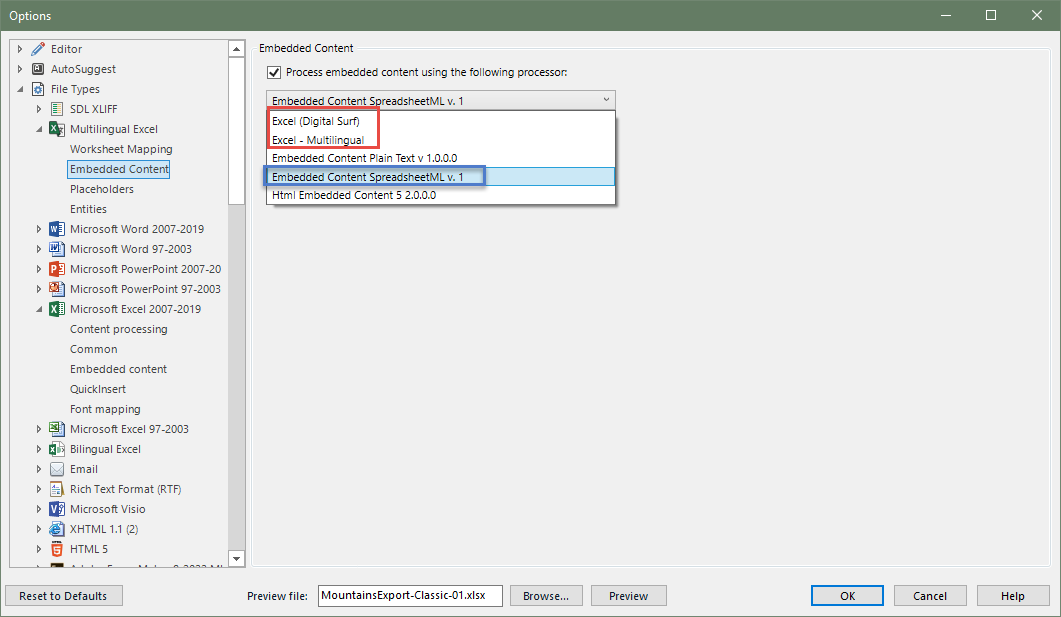
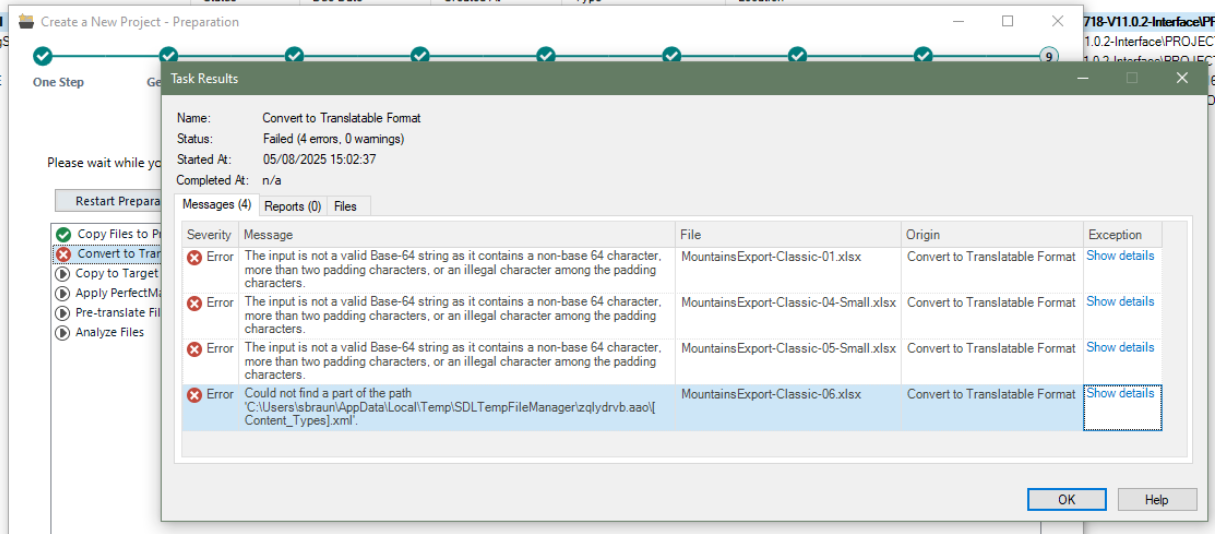
But whatever entry in this list I try to use, I keep getting Warnings, when trying to [Preview], or when trying to create a project:
Could not find a part of the path 'C:\xxx\xxx\AppData\Local\Temp\SDLTempFileManager\zqlydrvb.aao\[Content_Types].xml'.
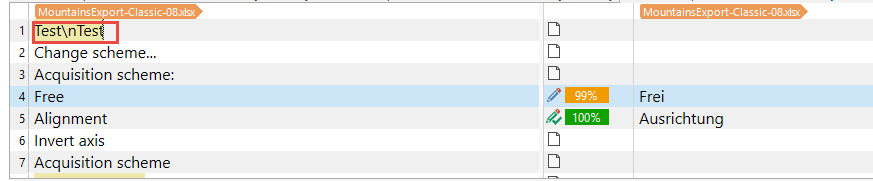
In the cases where I manage to create a project nevertheless, the defined settings (for embedded content) are not applied, and in addition, I most often get the following message:
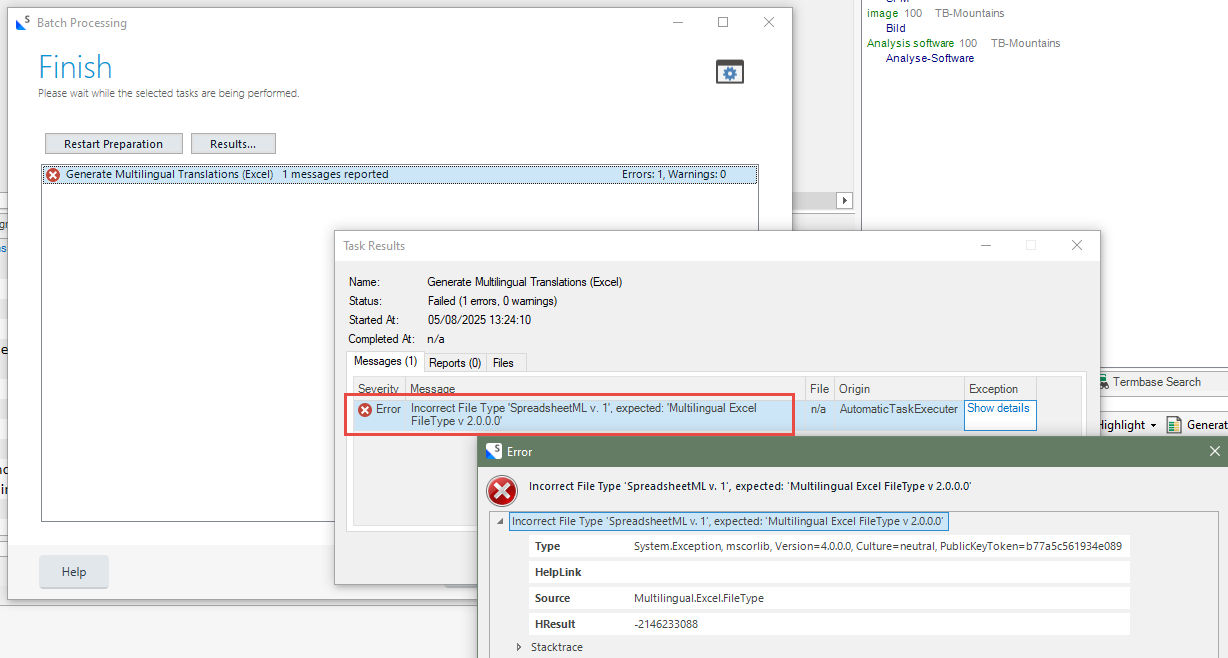
Incorrect File Type 'SpreadsheetML v. 1', expected: 'Multilingual Excel FileType v 2.0.0.0'
► I would appreciate any help on how to create and use the correct embedded content processor, for the Multilingual Excel File Type :-)
Thanks
Sonja
PS: Here is the content of the FileType settings (.sdlftsettings) for Microsoft Excel 2007-2019 that work fine (and that I would like to use with the Multilingual Excel File Type):
<?xml version="1.0" encoding="utf-8"?><SettingsBundle><SettingsGroup Id="SpreadsheetML v. 1"><Setting Id="RegexEmbeddingEnabled">True</Setting><Setting Id="FilterByStructureInfo">True</Setting><Setting Id="FileTypeConfiguration_ComponentBuilderId">SpreadsheetML v. 1</Setting><Setting Id="FileTypeConfiguration_ProfileData"><FileTypeInformation xmlns:i="">www.w3.org/.../XMLSchema-instance" xmlns="">www.sdl.com/filetypesupport"><Description>Documents created with Microsoft Excel 2007-2019, including documents saved in the Microsoft Excel format in Google Sheets and LibreOffice.</Description><Expression>(^[\d\D]*\.[xX][lL][sS][xX]$)|(^[\d\D]*\.[xX][lL][sS][mM]$)|(^[\d\D]*\.[xX][lL][tT][xX]$)|(^[\d\D]*\.[xX][lL][tT][mM]$)</Expression><FileDialogWildcardExpression>*.xlsx;*.xlsm;*.xltx;*.xltm</FileDialogWildcardExpression><FileTypeDefinitionId>SpreadsheetML v. 1</FileTypeDefinitionId><FileTypeDocumentName>Microsoft Excel 2007-2019 Document</FileTypeDocumentName><FileTypeDocumentsName>Microsoft Excel 2007-2019 Documents</FileTypeDocumentsName><FileTypeName>Microsoft Excel 2007-2019</FileTypeName></FileTypeInformation></Setting><Setting Id="MatchRuleList7StartTagRegex"><info></Setting><Setting Id="MatchRuleList7SegmentationHint">Exclude</Setting><Setting Id="MatchRuleList7">True</Setting><Setting Id="MatchRuleList6StartTagRegex"><b></Setting><Setting Id="MatchRuleList6SegmentationHint">Exclude</Setting><Setting Id="MatchRuleList6">True</Setting><Setting Id="MatchRuleList5StartTagRegex"><i></Setting><Setting Id="MatchRuleList5SegmentationHint">Exclude</Setting><Setting Id="MatchRuleList5">True</Setting><Setting Id="MatchRuleList4StartTagRegex"><c></Setting><Setting Id="MatchRuleList4SegmentationHint">Exclude</Setting><Setting Id="MatchRuleList4">True</Setting><Setting Id="ProcessHeadersAndFooters">False</Setting><Setting Id="ExtractSheetNames">False</Setting><Setting Id="SkipCellColor">FF0000</Setting><Setting Id="SkipCellBasedOnTextColor">True</Setting><Setting Id="MatchRuleList3StartTagRegex">• </Setting><Setting Id="MatchRuleList3SegmentationHint">Exclude</Setting><Setting Id="MatchRuleList3">True</Setting><Setting Id="MatchRuleList2SoftBreak">True</Setting><Setting Id="MatchRuleList2WordStop">True</Setting><Setting Id="MatchRuleList2StartTagRegex">\\t</Setting><Setting Id="MatchRuleList2SegmentationHint">Exclude</Setting><Setting Id="MatchRuleList2">True</Setting><Setting Id="MatchRuleList1SoftBreak">True</Setting><Setting Id="MatchRuleList1WordStop">True</Setting><Setting Id="MatchRuleList1StartTagRegex">\\r</Setting><Setting Id="MatchRuleList1SegmentationHint">Exclude</Setting><Setting Id="MatchRuleList1">True</Setting><Setting Id="MatchRuleList0SoftBreak">True</Setting><Setting Id="MatchRuleList0WordStop">True</Setting><Setting Id="MatchRuleList0StartTagRegex">\\n</Setting><Setting Id="MatchRuleList0SegmentationHint">Exclude</Setting><Setting Id="MatchRuleList0">True</Setting><Setting Id="MatchRuleList">True</Setting></SettingsGroup></SettingsBundle>
Generated Image Alt-Text
[edited by: RWS Community AI at 2:41 PM (GMT 1) on 5 Aug 2025]