OpenAI Provider for Trados Studio documentation seems incorrect to me

Please someone correct me if I am wrong, but I think the current documentation is misleading. If you follow it and create a custom batch task:

Pre-translate Files
Pre-translate Files with OpenAI provider

…you won’t get correct results.

Here’s why:

In the first step, TM matches and OpenAI run together. The AI translations are cached immediately.
By the time you run the second step, OpenAI mostly just reuses what was already cached. It doesn’t re-translate based on TM matches.

The correct approach is:

Run Pre-translate Files with only the TM enabled, using a lower fuzzy match threshold to catch partial matches.
Then run Pre-translate Files with the OpenAI provider. This way, OpenAI only translates segments the TM didn’t cover.

This ensures TM fuzzy matches are fully leveraged before AI fills the gaps.

Excerpt from documentation:
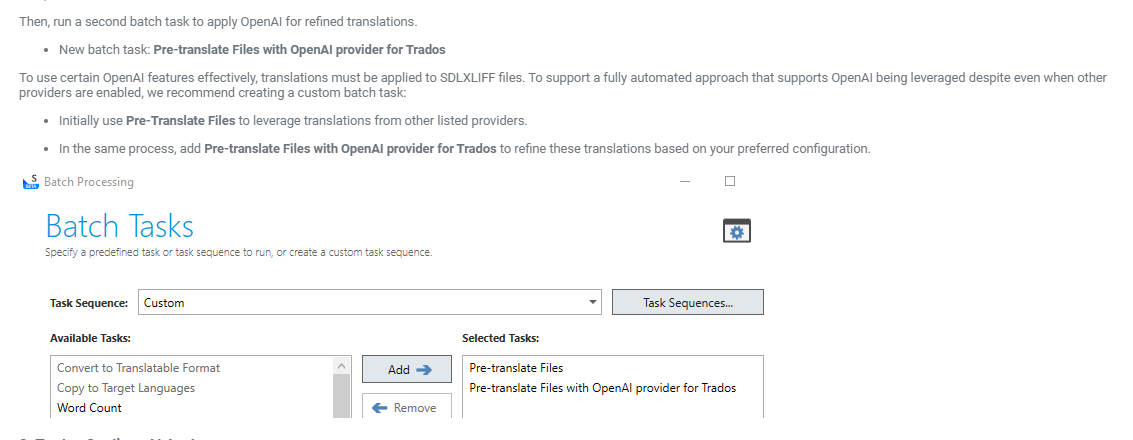
Screenshot of the Batch Tasks section in the RWS AppStore application, showing a custom task sequence with 'Pre-translate Files' and 'Pre-translate Files with OpenAI provider for Trados' selected.


Generated Image Alt-Text
[edited by: RWS Community AI at 9:29 AM (GMT 0) on 24 Mar 2026]

emoji
Parents
  • Hey  ,  your observation is valid, and I agree the current documentation can be confusing.

    For a normal pre-translation workflow, the best approach is typically not to use:

    • Pre-translate Files
    • followed by Pre-translate Files with OpenAI provider

    as a standard two-step sequence.

    The reason is that, in the first step, TM/MT/OpenAI can already run and OpenAI results may be cached. By the time the second OpenAI-specific step runs, it may mostly reuse cached output rather than meaningfully reprocessing segments based on TM matches.

    So for everyday pre-translation, the better workflow is indeed:

    1. run Pre-translate Files with TM first, so TM and fuzzy matches are leveraged,
    2. then run OpenAI afterward only for content not already covered.

    That said, the “Pre-translate Files with OpenAI provider” batch task was originally introduced for a more "specific scenario": when OpenAI is being used to review or update an existing translation, rather than simply generate a first-pass translation.

    For example:

    • first pre-translate with TM or another provider such as DeepL,
    • then run OpenAI with a prompt intended to review/improve/update the existing translation.

    This is important because, within a single pre-translate action, providers run independently, so OpenAI does not necessarily have access to the translation output produced by TM/another provider in the way a “review this translation” prompt would require.

    So in short:

    • for standard pre-translation, use Pre-translate Files with the OpenAI provider selected as needed;
    • the OpenAI-specific batch task is really intended for the review/update translation scenario.

    I do agree the current naming/documentation is misleading, and we should improve that clarification.

    Patrick Andrew Hartnett | Developer Experience | Team Lead | RWS Group

    emoji
  • Hi  

    In that case there is no way to run the combined batch task with the two batch tasks, as in the first batch task both providers (MT provider - in my case Lara - and OpenAI Provider) are running simoultaneously. I thought there was a way to 1) pretranslate the file using the TM and the MT provider, 2) refine the pretranslation with OpenAI (using terms in Multiterm and according to rules in the prompt) in one run, but if I understand it right, I have to do it in two separate steps, wich is unfortunately for our PMs to prepare the files, as they need to change settings after the first batch task (deactivating the MT provider and activating the OpenAI provider).

    Am I right or am I missing something? Until now I used the plugin only for the normal pretranslation workflow, but I discovered Lara and it would be much better using this provider and refine the translation with the Trados OpenAI Provider.

    Thank you for you answer,

    Angelo

    emoji
  • Hey  , 

    Yes, you can do this in one custom batch task.

    Think of it as two phases inside the same custom batch task:

    A. First phase: normal pre-translation Run Pre-translate Files using your TM and Lara.

    Important: in this phase, OpenAI should not be used as a normal translation provider, otherwise it will also translate at the same time as Lara.

    B. Second phase: OpenAI refinement Then add Pre-translate Files with OpenAI provider as the next step in the same custom batch task.

    Here OpenAI is used specifically to review/refine/update the translations that already exist from the first phase.

    C. Result Your custom batch task would look like this:

    1. Pre-translate Files

      • TM enabled
      • Lara enabled
      • OpenAI not used for this normal pre-translation step
    2. Pre-translate Files with OpenAI provider

      • OpenAI prompt used to refine the existing translations
      • for example: apply terminology, follow style rules, improve Lara output, etc.

    So your PMs should not need to run two separate batch tasks manually or change settings between them, as long as the custom batch task is set up this way.

    The key point is:

    Use Lara/OpenAI together only if you want them both to generate translations independently. Use Lara first and OpenAI second if you want OpenAI to refine Lara’s output.

    In your case, because you want Lara to create the translation and OpenAI to improve it afterward, the combined custom batch task is the right approach.

    Patrick Andrew Hartnett | Developer Experience | Team Lead | RWS Group

    emoji
  • Hi  

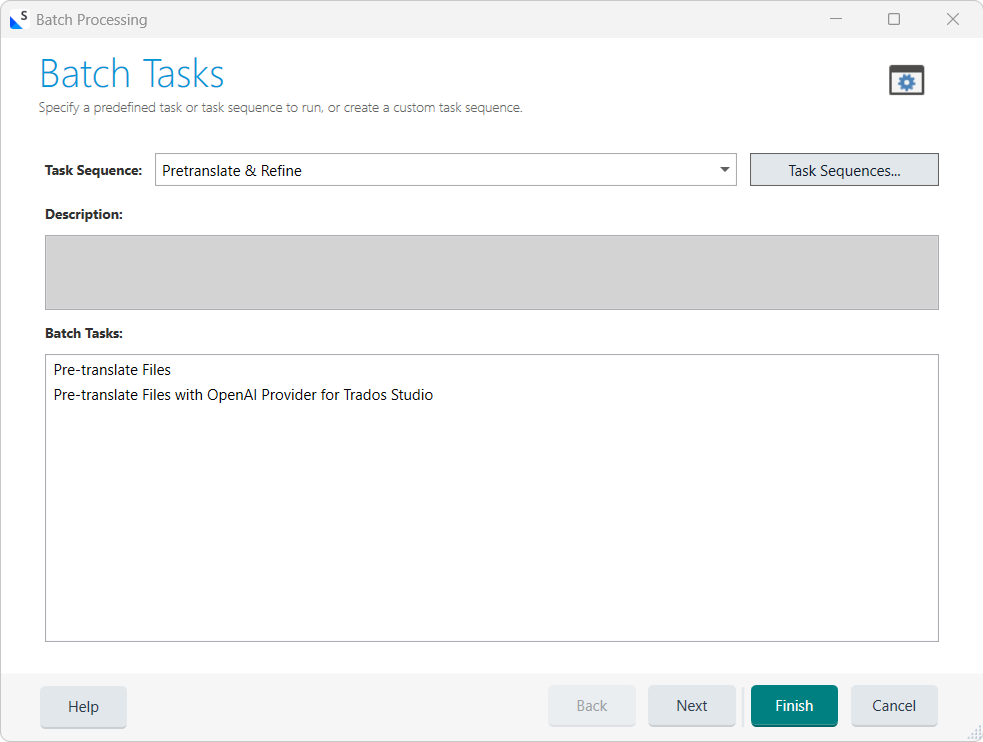
    I have created a custom batch task

    Batch Processing window showing task sequence 'Pretranslate & Refine' with batch tasks including 'Pre-translate Files' and 'Pre-translate Files with OpenAI Provider for Trados Studio'.

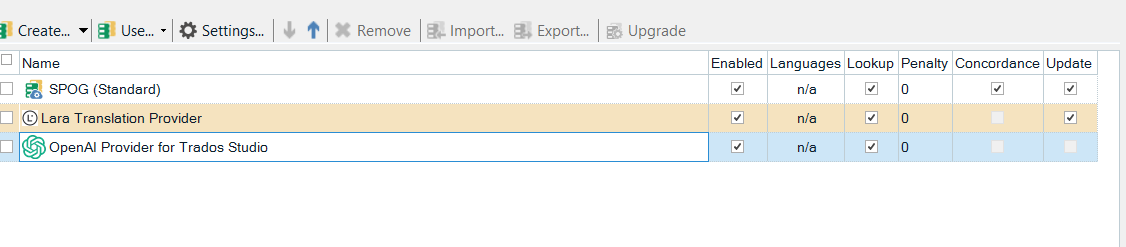
    With this Providers activated:
    Settings window displaying three providers: SPOG (Standard), Lara Translation Provider, and OpenAI Provider for Trados Studio, with checkboxes for enabled, lookup, and update options.
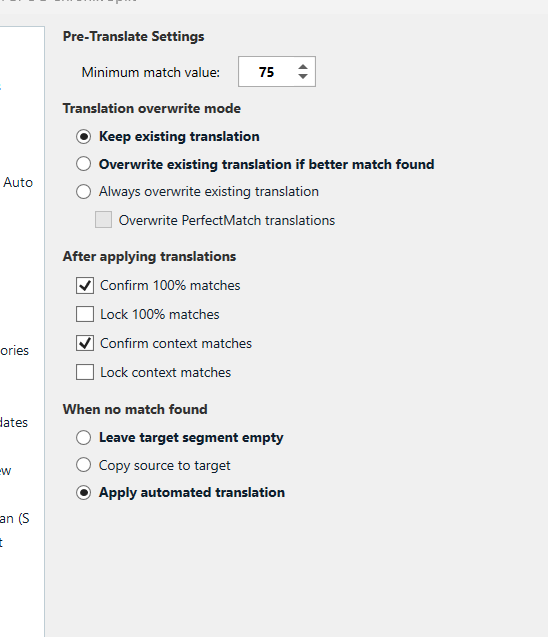
    With these pretranslate settings
    Pre-Translate Settings window with options for minimum match value set to 75, translation overwrite mode, and actions for 100% matches and when no match is found.

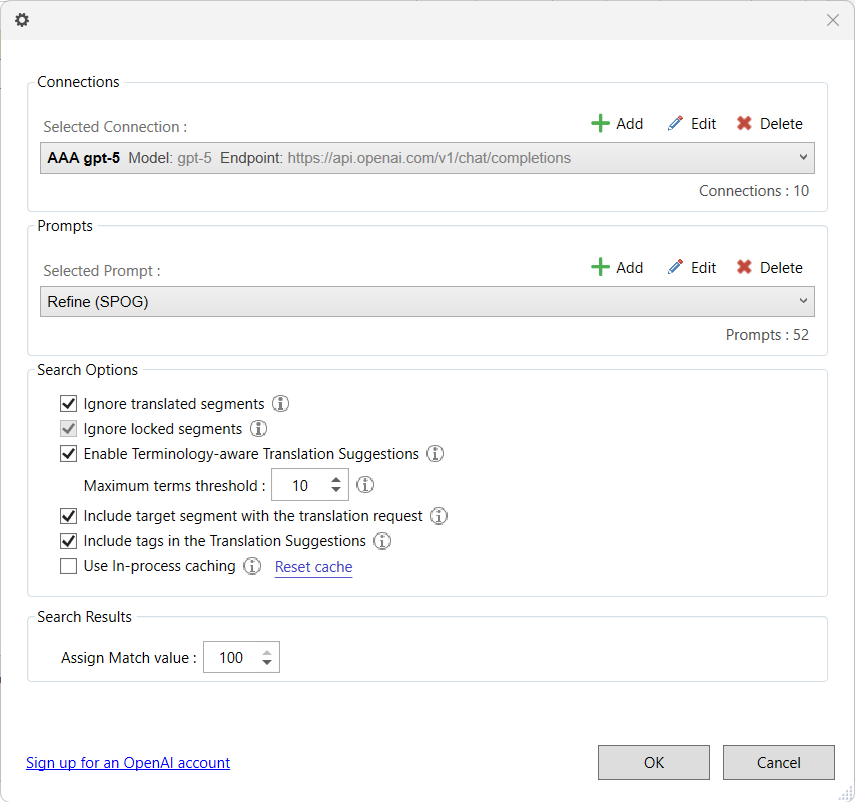
    And these settings for OpenAI Provider
    Connections and Search Options window showing selected connection 'AAA gpt-5', selected prompt 'Refine (SPOG)', and various search options including terminology-aware suggestions and match value set to 100.

    This should work now. Can you please quickly confirm?

    Thank you very much,

    Angelo

    emoji


    Generated Image Alt-Text
    [edited by: RWS Community AI at 9:21 AM (GMT 1) on 4 May 2026]
Reply Children
No Data