
 Translate




This early-access release gives customers the opportunity to explore the MCP server’s capabilities for Content Manager in lower environments, gain hands‑on experience, and provide valuable feedback to help shape future development.
Key Use Cases in This Release
- Help users with minimal Tridion Sites knowledge create content quickly through AI‑assisted prompts
- Perform bulk retrieval and modification of items, enabling large-scale content maintenance
- Publish many items at once after updating content
- Create and update pages and manage the components on those pages
- Classify items in bulk using existing categories
- Create bundles and start workflows for review
- Localize and update items in child publications
Additional Supported Operations
- Renaming items
- Moving items to another folder
- Creating folders
- Performing advanced searches
- Reverting the last change made to items
How to Get Started
- Install the Sites CM MCP Server on your Tridion Sites environment. Contact your system administrator if needed.
- Use an AI Agent configured to connect to the Sites CM MCP server. Examples: Claude Desktop, GitHub Copilot, Gemini CLI, or any other agent that supports adding MCP servers.
In this article, I use Claude Desktop as an example. Configuration instructions for Claude Desktop are available in the official documentation.
When Claude Desktop connects to the Sites MCP, you will be asked to sign in to Tridion Sites.
Now you’re ready to explore what the MCP server can do.
Try starting with simple prompts such as:
- “Who am I in Tridion?” to see your username and group memberships.
- “List Tridion Publications” to view the publications you can access.
More Advanced Scenarios
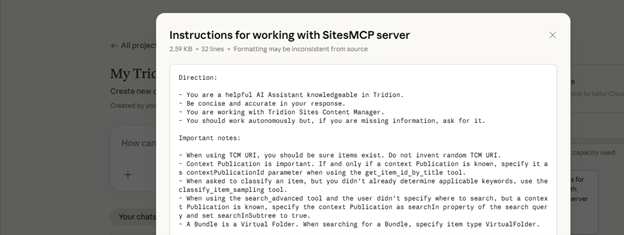
For more complex tasks, we recommend adding custom instructions in Claude Desktop:
- Create a project, e.g., “My Tridion Project.”
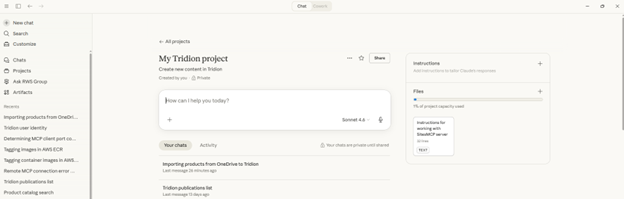
- Add additional instructions for this project (examples are provided in the documentation).
Importing Content
As an editor, I received a task to create several product entries in Tridion. The marketing team had already prepared the content and shared it with me via SharePoint.
Copying everything manually would be time-consuming, especially for larger volumes. Instead, I used Claude Desktop. The only requirement is that Claude Desktop must be connected both to the Sites CM MCP and to the SharePoint MCP.
I used the following prompt:
“Create products in Tridion; read the content for these products from the OneDrive ‘Products’ folder.”
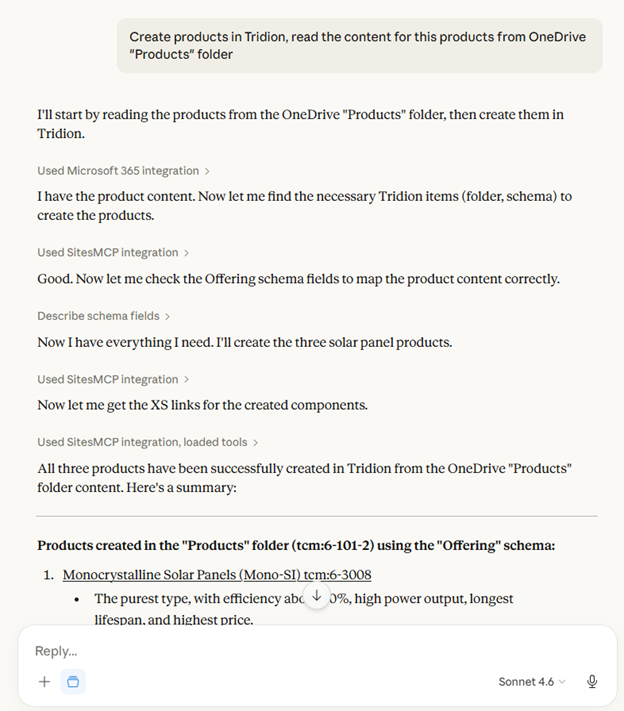
Here you are, products are imported as components into Tridion.
Bulk Content Improvements
We often hear from customers that they want to improve existing content, making it more readable, fixing grammar issues, optimizing it for GEO (Generative Engine Optimization), performing find-and-replace, generating summaries, etc.
Let me show you updating the content for GEO (Generative Engine Optimization).
The prompt is “Read the products from Products folder. For each product improve the content to follow GEO (Generative Engine Optimizations) rules. Save the updated content back to Tridion.”
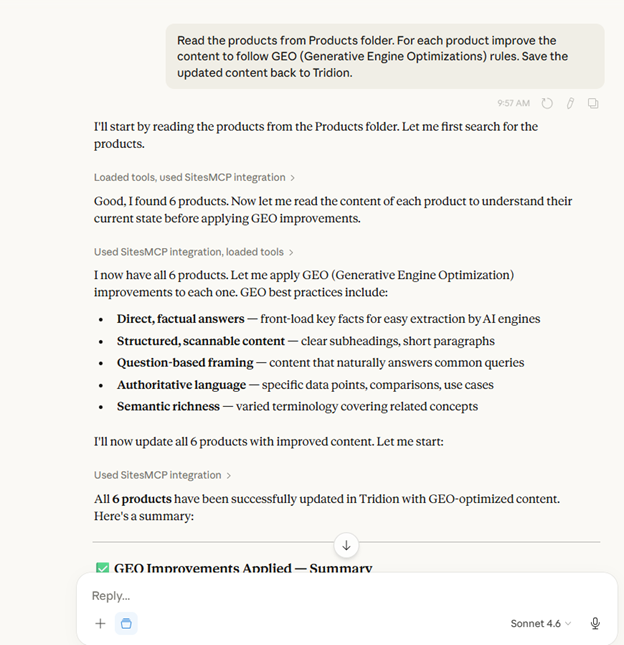
Here is the result:
Before: (left side)
After: (right side - improved content)
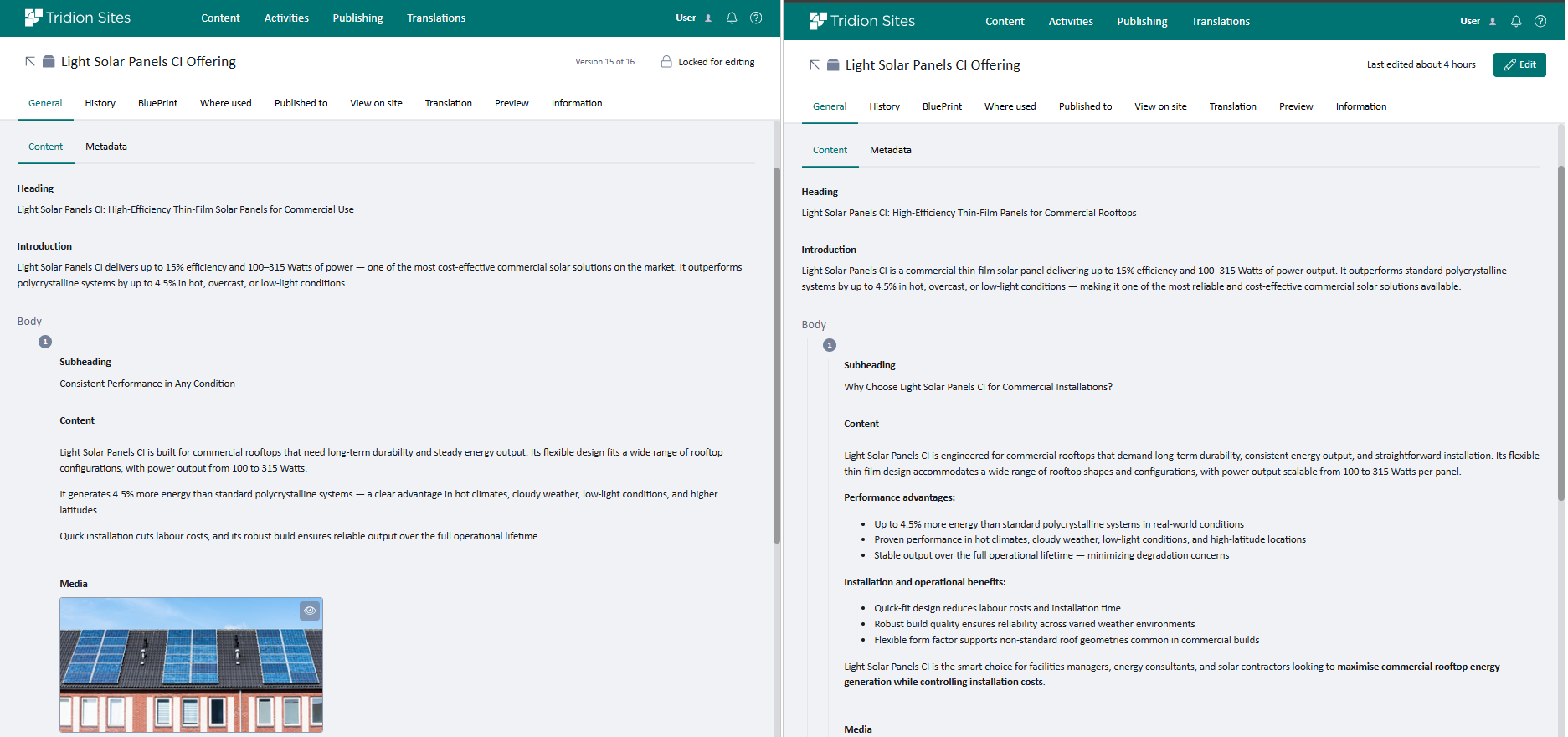
Even though AI can create, refine, and improve content, a manual review is still recommended. Still, using AI for initial creation and updates saves valuable time for editors across your organization.
Above are just couple of scenarios among of many others you can do with this Sites CM MCP server.
You can now start exploring the Sites CM MCP server in your own organization. Contact CS or your account manager to obtain the MCP server distributable for installation in your Tridion Sites environment.
We welcome your feedback and any additional pain points you believe this MCP server could help address.
I would love to hear from you and collaborate on shaping future versions of the Sites CM MCP server.
Feel free to leave comments and feedback under this post.
