Error message when opening the program - Trados Studio 2022

I have just installed the above version of Studio.

I get past the first few windows but when  I click "Finish" to open the program I get the following message: 
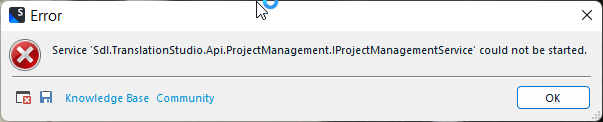
Error message window showing 'Service Sdl.TranslationStudio.Api.ProjectManagement.IProjectManagementService could not be started' with an 'OK' button and links to Knowledge Base and Community.

I looked at the knowledge base and did what they said:

Solution for error Service 'Sdl.TranslationStudio.Api.ProjectManagement.IProjectManagementService' could not be started (and for Sdl.ProjectApi.Implementation, System.xml)

1. Close Trados Studio or the error message
2. Go to C:\Users\%username%\Documents\Studio 201X\Projects on your system
3. Delete the projects.xml file
4. Start Trados Studio and browse for your projects again in Projects view, from Open Project button

But nothing helps. The program will not open and I am stuck!

I'd be grateful for some help.

Thanks

Ruth


Generated Image Alt-Text
[edited by: Trados AI at 1:48 PM (GMT 0) on 4 Mar 2024]

emoji
Parents
  • We will be pleased to help you with this problem so have logged a support case on your behalf. We do prioritise customers who have a support contract so please keep in mind it could take up to 48 hours, especially over a weekend, but rest assured we will contact you as soon as we can. You will be contacted at the email address used for this Community. Support Case Id : 00730313 .

    Paul Filkin | RWS

    Design your own training!
    You've done the courses and still need to go a little further, or still not clear? 
    Tell us what you need in our Community Solutions Hub

    emoji
  •  

    In the meantime, as you really won't get any help until the new year... most likely Tuesday (although you may get lucky for Monday) give a thorough clean up a go as this is something you can do yourself.

    Clean install... try the following.

    1. Uninstall Studio
    2. Uninstall MultiTerm

    Now manually delete these folders if they are still there (back up your TMs, Termbases, AutoSuggest Dictionaries and Projects first in case you make a mistake):

    c:\ProgramData\Package Cache\Trados\TradosStudio2022\
    c:\ProgramData\Package Cache\Trados\MultiTermDesktop2022\
    c:\Program Files (x86)\Trados\Trados Studio\Studio17\
    c:\Program Files (x86)\Trados\MultiTerm\MultiTerm17\
    c:\Users\%username%\AppData\Local\Trados\Trados Studio\17\
    c:\Users\%username%\AppData\Local\Trados\Trados Studio\Studio17\
    c:\Users\%username%\AppData\Local\Trados\MultiTerm\MultiTerm17\
    c:\Users\%username%\AppData\Local\Trados\Trados Studio\17\
    c:\Users\%username%\AppData\Roaming\Trados\Trados Studio\Studio17\
    c:\Users\%username%\AppData\Roaming\Trados\MultiTerm\MultiTerm17\
    c:\Users\%username%\Documents\Studio 2022\Project Templates\
    c:\Users\%username%\Documents\Studio 2022\Projects\projects.xml

    I think that's about it for a clean install. Then reinstall and try again.

    Paul Filkin | RWS

    Design your own training!
    You've done the courses and still need to go a little further, or still not clear? 
    Tell us what you need in our Community Solutions Hub

    emoji
Reply
  •  

    In the meantime, as you really won't get any help until the new year... most likely Tuesday (although you may get lucky for Monday) give a thorough clean up a go as this is something you can do yourself.

    Clean install... try the following.

    1. Uninstall Studio
    2. Uninstall MultiTerm

    Now manually delete these folders if they are still there (back up your TMs, Termbases, AutoSuggest Dictionaries and Projects first in case you make a mistake):

    c:\ProgramData\Package Cache\Trados\TradosStudio2022\
    c:\ProgramData\Package Cache\Trados\MultiTermDesktop2022\
    c:\Program Files (x86)\Trados\Trados Studio\Studio17\
    c:\Program Files (x86)\Trados\MultiTerm\MultiTerm17\
    c:\Users\%username%\AppData\Local\Trados\Trados Studio\17\
    c:\Users\%username%\AppData\Local\Trados\Trados Studio\Studio17\
    c:\Users\%username%\AppData\Local\Trados\MultiTerm\MultiTerm17\
    c:\Users\%username%\AppData\Local\Trados\Trados Studio\17\
    c:\Users\%username%\AppData\Roaming\Trados\Trados Studio\Studio17\
    c:\Users\%username%\AppData\Roaming\Trados\MultiTerm\MultiTerm17\
    c:\Users\%username%\Documents\Studio 2022\Project Templates\
    c:\Users\%username%\Documents\Studio 2022\Projects\projects.xml

    I think that's about it for a clean install. Then reinstall and try again.

    Paul Filkin | RWS

    Design your own training!
    You've done the courses and still need to go a little further, or still not clear? 
    Tell us what you need in our Community Solutions Hub

    emoji
Children