Deactivating offline

I need to deactivate my Studio on my desktop so I can activate my Studio on my laptop when I am traveling.

Problem 1: I am unable to deactivate online because my Studio 'Could not establish SSL/TLS secure channel'. This has been a persistent problem over the past two years, and I was told to deactivate offline. The off-line deactivation process (clicking on the link on my account page) used to work, but dear Lord is it slow.

Problem 2: I am now unable to deactivate off-line, because I get a message 'An error has occurred'. I understand from the Knowledge base that I can "reset" my license, but there is no button to reset this for my Studio 2021 -- only for my inactive Studio 2011.

I first tried the above steps to deactivate last night, in preparation for my business trip this morning. Having run into the two problems above, I figured that SDL/RWS were having server problems, so decided to wait until this morning, but unfortunately I am still having the exact same problems.

I hope this message reaches someone at SDL/RWS - Can anyone help me to fix Problem 2, and hopefully also Problem 1?

Many thanks in advance, Jonathan

emoji
Parents
  •   

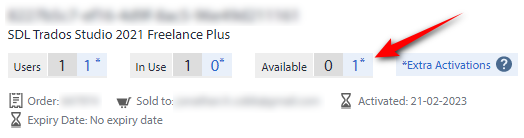
    I think the reason you don't have a button available for 2021 is because the system thinks you still have a licence available:

    Trados Studio 2021 Freelance Plus license management screen showing 1 user, 0 in use, 0 available, and 1 extra activation with a red arrow pointing to 'Extra Activations'.

    So we'll need to resolve the security error you are experiencing.  The error message "Could not establish SSL/TLS secure channel" typically occurs when there's an issue with the security protocols used for establishing a secure connection between your computer and the licensing server. There are a number of things that could cause this error, some of which would be:

    1. Check your internet connection: Ensure that you have a stable internet connection, as connectivity issues can lead to this error.

    2. Update Trados Studio: Make sure you have the latest version of Trados Studio 2021 installed.  The latest builds are:
      Trados Studio 2021 - 16.2.12.9338
      MultiTerm 2021 - 16.2.1.1044

    3. Update your operating system: Ensure that your operating system (Windows, macOS, etc.) is up-to-date, as older versions might not support the latest security protocols.  For example if you still use W7 you definitely have a problem you'll only resolve by upgrading to a supported version of your operating system.

    4. Check system date and time: Verify that your computer's date and time are set correctly. An incorrect system date and time can cause issues with SSL/TLS connections.

    5. Update .NET Framework: Trados Studio requires .NET Framework to function properly. Make sure you have the latest version of .NET Framework installed on your system. You can download the latest version from the Microsoft website: https://dotnet.microsoft.com/en-us/download/dotnet-framework

    Paul Filkin | RWS

    Design your own training!
    You've done the courses and still need to go a little further, or still not clear? 
    Tell us what you need in our Community Solutions Hub

    emoji


    Generated Image Alt-Text
    [edited by: Trados AI at 2:06 PM (GMT 0) on 4 Mar 2024]
Reply
  •   

    I think the reason you don't have a button available for 2021 is because the system thinks you still have a licence available:

    Trados Studio 2021 Freelance Plus license management screen showing 1 user, 0 in use, 0 available, and 1 extra activation with a red arrow pointing to 'Extra Activations'.

    So we'll need to resolve the security error you are experiencing.  The error message "Could not establish SSL/TLS secure channel" typically occurs when there's an issue with the security protocols used for establishing a secure connection between your computer and the licensing server. There are a number of things that could cause this error, some of which would be:

    1. Check your internet connection: Ensure that you have a stable internet connection, as connectivity issues can lead to this error.

    2. Update Trados Studio: Make sure you have the latest version of Trados Studio 2021 installed.  The latest builds are:
      Trados Studio 2021 - 16.2.12.9338
      MultiTerm 2021 - 16.2.1.1044

    3. Update your operating system: Ensure that your operating system (Windows, macOS, etc.) is up-to-date, as older versions might not support the latest security protocols.  For example if you still use W7 you definitely have a problem you'll only resolve by upgrading to a supported version of your operating system.

    4. Check system date and time: Verify that your computer's date and time are set correctly. An incorrect system date and time can cause issues with SSL/TLS connections.

    5. Update .NET Framework: Trados Studio requires .NET Framework to function properly. Make sure you have the latest version of .NET Framework installed on your system. You can download the latest version from the Microsoft website: https://dotnet.microsoft.com/en-us/download/dotnet-framework

    Paul Filkin | RWS

    Design your own training!
    You've done the courses and still need to go a little further, or still not clear? 
    Tell us what you need in our Community Solutions Hub

    emoji


    Generated Image Alt-Text
    [edited by: Trados AI at 2:06 PM (GMT 0) on 4 Mar 2024]
Children