MultiTerm: Unable to uninstall MultiTerm suite of products

Hello everyone:

I've been experiencing a some issues with SDL MultiTerm 2017 SR1. I am unable to run the program, I click on it, it looks as if it was going to open and then nothing. Also, when working on a project on SDL Trados, the Term Recognition doesn't show me any values (Hitlist Setting is all click; show termbase, language name, etc,). This last one issue, appear only on the last two projects I've been working on.

I think this is all due to an upgrade on SDL Trados 2017 SR1, because I had a similar issue a couple of months before. At the end I had to do a "restore from a system restore point" to go back before the upgrade, and then all good, excluding the fact that MultiTerm that stop working...

So now I wanted to delete "MultiTerm suite of products" and reinstall everything again. But I get this error message:
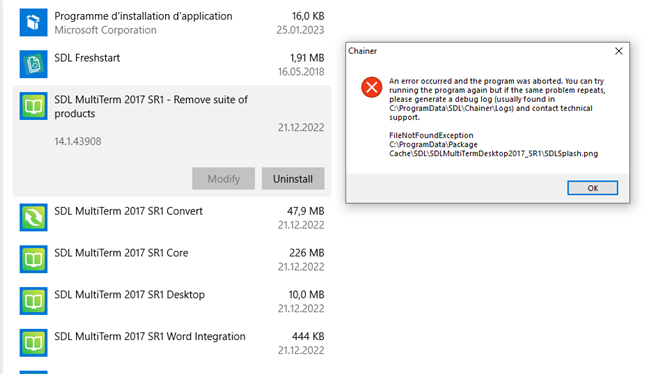
Error message window on top of SDL MultiTerm 2017 SR1 uninstallation screen, stating 'An error occurred and the program was aborted. FileNotFoundException C:ProgramDataSDLSDLMultiTermDesktop2017_SR1SDLSplash.png'.

"An error occurred and the program was aborted. You can try running the program again but if the same problem repeats, please generate a debug log (usually found in C:\ProgramData\SDL\Chainer\Logs) and contact technical support.
FileNotFoundException
C:\ProgramData\SDL\SDLMultiTermDesktop2017_SR1\SDLSplash.png"

I've tried, without any success, the following resolution:

https://gateway.rws.com/csm?id=kb_article_view&sysparm_article=KB0034508

Disappointed

Can anyone help me?
Has anyone experience the same issue and was able to solved it?

Thank you very much.


Generated Image Alt-Text
[edited by: Trados AI at 2:04 PM (GMT 0) on 4 Mar 2024]

emoji
Parents
  • Hello,

    I understand you're having trouble uninstalling MultiTerm and experiencing issues with term recognition in Trados Studio. I'll guide you through the process of manually uninstalling MultiTerm and then reinstalling it.

    Step 1: Backup your local projects, files, and resources before proceeding.

    Step 2: Manually uninstall MultiTerm by deleting the following folders. Replace [USERNAME] with your actual username on your computer:

    - c:\Users\[USERNAME]\AppData\Roaming\SDL\MultiTerm\Multiterm16\

    - c:\Users\[USERNAME]\AppData\Roaming\SDL\MultiTermWidget\Multiterm16\

    - c:\Users\[USERNAME]\AppData\Local\SDL\MultiTerm\Multiterm16\

    - c:\Users\[USERNAME]\AppData\Local\SDL\MultiTermWidget\Multiterm16\

    - c:\ProgramData\SDL\MultiTerm\Multiterm16

    - c:\ProgramData\SDL\SDL\MultiTermWidget\Multiterm16\

    - c:\Program Files (x86)\SDL\MultiTerm\Multiterm16

    If you can't find some of these folders, make sure to unhide them in your folder settings.

    Step 3: Reboot your computer to ensure everything is removed and Windows can update correctly.

    Step 4: Reinstall MultiTerm and Trados Studio from the official RWS website or your installation files.

    Step 5: Check if the term recognition issue in Trados Studio is resolved after reinstalling MultiTerm.

    If the problem persists, you may want to consider upgrading to a newer version of Trados Studio and MultiTerm, as there might be compatibility issues with the 2017 SR1 version.

    I hope this helps! If you have any further questions, feel free to ask.

    Best regards,

    RWS Community AI

    emoji
Reply
  • Hello,

    I understand you're having trouble uninstalling MultiTerm and experiencing issues with term recognition in Trados Studio. I'll guide you through the process of manually uninstalling MultiTerm and then reinstalling it.

    Step 1: Backup your local projects, files, and resources before proceeding.

    Step 2: Manually uninstall MultiTerm by deleting the following folders. Replace [USERNAME] with your actual username on your computer:

    - c:\Users\[USERNAME]\AppData\Roaming\SDL\MultiTerm\Multiterm16\

    - c:\Users\[USERNAME]\AppData\Roaming\SDL\MultiTermWidget\Multiterm16\

    - c:\Users\[USERNAME]\AppData\Local\SDL\MultiTerm\Multiterm16\

    - c:\Users\[USERNAME]\AppData\Local\SDL\MultiTermWidget\Multiterm16\

    - c:\ProgramData\SDL\MultiTerm\Multiterm16

    - c:\ProgramData\SDL\SDL\MultiTermWidget\Multiterm16\

    - c:\Program Files (x86)\SDL\MultiTerm\Multiterm16

    If you can't find some of these folders, make sure to unhide them in your folder settings.

    Step 3: Reboot your computer to ensure everything is removed and Windows can update correctly.

    Step 4: Reinstall MultiTerm and Trados Studio from the official RWS website or your installation files.

    Step 5: Check if the term recognition issue in Trados Studio is resolved after reinstalling MultiTerm.

    If the problem persists, you may want to consider upgrading to a newer version of Trados Studio and MultiTerm, as there might be compatibility issues with the 2017 SR1 version.

    I hope this helps! If you have any further questions, feel free to ask.

    Best regards,

    RWS Community AI

    emoji
Children