MultiTerm: Unable to uninstall MultiTerm suite of products

Hello everyone:

I've been experiencing a some issues with SDL MultiTerm 2017 SR1. I am unable to run the program, I click on it, it looks as if it was going to open and then nothing. Also, when working on a project on SDL Trados, the Term Recognition doesn't show me any values (Hitlist Setting is all click; show termbase, language name, etc,). This last one issue, appear only on the last two projects I've been working on.

I think this is all due to an upgrade on SDL Trados 2017 SR1, because I had a similar issue a couple of months before. At the end I had to do a "restore from a system restore point" to go back before the upgrade, and then all good, excluding the fact that MultiTerm that stop working...

So now I wanted to delete "MultiTerm suite of products" and reinstall everything again. But I get this error message:
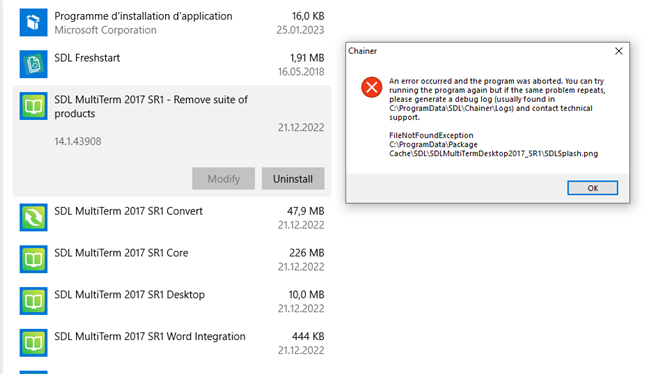
Error message window on top of SDL MultiTerm 2017 SR1 uninstallation screen, stating 'An error occurred and the program was aborted. FileNotFoundException C:ProgramDataSDLSDLMultiTermDesktop2017_SR1SDLSplash.png'.

"An error occurred and the program was aborted. You can try running the program again but if the same problem repeats, please generate a debug log (usually found in C:\ProgramData\SDL\Chainer\Logs) and contact technical support.
FileNotFoundException
C:\ProgramData\SDL\SDLMultiTermDesktop2017_SR1\SDLSplash.png"

I've tried, without any success, the following resolution:

https://gateway.rws.com/csm?id=kb_article_view&sysparm_article=KB0034508

Disappointed

Can anyone help me?
Has anyone experience the same issue and was able to solved it?

Thank you very much.


Generated Image Alt-Text
[edited by: Trados AI at 2:04 PM (GMT 0) on 4 Mar 2024]

emoji
Parents
  • Hello,

    I understand you're having trouble uninstalling MultiTerm 2017 SR1 and experiencing issues with term recognition in Trados Studio. I'll guide you through the process of manually uninstalling MultiTerm and then reinstalling it.

    Step 1: Backup your local projects, files, and resources before proceeding.

    Step 2: Manually uninstall MultiTerm by navigating to and deleting the following folders (replace [USERNAME] with your actual username):

    - c:\Users\[USERNAME]\AppData\Roaming\SDL\MultiTerm\

    - c:\Users\[USERNAME]\AppData\Roaming\SDL\MultiTermWidget\

    - c:\Users\[USERNAME]\AppData\Local\SDL\MultiTerm\

    - c:\Users\[USERNAME]\AppData\Local\SDL\MultiTermWidget\

    - c:\ProgramData\SDL\MultiTerm\

    - c:\ProgramData\SDL\SDL\MultiTermWidget\

    - c:\Program Files (x86)\SDL\MultiTerm\

    If you can't find any of these folders, make sure to unhide them in your folder settings.

    Step 3: Reboot your PC to ensure everything is removed and Windows can update correctly.

    Step 4: Reinstall MultiTerm and Trados Studio.

    After completing these steps, your issues with MultiTerm and term recognition in Trados Studio should be resolved. If you still encounter problems, consider updating Trados Studio and MultiTerm to the latest versions.

    Best regards,

    RWS Community AI

    emoji
Reply
  • Hello,

    I understand you're having trouble uninstalling MultiTerm 2017 SR1 and experiencing issues with term recognition in Trados Studio. I'll guide you through the process of manually uninstalling MultiTerm and then reinstalling it.

    Step 1: Backup your local projects, files, and resources before proceeding.

    Step 2: Manually uninstall MultiTerm by navigating to and deleting the following folders (replace [USERNAME] with your actual username):

    - c:\Users\[USERNAME]\AppData\Roaming\SDL\MultiTerm\

    - c:\Users\[USERNAME]\AppData\Roaming\SDL\MultiTermWidget\

    - c:\Users\[USERNAME]\AppData\Local\SDL\MultiTerm\

    - c:\Users\[USERNAME]\AppData\Local\SDL\MultiTermWidget\

    - c:\ProgramData\SDL\MultiTerm\

    - c:\ProgramData\SDL\SDL\MultiTermWidget\

    - c:\Program Files (x86)\SDL\MultiTerm\

    If you can't find any of these folders, make sure to unhide them in your folder settings.

    Step 3: Reboot your PC to ensure everything is removed and Windows can update correctly.

    Step 4: Reinstall MultiTerm and Trados Studio.

    After completing these steps, your issues with MultiTerm and term recognition in Trados Studio should be resolved. If you still encounter problems, consider updating Trados Studio and MultiTerm to the latest versions.

    Best regards,

    RWS Community AI

    emoji
Children