All the projects disappeared from Studio 2019 Projects folder!!!

How could it happen that all Studio 2019 projects disappeared from Projects folder. Not just from the Projects view (it would not be a problem). They disappeared from the computer. All of them! Project folder is empty! It happened after I tried to create a new project with a template based on a previous project. When I was entering the project name, the program issued error message "such name exists" several times. Then, after I added a file to translate, I received an error message about non-existent folder. And after I cancelled the project creation and restarted Studio, I find no 2019 project in the Projects view and NO project in the Projects folder. They are not also in the Recycling Bin. Such a bug is really disastrous!

  • Hello Hervé,

    Hi Steven,

    I had the same problem last week (and many others related to duplications of files, TMs, etc) and it was solved by turning off the back up in time that my computer was carrying out. I had also hubiC on loading the changes made in my computer to the cloud; since I turned it off, I have no experienced the problem again... Ok, it has been only a week since then, but maybe it is a clue for you to look for the reason.

    Kind regards

    Isabel

  • Hi Steven - any update n this? Can you please confirm that this issue is been investigated by the Studio dev team btw? It is not clear from your answers.

  • Hello  

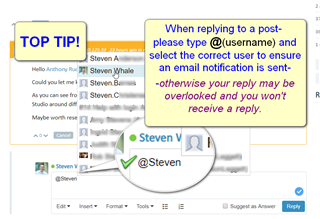
    Sorry about the delay in getting back to you. If you are replying in community, please 'tag' the person so they receive an email notification (please see below the top tip below

    I have trawled through the actual logged support cases to see if I can pinpoint a single common identifier that could be a cause of this issue.

    The following helped a user who has not reported any further issues since reporting 6 months ago

    Apart from the possible reasons already mentioned in this post- it might be worth looking at particular admin rights/running Studio as Admin.

    "Studio keeps the project list in the "Projects.xml"file located on C:\Users\username]\Documents\Studio 2019\Projects

    When you add or delete a project from the project list Studio will automatically update the Projects.xml. If this xml cannot be edited due to the lack of user permission, Studio will no longer be able to retrieve the list therefore the projects will not be displayed in Studio Project list.

    To solve this issue you can try the following:

    1 Close all SDL products
    2 Go to C:\Users\username]\Documents\Studio 2019\Projects
    3 Delete "Projects.xml"file
    4 Run Studio as administrator

    If you don't have admin rights please request your IT dept to proceed.

    By running Studio as admin the "Projects.xml"file will be automatically created, this will ensure the necessary rights to read/write the information from the XML, you can the n open Studio normally you should no longer encounter this issue."

    Please let me know if this solution helps.

    Screenshot showing a tip on how to tag a user in a community post, with a highlighted example of tagging '@Steven' to ensure email notification.

    Oana Nagy | QA Engineer | RWS Group

    emoji


    Generated Image Alt-Text
    [edited by: Trados AI at 8:57 PM (GMT 0) on 28 Feb 2024]
  • Hi. Read the problem description again, it looks like you may be answering another thread here.

    The project.xml is not affected

    The actual files & folders of multiple projects are deleted, with not possibiliy to undo  

  • But what I certainly know, there is no such bug. Studio does NOT delete files.

    Not entirely true...
    Studio does delete files when you cancel the project creation wizard - in such case, the folder where you intended to create the project, is completely deleted by Studio. Not only its content, but also the folder itself.

    Could be that it's somehow connect with the autogenerated project folder name (that "Project 1", etc.)... I did not do any deep research - that's SDL testers' work - but I have observed such unintentional and unwanted folder deletion multiple times.

  • Hello ,

    My response was generic to the topic of the thread in general as we try to get to the bottom of this.

    I am more than happy to set up a remote Webex with you (and any other user experiencing the problems) to see if we can't get this resolved.


    Please email me direct at (swhale@sdl.com) your availability, and we can set this up.

    The WebEx would need to take place on a work station that is affected.

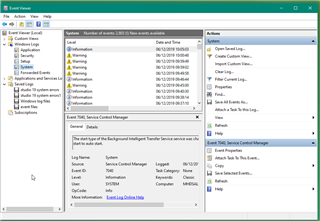
    If you could produce the logfiles of the affected machine (and those of one that isn't)- these could help spot the problem-

    Screenshot of Trados Studio's Event Viewer showing a list of warnings and errors, including a Service Control Manager error with event ID 7031.

    Oana Nagy | QA Engineer | RWS Group

    emoji


    Generated Image Alt-Text
    [edited by: Trados AI at 8:57 PM (GMT 0) on 28 Feb 2024]
  • A webex is not necessary - we were able to replicate the issue. Try this:

    1. create a folder (i.e. name ther folder "TEST")

    2. Create a project in that folder

    -- use the default template, what is in this project does not matter
    -- the only important thing is that the project location path is the TEST folder 

    3. Start the Wizard again to create a new project:

    -- use the "test" project created above as template
    -- the "location path" displayed should be pointing to the TEST folder
    -- make sure the Location path "autofill" check boxes is checked

    4. Replace the Project Name by a space character

    -- you can delete the file name and add the space
    -- or just select and replace with a space

    5. Cancel the Wizard

    The entire folder TEST you created at step 1 is gone
    -- including all the project(s) that you created in that folder

  • Thank you for these steps.  We have managed to replicate this another way, a less likely way, by doing this:

    1. You need to have two different project templates, with different project location paths, to folders that are not empty.
    2. Create New Project in Studio (using one of the two templates)
    3. Delete entirely the suggested Project Name (observe the information message that the specified project location folder already contains some files), do not write another project name
    4. Change the initial project template from the "Use settings from" drop-down (observe the pop-up information that this change will overwrite all of the settings.), click OK
    5. Switch back to the initial project template

    This should lead to having all the contents of that invalid folder deleted.

    We have added your steps, which seem a more likely process for most users, to item CRQ-17166 which is the internal reference we have created for this issue.  It's clearly a critical issue and is tagged as such and will be resolved in the update after the next one.  We already have an update in Beta at the moment which will be released next week so there isn't time to include a fix for this, but it will be in the next update after that.

    Thank you to all the users in this thread who reported this.

    Paul Filkin | RWS

    Design your own training!
    You've done the courses and still need to go a little further, or still not clear? 
    Tell us what you need in our Community Solutions Hub

  • Yep, Studio has been doing this FOR AGES... perhaps even since the very first version.

  • I would just like to add another example of this problem.

    I worked last night to do an urgent job for a customer, due at 9 am today. Did about 85% of the job yesterday. Started the PC and Trados this morning just after 6 am and ... no projects shown. I checked the folder where Trados had stored this job (local HDD) and the project file existed but could not be opened. The TM had also not been updated.

    I save my jobs with CTRL-S every few minutes and autosave is switched on in Trados and set to 5 minutes.

    When I close down applications I leave Windows running because my backups run later in the evening. Obviously, Trados had killed this project before the backup ran, so there is none.

    Yet another reason for using Transit NXT.