Error message installing Trados 2019: Could not load file or assembly "SimpleInjector"

I've just upgraded to Trados 2019 and am trying to install the full programme on a machine that previously had the demo version installed (I'd uninstalled it).

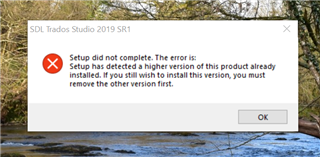
I'm now unable to install Trados 2019 as I kept getting an error message telling me a higher version was installed and to remove that first. The only way I could get round this error was to follow the work around here: https://community.sdl.com/product-groups/translationproductivity/f/multiterm/21977/setup-did-not-complete-setup-has-detected-a-higher-version-of-this-version-already-installed-how-to-get-rid-of-this-obstrusive-higher-version 

I've now got as far as setting the languages to be used with Trados, but now I'm getting this message. The whole programme then shuts down...
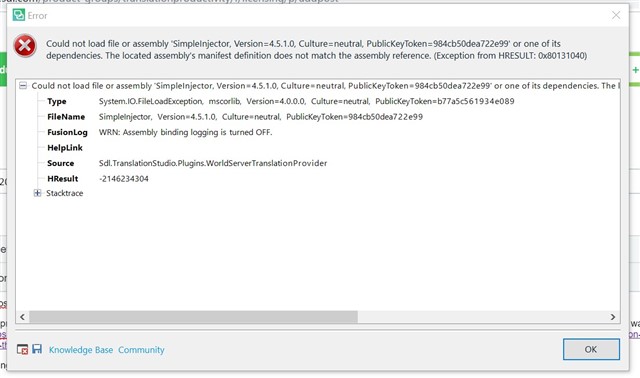
Error dialog box stating 'Could not load file or assembly 'SimpleInjector, Version=4.5.1.0' with details of the file name, exception type, and HRESULT code '-2146234304'. An 'OK' button is visible.

Thanks in advance: I'm completely stumped!


Generated Image Alt-Text
[edited by: RWS Community AI at 11:52 PM (GMT 0) on 14 Nov 2024]

emoji
Parents
  • Hello ,

    My suspicion here is that when you removed the trial version (this is not necessary when purchasing a licence) that the uninstall did not complete correctly and that certain components were either not removed entirely or that these were corrupted.

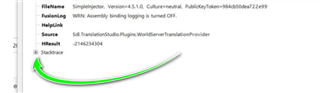
    Please be aware that it is really helpful if you can attach the entire error stack as a lot of information is still hidden under -

    Error message in Trados Studio indicating 'WIN Assembly binding logging is turned OFF.' with a green arrow pointing to the stack trace.

    Under the circumstances, I would advise you to completely remove Studio and all its components manually-

    You MUST be logged onto the machine as administrator to be able to do this!

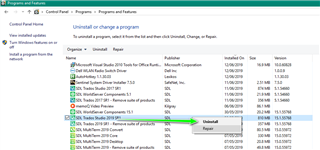
    First please go to your Windows Control Pane and remove Studio-

    Control Panel's Programs and Features window with a green arrow pointing to 'SDL Trados Studio 2019 SR2' selected for uninstall.

    Now navigate to each folder and delete the following-

    c:\Users\[USERNAME]\AppData\Roaming\SDL\SDL Trados Studio\15\
    c:\Users\[USERNAME]\AppData\Roaming\SDL\SDL Trados Studio\15.0.0.0\
    c:\Users\[USERNAME]\AppData\Roaming\SDL\ProjectApi\15.0.0.0\
    c:\Users\[USERNAME]\AppData\Local\SDL\SDL Trados Studio\15\
    c:\Users\[USERNAME]\AppData\Local\SDL\SDL Trados Studio\15.0.0.0\
    c:\ProgramData\SDL\SDL Trados Studio\15\
    c:\ProgramData\SDL\SDL Trados Studio\15.0.0.0\
    c:\ProgramData\SDL\SDL Trados Studio\Studio15\
    c:\Program Files (x86)\SDL\SDL Trados Studio\Studio15\

    Now reboot your machine and ensure everything is now up to date

    https://community.sdl.com/product-groups/translationproductivity/w/customer-experience/3392/how-to-part-1-trouble-shoot-unexplained-errors-and-unwanted-behaviour-in-studio-multiterm


    Oana Nagy | Developer Experience | QA Engineer | RWS Group

    emoji


    Generated Image Alt-Text
    [edited by: Trados AI at 11:30 AM (GMT 0) on 4 Mar 2024]
Reply
  • Hello ,

    My suspicion here is that when you removed the trial version (this is not necessary when purchasing a licence) that the uninstall did not complete correctly and that certain components were either not removed entirely or that these were corrupted.

    Please be aware that it is really helpful if you can attach the entire error stack as a lot of information is still hidden under -

    Error message in Trados Studio indicating 'WIN Assembly binding logging is turned OFF.' with a green arrow pointing to the stack trace.

    Under the circumstances, I would advise you to completely remove Studio and all its components manually-

    You MUST be logged onto the machine as administrator to be able to do this!

    First please go to your Windows Control Pane and remove Studio-

    Control Panel's Programs and Features window with a green arrow pointing to 'SDL Trados Studio 2019 SR2' selected for uninstall.

    Now navigate to each folder and delete the following-

    c:\Users\[USERNAME]\AppData\Roaming\SDL\SDL Trados Studio\15\
    c:\Users\[USERNAME]\AppData\Roaming\SDL\SDL Trados Studio\15.0.0.0\
    c:\Users\[USERNAME]\AppData\Roaming\SDL\ProjectApi\15.0.0.0\
    c:\Users\[USERNAME]\AppData\Local\SDL\SDL Trados Studio\15\
    c:\Users\[USERNAME]\AppData\Local\SDL\SDL Trados Studio\15.0.0.0\
    c:\ProgramData\SDL\SDL Trados Studio\15\
    c:\ProgramData\SDL\SDL Trados Studio\15.0.0.0\
    c:\ProgramData\SDL\SDL Trados Studio\Studio15\
    c:\Program Files (x86)\SDL\SDL Trados Studio\Studio15\

    Now reboot your machine and ensure everything is now up to date

    https://community.sdl.com/product-groups/translationproductivity/w/customer-experience/3392/how-to-part-1-trouble-shoot-unexplained-errors-and-unwanted-behaviour-in-studio-multiterm


    Oana Nagy | Developer Experience | QA Engineer | RWS Group

    emoji


    Generated Image Alt-Text
    [edited by: Trados AI at 11:30 AM (GMT 0) on 4 Mar 2024]
Children