Trados 2021 and Trados 2022 crashes

1. Trados 2021 crashes without warning time to time and always when trying to open a GroupShare project. Because of that I have never had possibility to work on a GroupShare project.

2.Trados 2022 crashes without warning when trying to open any kind of translation project, both offline and GroupeShare.

3. Could you help with any suggestions how can I claim my money back for the upgrade? I've been struggling with Trados already couple of years, I am getting so angry, that I feel deserving some compensation for the problems and financial losses I've encountered during this time.

emoji
Parents
  •  

    Have you run a Windows Repair on Trados? This should help... See Repairing your installation of Trados Studio

    For anyone experiencing speed problems or crashes in Trados...

    I keep several functions that I rarely use turned OFF, which for me always prevents Trados Studio being slow or crashing. Even if you have no speed or stability problems normally, they can still happen occasionally with a big/old/complex project. Here's what works for me:

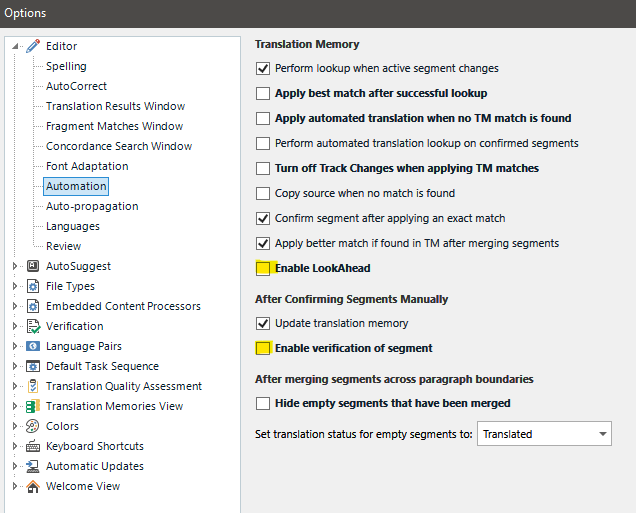
    1) Go to File > Options > Editor > Automation then UNtick 'Enable LookAhead' under 'Translation Memory' and UNtick 'Enable verification of segment' under 'After Confirming Segments Manually'

    Trados Studio Options menu with 'Enable LookAhead' and 'Enable verification of segment' options unchecked to improve speed.

    Both these options should help speed things up. You can then verify the file after you've finished working on it all in one go via the Review tab > Verify or by clicking F8.

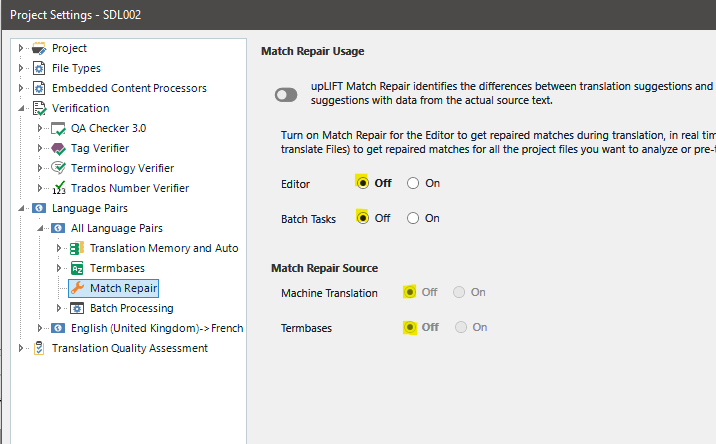
    Then, in the Project Settings (or via File>Options if you create your own projects from scratch or work via Translate Single File), turn OFF upLift Match Repair:

    Trados Studio Project Settings showing 'upLIFT Match Repair' turned off for the Editor to stabilize files and enhance speed.

    Turning this setting OFF in each project I receive helps stabilise files that for some reason cause Studio to crash. I am sure it helps with speed too.

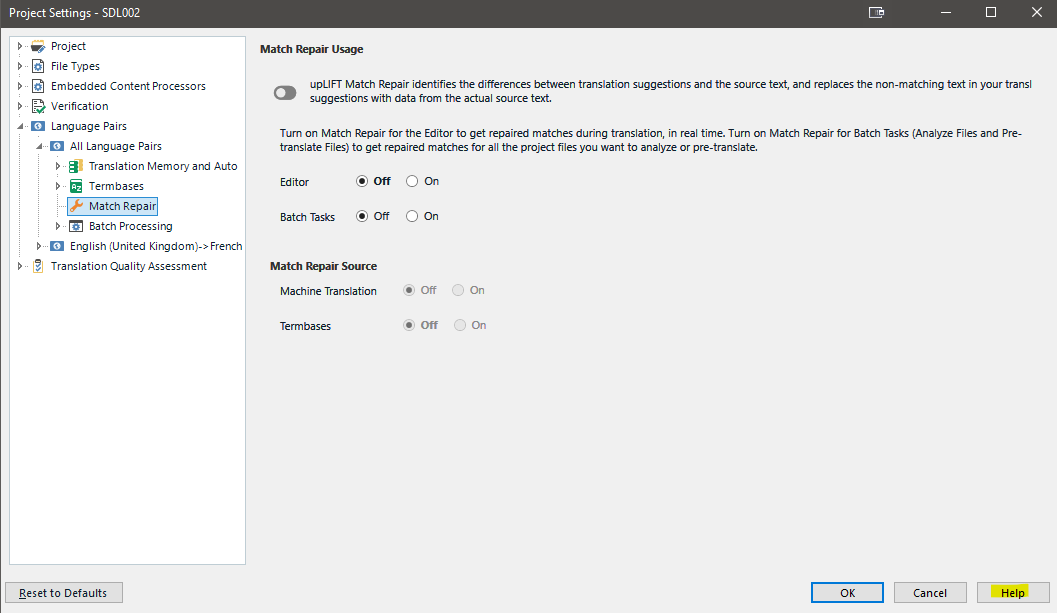
    If you want to know what any setting means under File > Options or under Project Settings, click the Help button bottom right of the settings window:

    Trados Studio Project Settings with Match Repair options for Editor and Batch Tasks turned off, and sources for Machine Translation and Termbases also off.

    Keeping these settings turned on if you need them should work fine if you have a hi-spec fast computer and an excellent broadband connection. However, in less than perfect scenarios or with huge slow projects, it can help to turn one or all of them off.

    If the above isn't enough, I also keep Fragment Matching turned off, here:

    As most of my work is proofreading in Review mode, I don't need fragment matching turned on. I even have the Fragment Matches window closed in the Editor view.

    I always have them all turned off until I need them, and Studio works well for me...

    I hope this helps,

    All the best,

    Ali Slight smile

    emoji


    Generated Image Alt-Text
    [edited by: Trados AI at 1:35 PM (GMT 0) on 4 Mar 2024]
Reply
  •  

    Have you run a Windows Repair on Trados? This should help... See Repairing your installation of Trados Studio

    For anyone experiencing speed problems or crashes in Trados...

    I keep several functions that I rarely use turned OFF, which for me always prevents Trados Studio being slow or crashing. Even if you have no speed or stability problems normally, they can still happen occasionally with a big/old/complex project. Here's what works for me:

    1) Go to File > Options > Editor > Automation then UNtick 'Enable LookAhead' under 'Translation Memory' and UNtick 'Enable verification of segment' under 'After Confirming Segments Manually'

    Trados Studio Options menu with 'Enable LookAhead' and 'Enable verification of segment' options unchecked to improve speed.

    Both these options should help speed things up. You can then verify the file after you've finished working on it all in one go via the Review tab > Verify or by clicking F8.

    Then, in the Project Settings (or via File>Options if you create your own projects from scratch or work via Translate Single File), turn OFF upLift Match Repair:

    Trados Studio Project Settings showing 'upLIFT Match Repair' turned off for the Editor to stabilize files and enhance speed.

    Turning this setting OFF in each project I receive helps stabilise files that for some reason cause Studio to crash. I am sure it helps with speed too.

    If you want to know what any setting means under File > Options or under Project Settings, click the Help button bottom right of the settings window:

    Trados Studio Project Settings with Match Repair options for Editor and Batch Tasks turned off, and sources for Machine Translation and Termbases also off.

    Keeping these settings turned on if you need them should work fine if you have a hi-spec fast computer and an excellent broadband connection. However, in less than perfect scenarios or with huge slow projects, it can help to turn one or all of them off.

    If the above isn't enough, I also keep Fragment Matching turned off, here:

    As most of my work is proofreading in Review mode, I don't need fragment matching turned on. I even have the Fragment Matches window closed in the Editor view.

    I always have them all turned off until I need them, and Studio works well for me...

    I hope this helps,

    All the best,

    Ali Slight smile

    emoji


    Generated Image Alt-Text
    [edited by: Trados AI at 1:35 PM (GMT 0) on 4 Mar 2024]
Children