


Failed to initalize view 'MultiTerm.Studio.EditorView'

Hi! I have a problem launching MultiTerm 2024. I've tried everything that has been suggested in the forum:

- Changing the name to 'Multiterm18_old'.

- Uninstalling and installing the program several times.

- Changing the name of the file coresettings.xml to settings.xml

- Running the program as an administrator.

- Repairing the program in the Uninstall programs folder.

- Changing the location of the folder when installing it.

- And adding the program to my antivirus whitelist.

Before Multiterm crushed, I tried adding some functions from Create Ribbons, I think it's called. I added them in the Termbases sections and, when I closed the program, it stopped working.

I don't know what else to do to launch the program and have access to the dashboard.

Could you help me with a new unthought solution? Thank you!
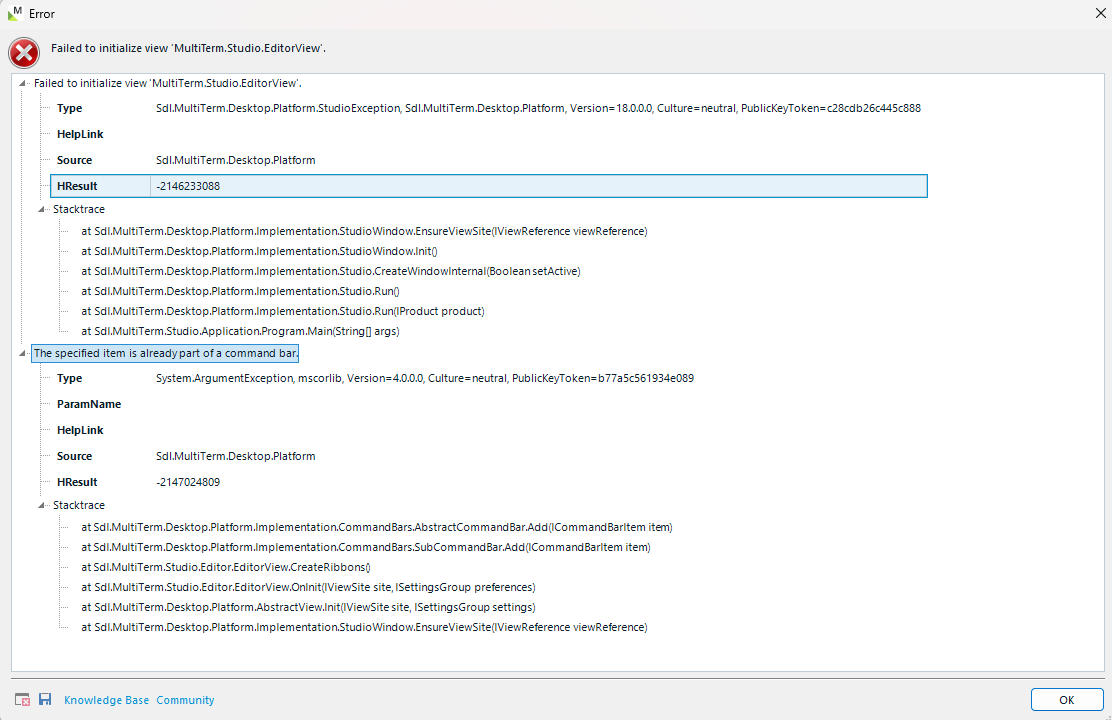
Error window showing 'Failed to initialize view MultiTerm.Studio.EditorView' with details including HRESULT -2146233088 and stack trace. Message: 'The specified item is already part of a command bar.'


Removed AI Suggestion
[edited by: Sofía Galli at 6:22 PM (GMT 1) on 16 Apr 2026]

emoji
Parents
  • Probability score: 0.8  

    Question improvement suggestion: Provide the exact version of MultiTerm you are using and any specific error messages you encounter when trying to launch the application.  

    In the meantime, based on the information you have provided, here is a suggested answer to your question:  

    Hello! It sounds like you've already taken several thorough steps to troubleshoot the issue with MultiTerm 2024. Here’s a structured approach to try and resolve the problem further:

    **Step 1:** Ensure all RWS applications are closed, including any background processes related to MultiTerm.

    **Step 2:** Navigate to the following folder on your computer:  

    `C:\Users\Your User Name\App Data\Roaming\Trados\Multi Term`  

    (Replace "Your User Name" with your actual Windows username.)

    **Step 3:** Rename the folder corresponding to your MultiTerm version (e.g., "Multi Term17" for MultiTerm 2022) to something like "Multi Term17_old".

    **Step 4:** Check for any XML files in that folder, particularly `Settings.xml`, `Base Settings.xml`, `Plugincache.xml`, and `User Settings.xml`. Rename these files by adding "_OLD" to their names.

    **Step 5:** Restart your computer to ensure all changes take effect.

    **Step 6:** Launch MultiTerm again, preferably using "Run as Administrator" by right-clicking the application icon.

    **Step 7:** If the issue persists, consider reinstalling MultiTerm. Uninstall it via Control Panel, restart your computer, and then reinstall the latest version from the RWS website.

    **Step 8:** If you recently added functions from Create Ribbons, it might be worth resetting any custom settings or checking if those changes are causing the issue.

    If these steps do not resolve the problem, please provide any specific error messages you encounter, as this will help in diagnosing the issue further.  

    I hope this answer addressed your question. If not, please reject the answer, add the question improvement suggestion information, and click the RWS Community AI checkbox on the right to try again.  

    RWS Community AI

    emoji
Reply
  • Probability score: 0.8  

    Question improvement suggestion: Provide the exact version of MultiTerm you are using and any specific error messages you encounter when trying to launch the application.  

    In the meantime, based on the information you have provided, here is a suggested answer to your question:  

    Hello! It sounds like you've already taken several thorough steps to troubleshoot the issue with MultiTerm 2024. Here’s a structured approach to try and resolve the problem further:

    **Step 1:** Ensure all RWS applications are closed, including any background processes related to MultiTerm.

    **Step 2:** Navigate to the following folder on your computer:  

    `C:\Users\Your User Name\App Data\Roaming\Trados\Multi Term`  

    (Replace "Your User Name" with your actual Windows username.)

    **Step 3:** Rename the folder corresponding to your MultiTerm version (e.g., "Multi Term17" for MultiTerm 2022) to something like "Multi Term17_old".

    **Step 4:** Check for any XML files in that folder, particularly `Settings.xml`, `Base Settings.xml`, `Plugincache.xml`, and `User Settings.xml`. Rename these files by adding "_OLD" to their names.

    **Step 5:** Restart your computer to ensure all changes take effect.

    **Step 6:** Launch MultiTerm again, preferably using "Run as Administrator" by right-clicking the application icon.

    **Step 7:** If the issue persists, consider reinstalling MultiTerm. Uninstall it via Control Panel, restart your computer, and then reinstall the latest version from the RWS website.

    **Step 8:** If you recently added functions from Create Ribbons, it might be worth resetting any custom settings or checking if those changes are causing the issue.

    If these steps do not resolve the problem, please provide any specific error messages you encounter, as this will help in diagnosing the issue further.  

    I hope this answer addressed your question. If not, please reject the answer, add the question improvement suggestion information, and click the RWS Community AI checkbox on the right to try again.  

    RWS Community AI

    emoji
Children
No Data
