Meta tags in Studio 2015

Hi all

Just double-checking something in relation to meta tags extraction. I've extracted meta content from a webpage in order to translate the relevant keywords and description. I did so by making the attribute translatable as also indicated in other forum posts.


In the Studio Editor, however, I get all other types of content attributes,i.e. meta property, viewport, encoding, etc. (see segments 1 and in yellow below):
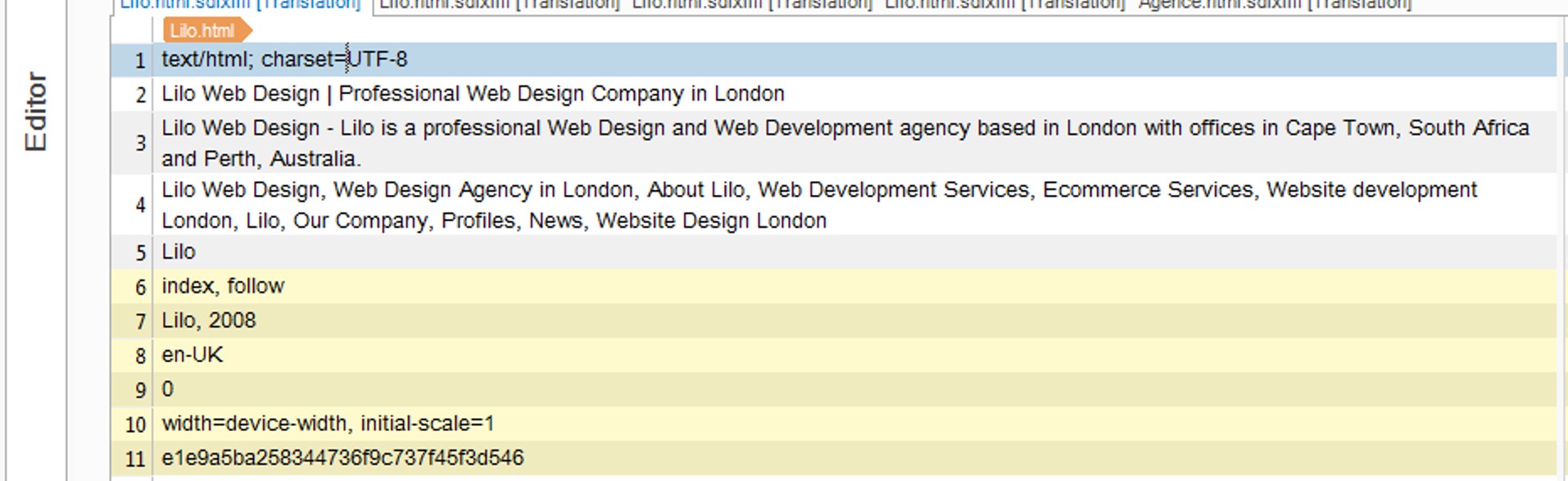
 

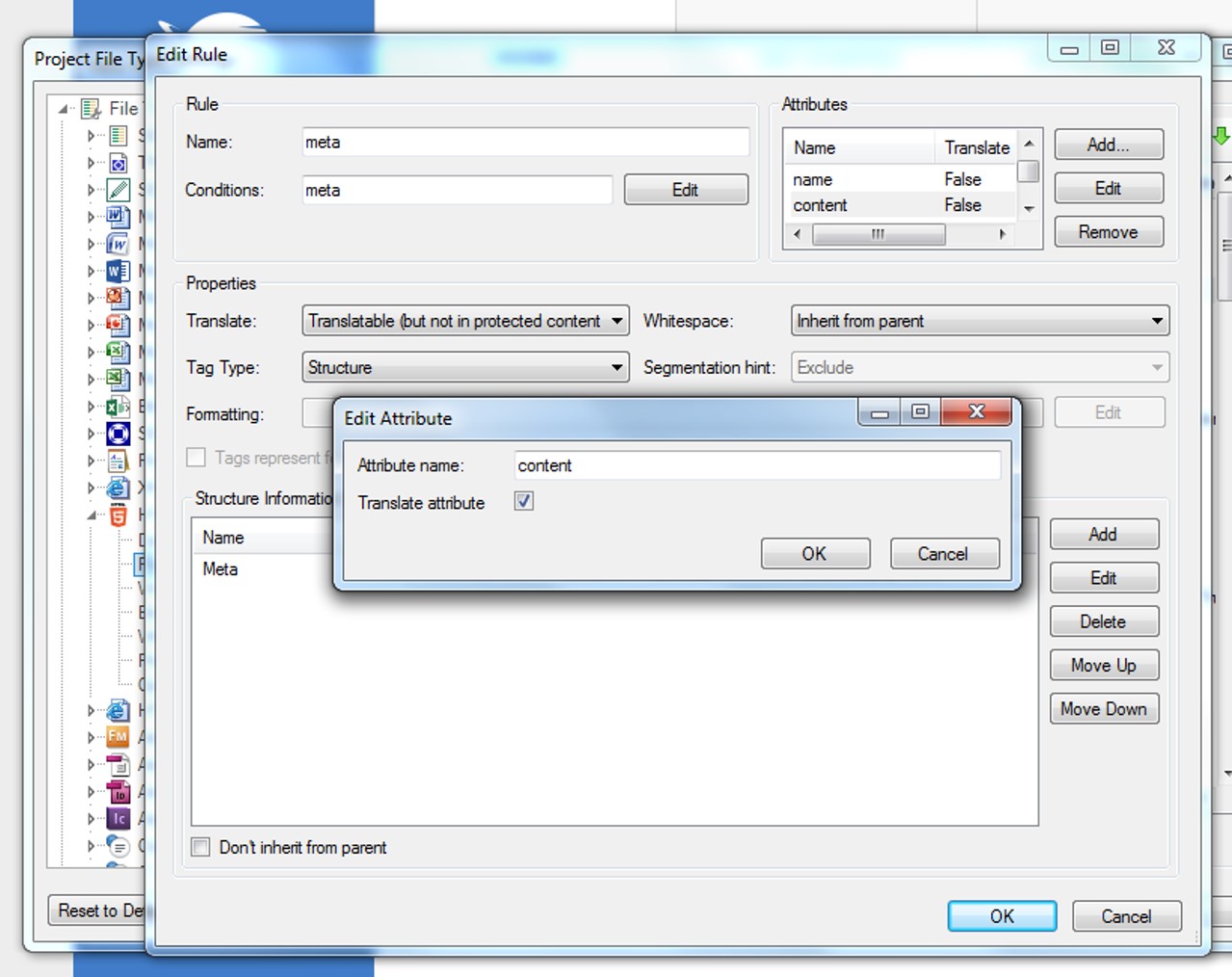
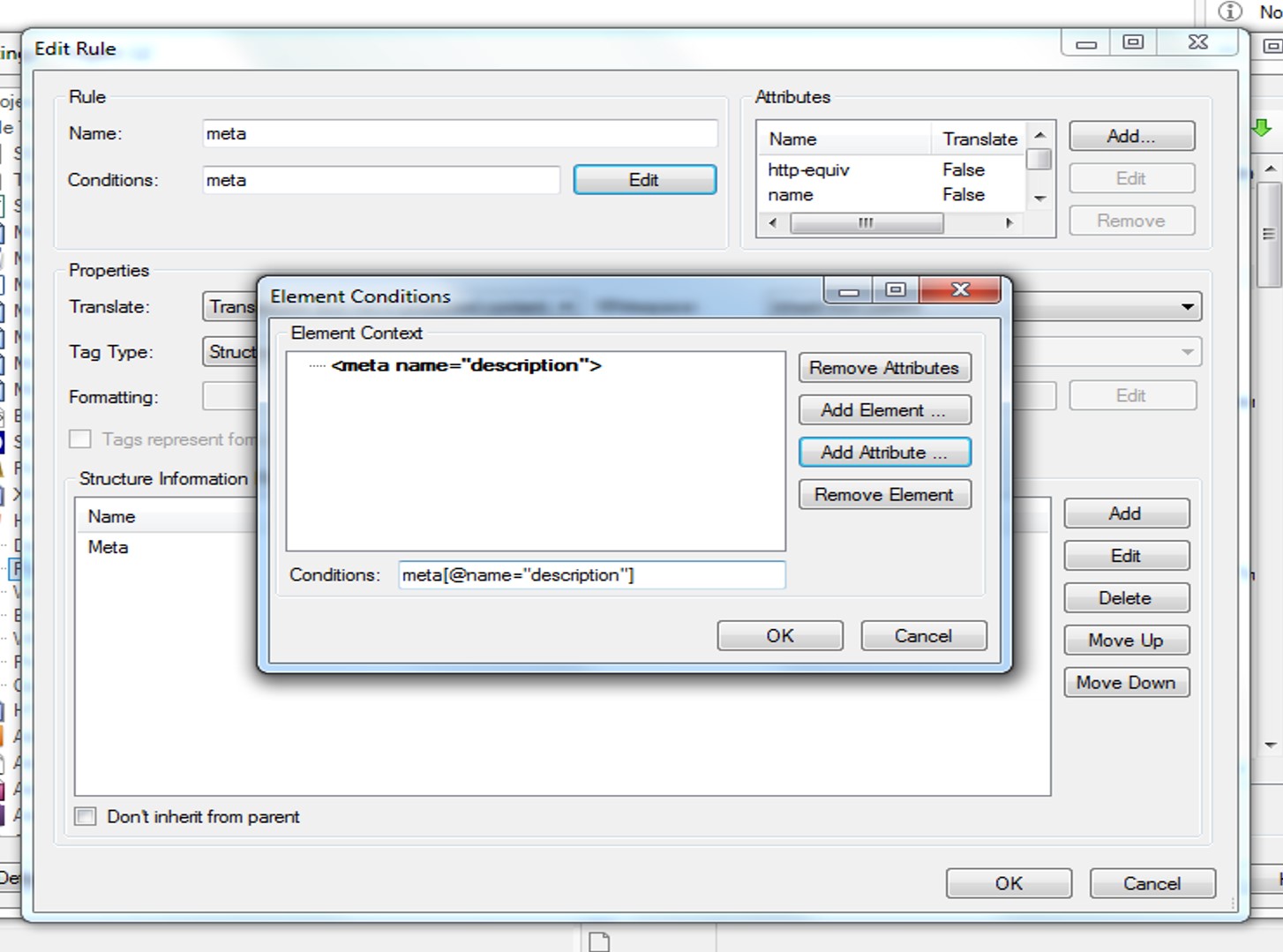
Is there a way to hide them, apart from locking those segments? I saw this presentation by Paul online which recommends using the SDLXLIFF Toolkit, but I was wondering if I could tweak the HTML Parser settings from within Studio? I tried playing around with the Elements Conditions (i.e. editing the Rule) but to no avail:


Any suggestions please?


Thanks in advance.


Piero

Parents Reply
  • Hi Piero,

    If you have one file it might be easiest to follow the advice from Evzen especially because you could also tweak the segmentation rules to separate out the keywords into separate segments.  You could do this in the full file too but it may not be appropriate to segment on a comma elsewhere.

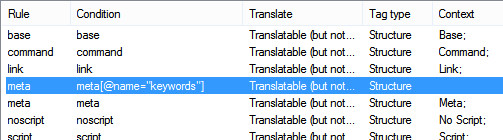
    But... if you'd like to persevere here's a way to do it.  First reset your meta rule so that the content attribute is not translatable.  Then add a new rule also called meta and move it above your existing rule like this:

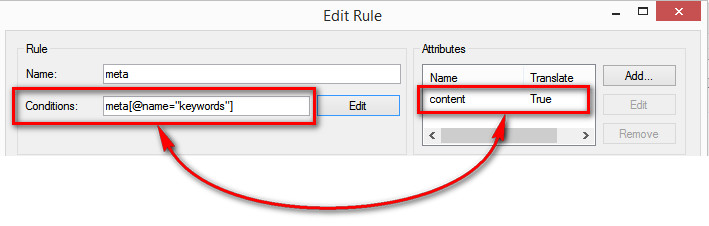
    Then edit the rule so the condition is this:

    meta[@name="keywords"]

    And add one attribute for content and make it translatable:

    In effect you are creating a rule that only parses the meta element when it contains the attribute name="keywords".  Then it picks out the content of content attribute and makes it translatable.  This produces this in the editor which is what you wanted:

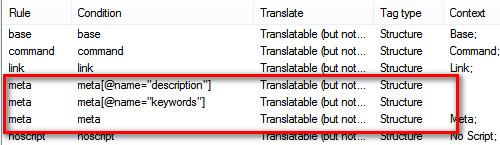
    You may have to do this for each type of content you need.  So you might want to create one for this too:

    meta[@name="description"]

    Then you get this:

    Which renders this:

    The point being that priority in the list is important and you just need to create specific rules for each part you wish to extract.  If the html filetype accepted more flexible xpath you could create a single rule for this but I was unable to make this work... so separate rules seems to do the job.

    Hope this helps.

    Paul

    Paul Filkin | RWS

    Design your own training!
    You've done the courses and still need to go a little further, or still not clear? 
    Tell us what you need in our Community Solutions Hub

Children