How to open packages which contain subfolders?

I’ve got a package which contains a main subfolder (with 8 subfolders within the main subfolder). When I open the package from the path “File > Open > Open Package”, I see the subfolders in the lower left pane. So, I choose “include subfolders” from the right bar and all the translatable files are listed in the lower right pane. Then, I click “Finish” and the package is imported with no errors.

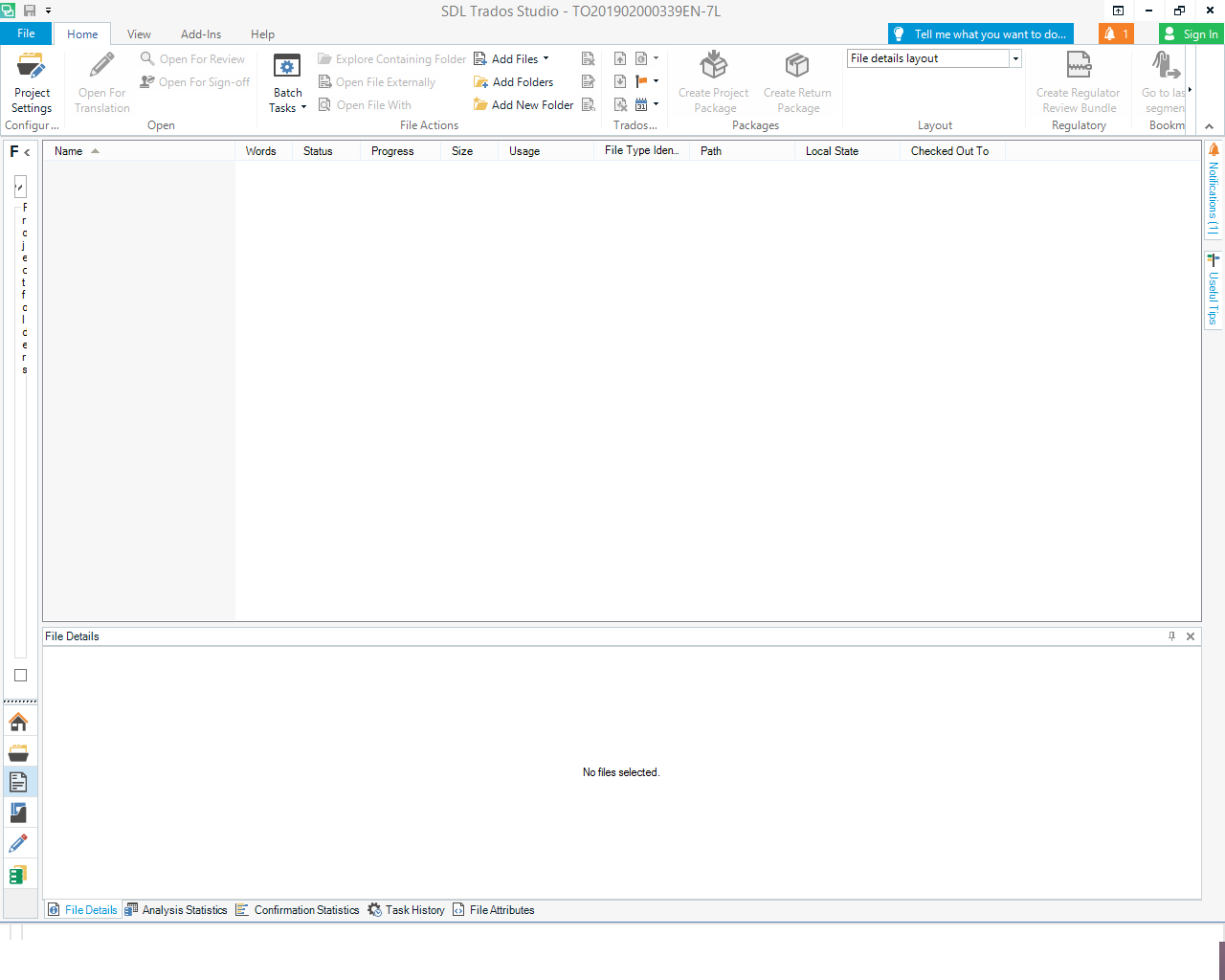
However, when I double click on the package’s name in the “Projects View”, Trados does not show any translatable file in the “Files View”. It is completely blank.

For fixing the problem, I decided to manually add the folders to the “Files View”. I clicked on “Add Folders” from the “Home” tab. But when I chose the main subfolder, an error message appeared which said “This project already contains a source file named XXX”. So, I think the translation files are already there but the problem is that they are not visible to me. I also opened the location of the extracted package. I checked the source and target folders and found that all the XLIFF files were there. But I do not know why they are not visible in Studio.

I use SDL Trados 2019, and have posted the pictures of the process below.

I’d be grateful if you could help me with opening this type of package which contains subfolders?
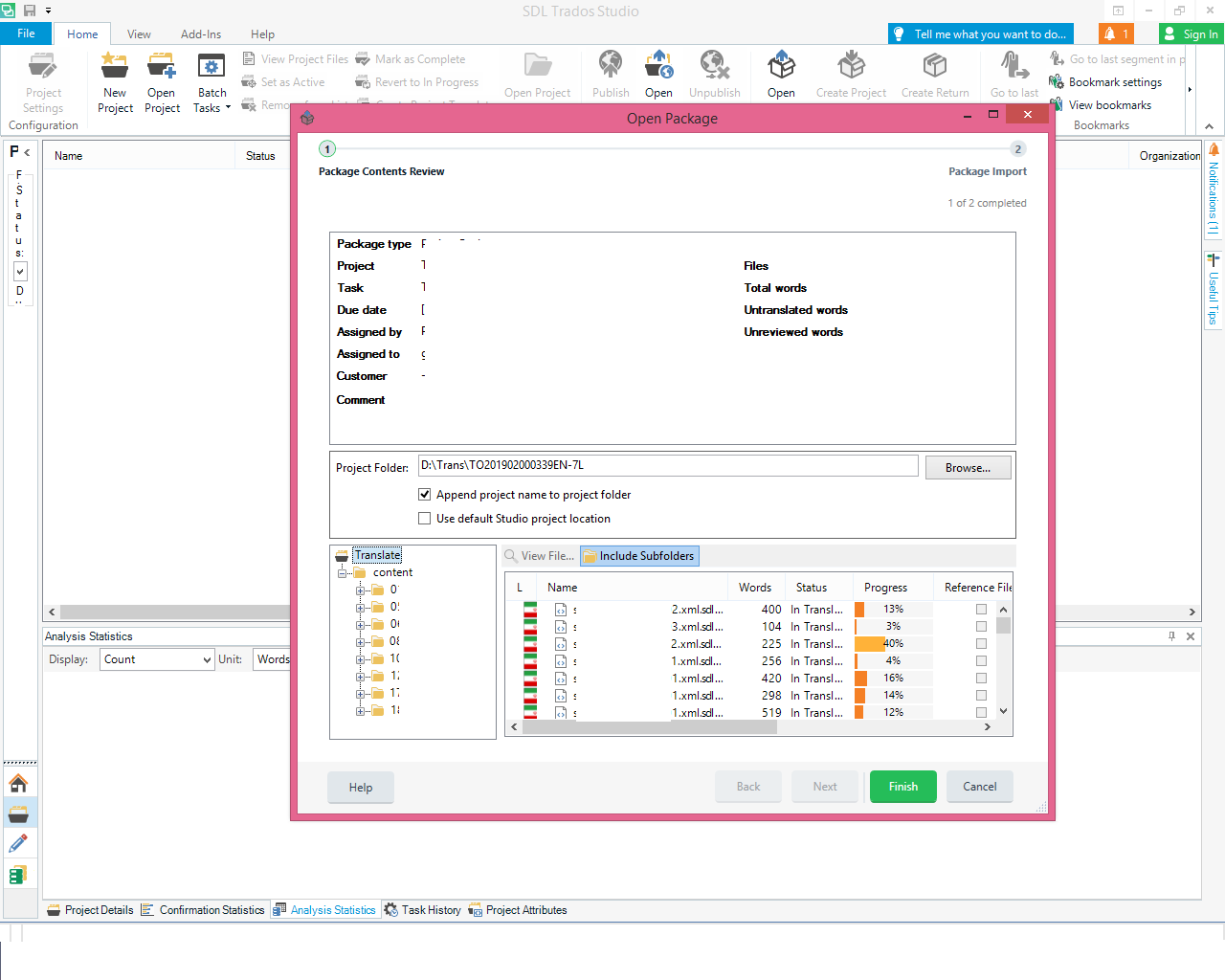
 Trados Studio Open Package dialog showing a package with subfolders selected and the 'include subfolders' option checked. Translatable files are listed in the lower right pane.

Trados Studio Projects View with the package name selected but the Files View is blank, showing no translatable files.


Thanks in advance

Shiva


Generated Image Alt-Text
[edited by: Trados AI at 3:33 PM (GMT 0) on 28 Feb 2024]
emoji
Parents
  • Hi 

    Some further information...

    Once you have opened the package as explained by 

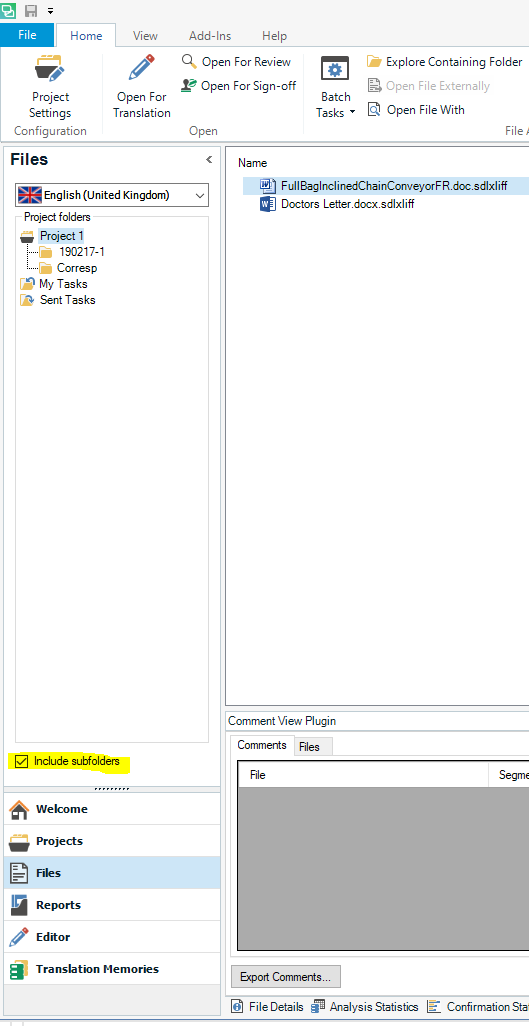
    Click on the little right-arrow at the top of the left column, as I've highlighted here:

    Screenshot of Trados Studio interface with a highlighted right-arrow at the top of the left column indicating where to click to expand the view.

    You will see I've also highlighted what appears to be a column of partial letters. These are the names of folders/files but you can't see them until you click the right-arrow.

    I've also highlighted a box at the bottom which is unticked. Once you've expanded this section you will see as below that this enables all documents in all folders to be displayed at once:

    Screenshot showing Trados Studio with partially visible folderfile names highlighted, and an unticked box at the bottom for displaying all documents in all folders at once.

    This means you can highlight them all and open them via 'Open for...' and work on them as if they were one big document.

    When you save, the contents save back to the individual files. When you close the file, each of the individual files is updated.

    I hope this helps!

    All the best,

    Ali :)

    emoji


    Generated Image Alt-Text
    [edited by: Trados AI at 3:33 PM (GMT 0) on 28 Feb 2024]
Reply
  • Hi 

    Some further information...

    Once you have opened the package as explained by 

    Click on the little right-arrow at the top of the left column, as I've highlighted here:

    Screenshot of Trados Studio interface with a highlighted right-arrow at the top of the left column indicating where to click to expand the view.

    You will see I've also highlighted what appears to be a column of partial letters. These are the names of folders/files but you can't see them until you click the right-arrow.

    I've also highlighted a box at the bottom which is unticked. Once you've expanded this section you will see as below that this enables all documents in all folders to be displayed at once:

    Screenshot showing Trados Studio with partially visible folderfile names highlighted, and an unticked box at the bottom for displaying all documents in all folders at once.

    This means you can highlight them all and open them via 'Open for...' and work on them as if they were one big document.

    When you save, the contents save back to the individual files. When you close the file, each of the individual files is updated.

    I hope this helps!

    All the best,

    Ali :)

    emoji


    Generated Image Alt-Text
    [edited by: Trados AI at 3:33 PM (GMT 0) on 28 Feb 2024]

Children