Taking too long to "Quick" add new term

Hi,

I am using Trados studio 2019 and I need help with adding terms to a term base. When I find a term to add to my term base, I click "Quick Add New Term", then what happens is the whole list of my term base slowly loads from A-Z (depending on the term you want to add, if the term happens to start with an A, then it loads until it finds a stop in 'A' terms, if the term starts with a Z, it loads all the way down to Z to find a spot for the term). I just want to quickly add a term to my term base but I always end up helplessly waiting at least 30 seconds or over a miniature watching the terms load.... I saw some people had the same issue, I tried a couple (resetting layout, moving the term window etc.) but nothing worked. The size of my term base is not huge, it contains a little more than 1,000 terms. When I use MemoQ, I dont have this problem and I add terms a lot, but in Trados, since I have to wait forever to add one single term, I can't add terms and therefore risk consistency. Can someone please help me? Thanks a lot in advance.

Thank you.  

Parents
  • Hi 

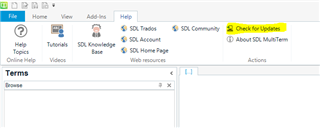
    Are you using the most recent version of both MultiTerm and Studio? The sort of problems you describe might be caused by having an older version of MultiTerm installed. Open MultiTerm and allow it to install the latest update. If you have it set to automatic updates this will happen by simply opening it. If not, you will need to go to the Help tab and click 'Check for Updates':

    Screenshot of SDL MultiTerm with the Help tab open showing the 'Check for Updates' button highlighted.

    If that does not solve the problem then try a Windows repair of Studio and MultiTerm components, as here:

    1. Close all SDL applications.
    2. Open the Control Panel:
      • Windows Vista/7Start > Control Panel > Programs > Programs and Features.
      • Windows 8: Right-click on the screen at bottom-left corner and choose Control Panel > Uninstall a Program.
      • Windows 10: Right-click on Start > Control Panel > Select View by: Small Icons > Programs and Features
      • - or type 'Control Panel' in the search line on your bottom Windows toolbar.
    3. Click/highlight the relevant SDL product from the list (e.g. SDL Trados Studio 2019 etc) and click 'Repair' either on the top toolbar or on the right-click dropdown menu.
    4. Restart Studio/MultiTerm.
    If that doesn't help, try reinstalling both products.
    If that doesn't work, then you have the right to contact Installation Help free of charge, here:

    installation and licensing help

    Select 'Installation' from the 'Case type' dropdown menu.

    Someone will help in the next day or two if you give your correct email address.

    All the best,

    Ali :)

    emoji


    Generated Image Alt-Text
    [edited by: Trados AI at 7:42 PM (GMT 0) on 28 Feb 2024]
Reply
  • Hi 

    Are you using the most recent version of both MultiTerm and Studio? The sort of problems you describe might be caused by having an older version of MultiTerm installed. Open MultiTerm and allow it to install the latest update. If you have it set to automatic updates this will happen by simply opening it. If not, you will need to go to the Help tab and click 'Check for Updates':

    Screenshot of SDL MultiTerm with the Help tab open showing the 'Check for Updates' button highlighted.

    If that does not solve the problem then try a Windows repair of Studio and MultiTerm components, as here:

    1. Close all SDL applications.
    2. Open the Control Panel:
      • Windows Vista/7Start > Control Panel > Programs > Programs and Features.
      • Windows 8: Right-click on the screen at bottom-left corner and choose Control Panel > Uninstall a Program.
      • Windows 10: Right-click on Start > Control Panel > Select View by: Small Icons > Programs and Features
      • - or type 'Control Panel' in the search line on your bottom Windows toolbar.
    3. Click/highlight the relevant SDL product from the list (e.g. SDL Trados Studio 2019 etc) and click 'Repair' either on the top toolbar or on the right-click dropdown menu.
    4. Restart Studio/MultiTerm.
    If that doesn't help, try reinstalling both products.
    If that doesn't work, then you have the right to contact Installation Help free of charge, here:

    installation and licensing help

    Select 'Installation' from the 'Case type' dropdown menu.

    Someone will help in the next day or two if you give your correct email address.

    All the best,

    Ali :)

    emoji


    Generated Image Alt-Text
    [edited by: Trados AI at 7:42 PM (GMT 0) on 28 Feb 2024]
Children