 Translate



Suddently, this has started happening. No idea why, but just saving or moving from segment produces 3 or 4 pop-up Windows,
I cannot therefore work in SDL untill resolved
Any ideas welcome

Suddently, this has started happening. No idea why, but just saving or moving from segment produces 3 or 4 pop-up Windows,
I cannot therefore work in SDL untill resolved
Any ideas welcome
I have the exact same problem. It seems to be caused by the DeepL plugin - remoe it and the "forbidden" popups disappear. But I nwant to use DeepL, so what is the solution? It used to work, and still does on my desktop.

Yes, it turns out it was a DeepL problem - and in fact it had been reinstalled a week ago - by the SDL support team - due to another problem, and the person from SDL forgot to explain to me that I had to re-enter the API key. So I think that perhaps, there is only a limited number of free segments DeepL will let you use, then it stops working. I have now put my API key in (for my DeepL Pro subscription) and all is fine.

A couple of silly questions but can you verify these things?
- you have the right key? I have seen incorrect keys being used in error before.
- you have no spaces at either end of the key
Paul Filkin | RWS
Design your own training!
You've done the courses and still need to go a little further, or still not clear?
Tell us what you need in our Community Solutions Hub
Hi
I thought your suggestion would be weird, since DeepL used to work, then suddenly stopped working for no reason (at first there would be no automatic translation for the segment, though I got the message saying "using DeepL etc...".
I looked for solutions, and found the suggestion to install the latest version of the plugin, which I did, to no avail.
By then there was an update to Studio 2019, which I installed, and then removed and reinstalled the latest version of the DeepL plugin. At no time was I asked to reenter the key, nor did I change it.
I have just removed and reinserted the key. I don't seem to get the Forbidden popups any more, but the translations appearing for the segments come from NMT (which I used yesterday), rather than DeepL, even though the TMs selected do NOT include language cloud NMT.
So now my question is how do I get rid of language cloud to make sure DeepL is working?
Thanks
FX
but the translations appearing for the segments come from NMT
DeepL provides NMT. That's just a status. Look at the translation memories window where the results come from and that will tell you which NMT provider is being used.
Paul Filkin | RWS
Design your own training!
You've done the courses and still need to go a little further, or still not clear?
Tell us what you need in our Community Solutions Hub
it's just than until now segments auto translated by DeepL had AT, not NMT. So I just assumed it came from SDL Language Cloud, which was marked NMT when I used it.
So you were right, entering the key again solved the problem (still don't know why though, since nothing had been changed). The "forbidden" popups are gone.
Anyway, thank you for your help
FXF
Well. something weird just happened, the pop up window came back, and when I looked at the API key it had disappeared again! What is going on? Of course I have put it back and everything is fine. but nevertheless, if this keeps happening it will be a pain.
On another point, the MT results windows have a message saying 'there was a problem while translating, please see massage window for more information.' Is that normal? The translation is there nevertheless. I just wonder if there is a connection between the two issues.
the pop up window came back, and when I looked at the API key it had disappeared again! What is going on?
New project perhaps and you don't have DeepL in your Global settings? This isn't normal behaviour, maybe you have some security software "cleaning up the settings files for DeepL in the backgound?"
Can we see your log file?
c:\Users\[USERNAME]\AppData\Roaming\SDL\DeeplLogs\DeeplLogs.txt
Maybe there will be something in there to help identify the problem.
Paul Filkin | RWS
Design your own training!
You've done the courses and still need to go a little further, or still not clear?
Tell us what you need in our Community Solutions Hub
how do I upload it? It doesn't seem possible to upload a file on this site
It's only a text file so should be no problem at all. Like this:
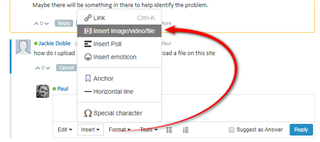
You could even try zipping it first.
Paul Filkin | RWS
Design your own training!
You've done the courses and still need to go a little further, or still not clear?
Tell us what you need in our Community Solutions Hub

Thanks... will give this to a developer tomorrow when they come in.
Paul Filkin | RWS
Design your own training!
You've done the courses and still need to go a little further, or still not clear?
Tell us what you need in our Community Solutions Hub
Thanks... will give this to a developer tomorrow when they come in.
Paul Filkin | RWS
Design your own training!
You've done the courses and still need to go a little further, or still not clear?
Tell us what you need in our Community Solutions Hub
I also have the problem with the "Forbidden" message but cannot solve it with the suggestions from this page.
When I first tried to install the DeepL plug-in, I got an error message and it did not work at all. Then I updated Trados Studio. After that it did install, and I can select it in the Project Settings but when I do, I Keep getting the "Forbidden" message. This only disappers when I deactivate the DeepL plug-in. The DeepL key is correctly spelled, no spaces. And since it works without Problems for my colleague, it cannot be a Firewall Issue either.
Any suggestions?
This is almost certainly a DeepL problem and you should report it to them. I just tested this and I also get the same thing. There has been no changes to Studio, no changes to the plugin... the only variable here is DeepL who can change anything they like and we will not be aware of it.
Paul Filkin | RWS
Design your own training!
You've done the courses and still need to go a little further, or still not clear?
Tell us what you need in our Community Solutions Hub
In fact I solved it... just go to your settings and put your API credentials back in ;-)
Paul Filkin | RWS
Design your own training!
You've done the courses and still need to go a little further, or still not clear?
Tell us what you need in our Community Solutions Hub
Unfortunately, it does not work for me :-( In fact, I also tried that various times before but it never made a difference...