SDL Trados 2019 SR2 freezes completely when I try to open a package from my client

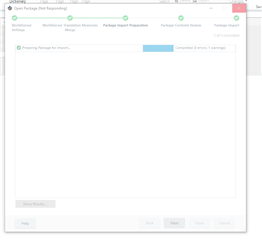
SDL Trados Studio 2019 SR2 frozen during package import preparation at stage 3 with a progress bar showing 'Preparing Package for Import' and a status of 'Not Responding'.

Hello all,

For some time, I have encountered this problem with SDL Trados 2019 SR2. When I try to open a package from my client, Trados freezes completely. It works until stage 3 (package import preparation) of the process of preparation, but when I click the Next button, it freezes and I have to shut it. The file extension is SDL WSXZ.

At first, I thought that I should wait a little bit longer in order for it to process it, but no results so far. I uninstalled and reinstalled Trados, but there was no resolution at all. I think it is weird since I have Trados installed on other PC also and I can open the packages from that one.

Would you be so kind as to help me with this problem? 


Generated Image Alt-Text
[edited by: Trados AI at 7:46 PM (GMT 0) on 28 Feb 2024]
emoji
Parents Reply Children
  • Hello,

    .wsxz is not a zip file nor a similar format.

    It is a return package format. I find it odd that on my other pc I can open the return package, but on this one I cannot. It would be optimal to be able to open them on all of my computers, since this is the main reason why I bought 2 licenses. Also, I cannot request another return package from the client, since the one sent is working (but only on 1 pc).

    @Steven Whale, would you please be so kind as to further assist me with this problem? Slight smile

  • Hello ,

    Its essential that we find out where you have downloaded the package to (we know you have downloaded from the clients site)..

    IS this is your downloads folder? Have you moved it to your projects folder?

    Are you using FireFox by any chance?

    If the package has been downloaded and opened on another PC, we can safely assume this is a local issue on your machine-

    So please 

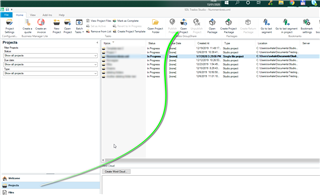
    1) move the package from your download folder in to your projects folder.

    2) ensure this folder is whitelisted (along with Studio/MultiTerm) in your AntiVirus provider.

    3) From your projects view- click on Open Project and direct Studio to where you saved the project

    Trados Studio screenshot showing the Projects view with an arrow pointing from the Downloads folder to the Projects folder, indicating where to move the package.

    You should now be able to open the package.

    If you are still having issues, please provide the information i requested previously, and we may be able to shed some light on the issue.

    Popup window with a 'Top Tip!' suggesting to type @username when replying to a post to ensure the correct user receives an email notification.

    Oana Nagy | QA Engineer | RWS Group

    emoji


    Generated Image Alt-Text
    [edited by: Trados AI at 7:46 PM (GMT 0) on 28 Feb 2024]