


Validation Error

Former Member
Former Member

Hi 

I saved my project and shut down my computer and the next day when I opened the SDL 2019 I couldn't see the project in SDL Trados, it was completely disappeared. So I went to check the project in document folder and I opened the SDL XLIFF file facing these errors which means that I cannot see what I have translated for the last one month. I'd rather not to hear that this bug is going to make me translate 20000 words again. 
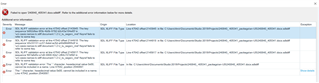
Error message window in SDL Trados Studio showing multiple file path errors indicating missing or inaccessible project files.


Generated Image Alt-Text
[edited by: Trados AI at 8:33 PM (GMT 0) on 28 Feb 2024]
emoji
Parents
  • The error suggests your sdlxliff file is corrupt, and if you opened it in a text editor and couldn't see anything there then this would seem to be the case.  If you'd like me to validate this please email me your zipped up project - pfilkin@sdl.com

    Presumably you were using a Translation Memory and can therefore recover your translations from there?

    Paul Filkin | RWS

    Design your own training!
    You've done the courses and still need to go a little further, or still not clear? 
    Tell us what you need in our Community Solutions Hub

  • Former Member
    0 Former Member in reply to Paul Filkin

    Hi

    I sent the complete zipped project file.

    I opened it in a text editor and I could see some strange texts there.

    I was using a translation memory but opening it, I also face error and can't see anything.

  • I’m afraid these files have been badly corrupted and are not recoverable in full.  For this to happen it looks as though you have either got a problem with your computer, or you’re using an external drive that perhaps lost connection halfway through backing or synchronising perhaps… or even have some aggressive security software installed that interfered with a backup, or the operation of Studio.

    I was only able to do two things:

    1. Piece together some of the target sdlxliff and recover around 500 segments.  This is what your actual file looked like:
      Screenshot of Trados Studio showing corrupted file with error message 'File contains corrupted data' and multiple lines of indecipherable text.
      I hid the source text in the image and just showed the point where the file is corrupt.  To fix it I used the content of the source SDLXLIFF which was the only file unaffected by whatever happened and replaced the corrupted parts with content of the source.
    2. Repair the smaller TM and recover 17 Tus.  I used SDLTM Repair from the appstore to do this.

    I’m afraid you will have to do this over again.  I would recommend a few actions for you:

    1. Investigate the potential causes for this (security software, backup devices, where you’re storing your projects)
    2. Implement a regular backup routine for your work so you only lose a days work at most if a catastrophic event like this occurs.

    Paul Filkin | RWS

    Design your own training!
    You've done the courses and still need to go a little further, or still not clear? 
    Tell us what you need in our Community Solutions Hub

    emoji


    Generated Image Alt-Text
    [edited by: Trados AI at 8:33 PM (GMT 0) on 28 Feb 2024]
Reply
  • I’m afraid these files have been badly corrupted and are not recoverable in full.  For this to happen it looks as though you have either got a problem with your computer, or you’re using an external drive that perhaps lost connection halfway through backing or synchronising perhaps… or even have some aggressive security software installed that interfered with a backup, or the operation of Studio.

    I was only able to do two things:

    1. Piece together some of the target sdlxliff and recover around 500 segments.  This is what your actual file looked like:
      Screenshot of Trados Studio showing corrupted file with error message 'File contains corrupted data' and multiple lines of indecipherable text.
      I hid the source text in the image and just showed the point where the file is corrupt.  To fix it I used the content of the source SDLXLIFF which was the only file unaffected by whatever happened and replaced the corrupted parts with content of the source.
    2. Repair the smaller TM and recover 17 Tus.  I used SDLTM Repair from the appstore to do this.

    I’m afraid you will have to do this over again.  I would recommend a few actions for you:

    1. Investigate the potential causes for this (security software, backup devices, where you’re storing your projects)
    2. Implement a regular backup routine for your work so you only lose a days work at most if a catastrophic event like this occurs.

    Paul Filkin | RWS

    Design your own training!
    You've done the courses and still need to go a little further, or still not clear? 
    Tell us what you need in our Community Solutions Hub

    emoji


    Generated Image Alt-Text
    [edited by: Trados AI at 8:33 PM (GMT 0) on 28 Feb 2024]
Children
No Data

