This discussion has been locked.
You can no longer post new replies to this discussion. If you have a question you can start a new discussion

SDL fails to turn OFF this Match Repair rubbish

W10, SDL 2019 edition.

Wow. Just when you thought SDL couldn't get any more abysmal and dysfunctional, it always has another sting to surprise you with.

Currently, under Language Pairs --> French->English (the only pair) --> Match Repair, Editor is set to Off and Batch Tasks is also set to Off.

But it's still messing up the target translation when it finds a fuzzy match, injecting all sorts of nonsense.  Naturally enough this impairs productivity. There is, indeed, scarcely any point of referring to fuzzy matches if you have to check every word to make sure some completely wrong word has not been injected.

Incidentally, the slider / button next to "upLIFT Match Repair identifies... " at the top is greyed-out but impossible to activate or change in any way. Indeed I can't really tell whether this indicates whether it is on or off.

Unbelievable.

Your organisation obviously rakes in quite a bit of cash from people who are obliged to buy your product. Could you maybe use some of that cash to hire some professional software developers to address some of the more egregious and amateurish dysfunctions of this heap of ****?

My personal favourite: SDL crashes with a dialog "Unknown hard error". Happens about once or twice a week.


[locked by: Paul at 6:25 AM (GMT 1) on 23 Jul 2020]
Parents
  • I would call your writing style unbelievable.

    UpLift is usually quite helpful and if not, inserting a non-repaired match is just a shortcut away.

    Instead of a rational post with some more information like screenshots of your settings, you just release an intolerable rant here. You have a problem and you ask for help. In my opinion this should be done in a proper way. Shouting at people who could be willing to help will certainly not delight them. I for one do not see any sense in even trying to help you.

    Just my 2 cents on this incredible posting.

    _________________________________________________________

    When asking for help here, please be as accurate as possible. Please always remember to give the exact version of product used and all possible error messages received. The better you describe your problem, the better help you will get.

    Want to learn more about Trados Studio? Visit the Community Hub. Have a good idea to make Trados Studio better? Publish it here.

  • Hi 

    I agree with that your style of writing is unbelievable and unwarranted. Many of the people who could help you will decide not to because you seem so angry. We don't all work for SDL and we're here because we want to help others learn how to use this software and to solve problems.

    I commend for his patience in his reply.

    Just when you thought SDL couldn't get any more abysmal and dysfunctional,

    SDL Studio, I presume is what you mean here. It is neither abysmal nor dysfunctional if you set it up correctly and learn and understand how to use it properly.

    Currently, under Language Pairs --> French->English (the only pair) --> Match Repair, Editor is set to Off and Batch Tasks is also set to Off.

    Is this via File>Options or in Project Settings? Settings under File>Options are overruled by the same settings in Project Settings* by design because that way you can make them client-specific for example. Also, it is best to make this setting under 'All Language Pairs' not the individual language pair.

    But it's still messing up the target translation when it finds a fuzzy match, injecting all sorts of nonsense.

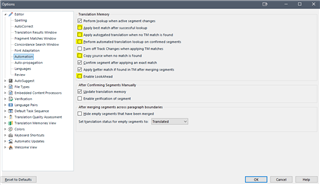
    It will only insert nonsense if you have it set in such a way that it can insert nonsense. My setup never inserts nonsense. I have it set too strictly for that. Here's how I prevent that happening in my settings via File>Options>Editor>Automation:

    Trados Studio options menu showing Automation settings with various checkboxes for translation memory and auto-propagation.

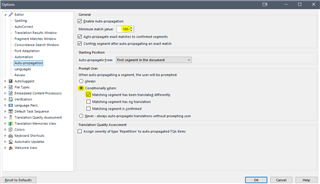
    and under File>Options>Autopropagation:

    Trados Studio options menu displaying Autopropagation settings with a manual match value of 100% highlighted.

    These options are there for you to test out until you find the best settings for the way you work. It takes a while to get used to them, I know, but once you understand how they work, the job is much more pleasant. Clicking the Help button on the bottom corner of each screen will give you a brief explanation of the functionality in the dialog you have open.

    the slider / button next to "upLIFT Match Repair identifies... " at the top is greyed-out but impossible to activate or change in any way

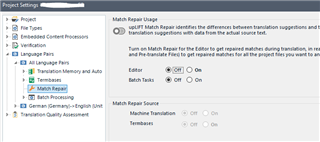
    Which one? In File>Options or in Project Settings? An image would have answered this question for us. Here's how it looks in Project Settings:

    Trados Studio Project Settings window with Match Repair options for French to English language pair, Editor set to Off and Batch Tasks set to On.

    The slider is grey because I have clicked on all the buttons below it to turn it OFF.

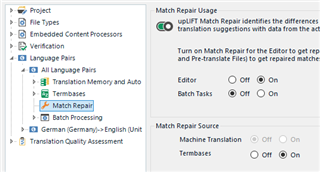
    Here's how it looks when turned ON:

    Trados Studio Match Repair settings under Language Pairs with Editor and Batch Tasks toggles showing On and Off options.

    You have to click on the On buttons to turn it on. The 'slider' or rather the indicator then changes to green to indicate it is turned ON.

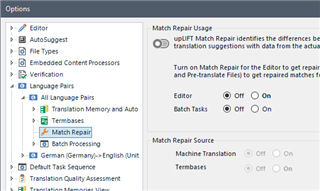
    Here's how it looks turned OFF under File>Options:

    Trados Studio options menu with Match Repair settings under Language Pairs, showing Editor and Batch Tasks toggles in Off position.

    If the indicator button is grey then upLIFT Match Repair is turned off in the scenario that it affects.

    *So.... if it's turned OFF under File>Options but turned ON in the Project Settings, it will be turned ON when you work in that project but OFF if you translate a single document or make a project based on your File>Options profile settings.

    You should be enjoying this wonderful but very complex piece of software. All you need to do is to learn how to make it work the way you want it to. There are several ways to do that and coming on this forum to ask for help is one of them.

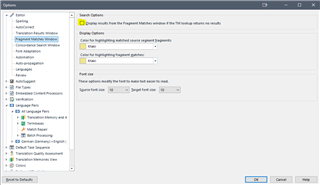
    Here's another setting you might find helpful:

    Trados Studio options menu with a search box and settings for highlighting featured segment matches.

    That turns OFF Match Repair

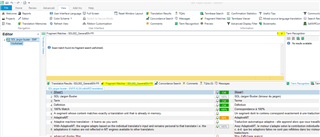
    You can also close the Match Repair window in the Editor itself, via the little x top right of the window:

    Window open:

    Trados Studio Editor view with Match Repair window open, showing a fuzzy match being repaired.

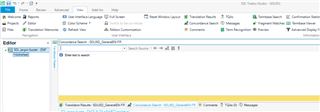
    Window closed:

    Trados Studio Editor view with Match Repair window closed, no visible errors or warnings.

    I hope this helps as a starting point.

    All the best,

    Ali Slight smile

    A user of Studio and TagEditor before Studio, still learning and enjoying it Smiley

    emoji


    Generated Image Alt-Text
    [edited by: Trados AI at 9:56 PM (GMT 0) on 28 Feb 2024]
Reply
  • Hi 

    I agree with that your style of writing is unbelievable and unwarranted. Many of the people who could help you will decide not to because you seem so angry. We don't all work for SDL and we're here because we want to help others learn how to use this software and to solve problems.

    I commend for his patience in his reply.

    Just when you thought SDL couldn't get any more abysmal and dysfunctional,

    SDL Studio, I presume is what you mean here. It is neither abysmal nor dysfunctional if you set it up correctly and learn and understand how to use it properly.

    Currently, under Language Pairs --> French->English (the only pair) --> Match Repair, Editor is set to Off and Batch Tasks is also set to Off.

    Is this via File>Options or in Project Settings? Settings under File>Options are overruled by the same settings in Project Settings* by design because that way you can make them client-specific for example. Also, it is best to make this setting under 'All Language Pairs' not the individual language pair.

    But it's still messing up the target translation when it finds a fuzzy match, injecting all sorts of nonsense.

    It will only insert nonsense if you have it set in such a way that it can insert nonsense. My setup never inserts nonsense. I have it set too strictly for that. Here's how I prevent that happening in my settings via File>Options>Editor>Automation:

    Trados Studio options menu showing Automation settings with various checkboxes for translation memory and auto-propagation.

    and under File>Options>Autopropagation:

    Trados Studio options menu displaying Autopropagation settings with a manual match value of 100% highlighted.

    These options are there for you to test out until you find the best settings for the way you work. It takes a while to get used to them, I know, but once you understand how they work, the job is much more pleasant. Clicking the Help button on the bottom corner of each screen will give you a brief explanation of the functionality in the dialog you have open.

    the slider / button next to "upLIFT Match Repair identifies... " at the top is greyed-out but impossible to activate or change in any way

    Which one? In File>Options or in Project Settings? An image would have answered this question for us. Here's how it looks in Project Settings:

    Trados Studio Project Settings window with Match Repair options for French to English language pair, Editor set to Off and Batch Tasks set to On.

    The slider is grey because I have clicked on all the buttons below it to turn it OFF.

    Here's how it looks when turned ON:

    Trados Studio Match Repair settings under Language Pairs with Editor and Batch Tasks toggles showing On and Off options.

    You have to click on the On buttons to turn it on. The 'slider' or rather the indicator then changes to green to indicate it is turned ON.

    Here's how it looks turned OFF under File>Options:

    Trados Studio options menu with Match Repair settings under Language Pairs, showing Editor and Batch Tasks toggles in Off position.

    If the indicator button is grey then upLIFT Match Repair is turned off in the scenario that it affects.

    *So.... if it's turned OFF under File>Options but turned ON in the Project Settings, it will be turned ON when you work in that project but OFF if you translate a single document or make a project based on your File>Options profile settings.

    You should be enjoying this wonderful but very complex piece of software. All you need to do is to learn how to make it work the way you want it to. There are several ways to do that and coming on this forum to ask for help is one of them.

    Here's another setting you might find helpful:

    Trados Studio options menu with a search box and settings for highlighting featured segment matches.

    That turns OFF Match Repair

    You can also close the Match Repair window in the Editor itself, via the little x top right of the window:

    Window open:

    Trados Studio Editor view with Match Repair window open, showing a fuzzy match being repaired.

    Window closed:

    Trados Studio Editor view with Match Repair window closed, no visible errors or warnings.

    I hope this helps as a starting point.

    All the best,

    Ali Slight smile

    A user of Studio and TagEditor before Studio, still learning and enjoying it Smiley

    emoji


    Generated Image Alt-Text
    [edited by: Trados AI at 9:56 PM (GMT 0) on 28 Feb 2024]
Children
  • Thanks. I shall now endeavour to ensure that this is turned off in the File > Options as well.

    SDL is not a "wonderful" piece of software, and the complexity is absolutely absurd and 95% of it totally unnecessary. A simpler expectation of what users want from it should have been anticipated and designed in from the very start. I use it because I have to and because the only FOSS (Free Open Source Software) alternative, Omega-T, is currently not fit for purpose.

    I have been using this heap of **** for 20 years now (previously Trados) and, as something of a coder, I experience what I experience. This is terrible, abysmal, LEGACY software. I found this out when, to my annoyance, I chose to "upgrade" to 2019 last year, probably for some utterly infuriating reason. The first upgrade package I tried, when I jumped through all the hoops, had inadvertently disabled the regex replacement feature, which I use all the time in finalising my documents.  This implies clearly that the software production team are not using proper test-driven development in developing the software: it is unthinkable that such a thing could happen if they were using a proper testing methodology before releasing a new version.

    I don't in fact want anything like match repair: in practice half my clients give me PDFs which have to be converted, and no TM, and the others send translation memories which have been compiled by 20 different translators and where, therefore, consistency went out the window years ago and they are just using it to shave a few Euros off the price paid to the translator.

    In the case of my giant "personal" TM, some of those translations date back to 2003, and when they pop up they are either not very good, or in some way not consistent with the choice of terminology I tend to favour these days.

    In other words, most of this is hype. I use TM software primarily to humour my clients.  Bless 'em.

    I consequently have no interest whatsoever in these rubbishy and irrelevant "advanced" features. Note to team: sort out the basics ... THEN think about adding advanced stuff.

    I want the thing not to CRASH every few hours, not to switch into some unknown mode which I can't get out of, not to prevent target generation completely and totally, for trivial reasons, and not to ask me twenty times to confirm a command in an irritating way.  The latter would be configurable in a professional, proficient application.

    I also want the mnemonics (Alt-... to access menu commands) to work properly: this is a concern for disabled people who find it difficult to use the mouse. But I know SDL will never ever correct the mnemonics faults because they can't be bothered. So be it.

    One remark you made there is of interest: you say "We don't all work for SDL" ...is it possible to know which among the contributors actually work for SDL? This would certainly make the defensiveness more understandable. 

    Shockingly bad software can be corrected. But that will never happen if the employees and developers are in denial.