The Trados cloud platform will be undergoing maintenance on Saturday, 9th May 2026 between 05:00 to 17:00 UTC. During this time, you will not be able to log in to the Trados platform.

Erased the target xliff file by mistake - solution ?

Hi all,

This morning, I erased the target xliff file of my project by mistake.

Let me explain. Having an error message while trying to open my projet, I decided to re-import the package and replace the xliff file of this new package with the one I saved on my computer (the finished one). Maybe I had a hard night, but I made a mistake and erased the file with the new import. So the xliff file is totally new and I cannot retrieve the older file (of course, I erased it !)

Here is my question: in computer things, nothing is ever lost, so is there a way to retrieve the file I accidentally erased ? Or is it definitely lost ?

I tried the "restore older versions" in the folder, but it is not activated on my windows version. Dead end.

I tried some free softwares but did not work.

I will try again some other softwares, but is it useful ? Is there a little chance that I can retrieve my files ?

Thanks in advance for your answers :)

Parents
  • Hi 

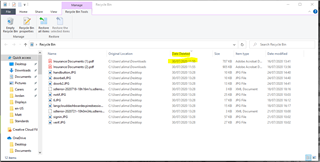
    If you deleted the file from your computer, it will be in the 'Recycle bin' which you can open from your Desktop. If you double-click on the Recycle bin and click on Date Deleted to bring your deleted file to the top of the list, then right click on it and select 'Restore' to send it back to the folder that you deleted it from OR drag it to your desktop with your cursor.

    Screenshot of Recycle Bin window with a list of deleted files, highlighting the 'Date Deleted' column to sort files by deletion date.

    If you deleted the file from a server or other non-local storage, you will have received a message asking if you wish to delete it completely.

    If it has been completely deleted and your work was saved to a Translation Memory such as the original Project Memory if there was one, you will be able to set up a new project using the source sdlxliff file and pretranslate it (either with the sdlxliff file open in the Editor view or by highlighting the file in the Files view, via Home tab> Batch Tasks>Pre-translate that translation memory.

    That should repopulate your target segments with all the translations you've already done.

    I hope this helps,

    All the best,

    Ali Slight smile

    emoji


    Generated Image Alt-Text
    [edited by: Trados AI at 10:25 PM (GMT 0) on 28 Feb 2024]
  • Hello Alison,

    Thank you for your answer.

    The thing is I did not just erased the file, I completely replaced it.

    When trying to review the translation I just finished in Trados, there was some bug that could be fixed only by re-importing the package and replacing the target sdlxliff by the finished one. But, instead of re-importing the package in the new folder created, I registered it in the old folder (the one I worked on) and thus replaced all the files it contained, including the Translation Memory.

    I tried the solution you gave me but did not work.

    All the best,

Reply Children