The Trados cloud platform will be undergoing maintenance on Saturday, 9th May 2026 between 05:00 to 17:00 UTC. During this time, you will not be able to log in to the Trados platform.

"Select translation memories and automated translation servers" quick access toolbar key not working

Hello,

I was happy to see this new option pop up in the quick access toolbar as I need to change translation providers from project to project, but instead of taking me to the right menu, it leads me here instead:
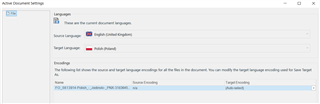
Trados Studio screenshot showing the Active Document Settings window with source language set to English (United Kingdom) and target language set to Polish (Poland). No visible errors.

I was wondering if anyone had the same problem


Generated Image Alt-Text
[edited by: Trados AI at 10:15 PM (GMT 0) on 28 Feb 2024]

emoji
Parents
  • I was happy to see this new option pop up in the quick access toolbar

    Can you share a screenshot?  I have no idea about this new option.

    Paul Filkin | RWS

    Design your own training!
    You've done the courses and still need to go a little further, or still not clear? 
    Tell us what you need in our Community Solutions Hub

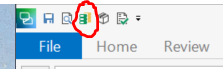
  • Trados Studio screenshot showing the File tab highlighted in blue with a red circle around the 'Open Document' icon.

    emoji


    Generated Image Alt-Text
    [edited by: Trados AI at 10:15 PM (GMT 0) on 28 Feb 2024]
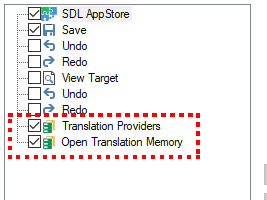
  • Thank you...after scrolling through the options to try and find which one you added based on the icon alone I think it's one of these:

    Trados Studio menu with options including 'SDL AppStore', 'Save', 'Undo', 'Redo', 'View Target', and 'Translation Providers'. 'Open Translation Memory' is highlighted with a red dashed box.

    Neither of them are this:

    "Select translation memories and automated translation servers"

    One just opens a TM in the Translation Memories View and the other switches to the Translation Memories View (I think... as it doesn't seem to work for me).

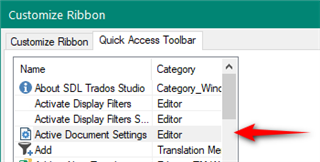
    But neither take me to the Active Document Settings which is this one:

    Customize Ribbon window in Trados Studio showing options such as 'About SDL Trados Studio', 'Activate Display Filters', and 'Active Document Settings' with a red arrow pointing at it.

    Perhaps you can provide a screenshot of the one you picked?

    Paul Filkin | RWS

    Design your own training!
    You've done the courses and still need to go a little further, or still not clear? 
    Tell us what you need in our Community Solutions Hub

    emoji


    Generated Image Alt-Text
    [edited by: Trados AI at 10:16 PM (GMT 0) on 28 Feb 2024]
  • I've had this issue for years! The one that points to the Active Document Settings is the Translation Providers one:

    I've reported it a couple of times during beta testing, I believe.

Reply
  • I've had this issue for years! The one that points to the Active Document Settings is the Translation Providers one:

    I've reported it a couple of times during beta testing, I believe.

Children