SDL Trados restarted and erased the project I was working on, now I can only see old projects I had already finish

When I opened SDL Trados this morning it restarted and erased the project I was working on yesterday, now I can only see old projects I had already finished and removed from my list months ago (when I fist installed the program on my computer). What can I do? is there anyway to get my project back?

Parents
  • Hi ,

    If you haven't chosen a different place on your system to save your SDL Trados Studio projects, this is where they will all be:

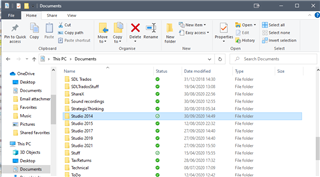
    It'll look something like this:

    File Explorer window showing a list of Studio version folders in the Documents directory.

    full address: C:\Users\yourusername\OneDrive\Documents\Studio 20??\Projects

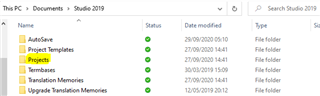
    or, locally, This PC > Documents > Studio 20?? > Projects

    Inside Studio 2019 folder, displaying subfolders such as AutoSave, Projects, and Templates.

    The ?? represents whichever version of Studio you're working with.

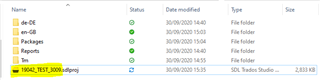
    Then click into the folder of the project you want and double-click on the .sdlproj file, which will look something like this:

    Contents of the Projects folder with a highlighted .sdlproj file named '19024_TEST_19024_designs'.

    You may not see the .sdlproj extension, depending on your settings.

    Double-click on the icon

    Close-up of the .sdlproj file icon, indicating it's a Trados Studio project file.

    That should open the project in Studio straight away.

    I hope this helps. Post back here if it doesn't.

    All the best,

    Ali Slight smile

    emoji


    Generated Image Alt-Text
    [edited by: Trados AI at 10:59 PM (GMT 0) on 28 Feb 2024]
Reply
  • Hi ,

    If you haven't chosen a different place on your system to save your SDL Trados Studio projects, this is where they will all be:

    It'll look something like this:

    File Explorer window showing a list of Studio version folders in the Documents directory.

    full address: C:\Users\yourusername\OneDrive\Documents\Studio 20??\Projects

    or, locally, This PC > Documents > Studio 20?? > Projects

    Inside Studio 2019 folder, displaying subfolders such as AutoSave, Projects, and Templates.

    The ?? represents whichever version of Studio you're working with.

    Then click into the folder of the project you want and double-click on the .sdlproj file, which will look something like this:

    Contents of the Projects folder with a highlighted .sdlproj file named '19024_TEST_19024_designs'.

    You may not see the .sdlproj extension, depending on your settings.

    Double-click on the icon

    Close-up of the .sdlproj file icon, indicating it's a Trados Studio project file.

    That should open the project in Studio straight away.

    I hope this helps. Post back here if it doesn't.

    All the best,

    Ali Slight smile

    emoji


    Generated Image Alt-Text
    [edited by: Trados AI at 10:59 PM (GMT 0) on 28 Feb 2024]
Children