 Translate



When "tlid-translation" purple arrow boxes appear in segments, what does it mean?

RWS Community
When "tlid-translation" purple arrow boxes appear in segments, what does it mean?
You don't give a lot of information, but it sounds like tags. Can you provide a screenshot?
DAniel

Thanks for the reply. The source is a Word document. Here is a screenshot.
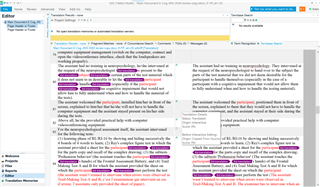


Yes, these are tags. I don't know what kind of formatting or else they stand for, you don't really need to know normally. Just make sure they are in equivalent positions in the target text. Have a look at this video, it might help you to understand how tags are handled in Trados Studio: https://www.sdltrados.com/video/translators-talk-trados-a-simple-guide-to-working-with-tags-in-sdl-trados-studio/114532/
Daniel

If you use the key combination Ctrl+Alt+D you should be able to toggle the amount of information shown inside these tags. They look ill placed in places so may not be important, but you'd be advised to make sure they are present in the target side as Daniel mentioned in case the target file needs them.
Paul Filkin | RWS
Design your own training!
You've done the courses and still need to go a little further, or still not clear?
Tell us what you need in our Community Solutions Hub
Oh ok, now it makes sense. I exported the target in a Word document, and the formatting was gone, so that's what the tags are for, keep the formatting alive. This doc has been reviewed and rewritten several times before it got to me so previous changes have been formatted in different colors and those tags are there for that. I would never have guessed that on my own, thanks Daniel.
I'll try that combination to see what it can tell me. Changes in format have been introduced for each word that's been changed during reviews before the text got to me, so that's why the format tags are all over the place. Now it makes sense. Thanks a lot, Paul.
The key combo is great. It allows to toggle between several views, some of them tell what the tag is for, and one where the tag only appears as a one character arrow symbol, which really helps visualizing the sentence. Priceless, thanks.
The key combo is great. It allows to toggle between several views, some of them tell what the tag is for, and one where the tag only appears as a one character arrow symbol, which really helps visualizing the sentence. Priceless, thanks.
if they are formatting tags you’ll probably like Ctrl+Shift+H even better!
Paul Filkin | RWS
Design your own training!
You've done the courses and still need to go a little further, or still not clear?
Tell us what you need in our Community Solutions Hub
Hard to memorize them all, but very useful.