How to set LTR alignment in Docx to preserve formatting

Hello all,

I am translating English (US) into Arabic (SA) PDF/Docx

but the formatting of translated Docx is corrupted because Arabic is RTL

is there any option in Docx File Type to Enable/Disable RTL option when saving Arabic Translated Docx

NB: I tried Arabic WORLD, but the same output.

SDL Studio version: SDLTrados Studio 2021 - 16.0.2.3343

Win home 10 / 64 bit English UI with Arabic Language Pack Installed
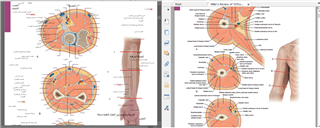
Screenshot of Trados Studio showing a translated document with misaligned formatting in the Arabic text, indicating RTL issues.


Generated Image Alt-Text
[edited by: Trados AI at 1:35 AM (GMT 0) on 29 Feb 2024]

emoji
Parents
  • Hi Aazzoma

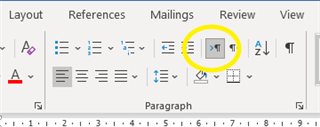
    I'm not entirely clear where your issue is coming from, since there could be a few points.  Firstly, Studio itself should cope with the LtR/RtL conversion, but of course it does depend on you having set up your TM correctly.  If that's correct, the so far as Word is concerned, you can change RtL/LtR by clicking on the Text Direction control in the paragraph menu:

    Screenshot of Microsoft Word showing the Paragraph menu with the Text Direction control highlighted, indicating the option to change text from right-to-left or left-to-right.

    However, looking at your image, it may be that the text box - or whatever location method has been used for each label - is longer than the text it contains, so by the text in your translation correctly working RtL, it has just ended up too far away from the line it relates to.  If that's the case, it may be that you need to resize the text box, or alternatively change the justification, rather than the text direction.  I haven't come across this in Word before, but it's a common issue in Powerpoint.

    If that doesn't help you solve the issue, could you post a small section of the source file (obviously, if any copyright, etc, allow) so we could look to see if there's another answer?

    emoji


    Generated Image Alt-Text
    [edited by: Trados AI at 1:35 AM (GMT 0) on 29 Feb 2024]
Reply
  • Hi Aazzoma

    I'm not entirely clear where your issue is coming from, since there could be a few points.  Firstly, Studio itself should cope with the LtR/RtL conversion, but of course it does depend on you having set up your TM correctly.  If that's correct, the so far as Word is concerned, you can change RtL/LtR by clicking on the Text Direction control in the paragraph menu:

    Screenshot of Microsoft Word showing the Paragraph menu with the Text Direction control highlighted, indicating the option to change text from right-to-left or left-to-right.

    However, looking at your image, it may be that the text box - or whatever location method has been used for each label - is longer than the text it contains, so by the text in your translation correctly working RtL, it has just ended up too far away from the line it relates to.  If that's the case, it may be that you need to resize the text box, or alternatively change the justification, rather than the text direction.  I haven't come across this in Word before, but it's a common issue in Powerpoint.

    If that doesn't help you solve the issue, could you post a small section of the source file (obviously, if any copyright, etc, allow) so we could look to see if there's another answer?

    emoji


    Generated Image Alt-Text
    [edited by: Trados AI at 1:35 AM (GMT 0) on 29 Feb 2024]
Children