Error when using "light bulb" help tool

I am not sure what the "light bulb" help tool at the top of the Trados Studio window is called. I seldom use it, but today I gave it a try and got an error message.

If I click on the "light bulb" help tab and then type, say, "xyz" into the help window ("xyz" does not immediately find any help, so the window is blank) and then click on the "Search for 'xyz' in Help" message at the bottom of the window, an error message is displayed: "Object reference not set to an instance of an object."

Just wondering if I am the only one encountering this error.

Parents
  • Well, I tried the "light bulb" help again today to see what it could tell me about "non-breaking spaces".

    Unfortunately it failed to work again. I can't imagine this is happening to everyone, but maybe it is.

    Could you try the following  ?

    I typed "non-breaking" into the search field and then clicked on the "Non-breaking Space" item in the list that appeared. Nothing happened.

    I closed the window and tried again. This time nothing appeared in the window when I typed "non-breaking space".

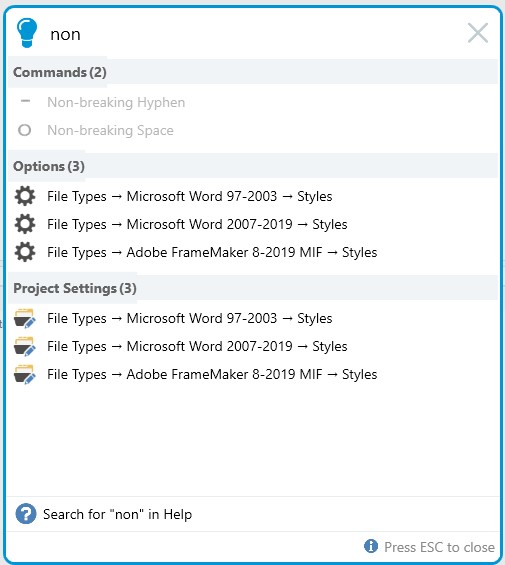
    I stopped and restarted Studio and tried again. This time I just typed "non" in the window and saw the list below appear. Note that "Non-breaking Space" is greyed out and cannot be clicked.

    Very strange.

    Trados Studio help window showing search results for 'non' with 'Non-breaking Space' greyed out and unclickable under Commands section.

    emoji


    Generated Image Alt-Text
    [edited by: Trados AI at 2:27 AM (GMT 0) on 29 Feb 2024]
Reply
  • Well, I tried the "light bulb" help again today to see what it could tell me about "non-breaking spaces".

    Unfortunately it failed to work again. I can't imagine this is happening to everyone, but maybe it is.

    Could you try the following  ?

    I typed "non-breaking" into the search field and then clicked on the "Non-breaking Space" item in the list that appeared. Nothing happened.

    I closed the window and tried again. This time nothing appeared in the window when I typed "non-breaking space".

    I stopped and restarted Studio and tried again. This time I just typed "non" in the window and saw the list below appear. Note that "Non-breaking Space" is greyed out and cannot be clicked.

    Very strange.

    Trados Studio help window showing search results for 'non' with 'Non-breaking Space' greyed out and unclickable under Commands section.

    emoji


    Generated Image Alt-Text
    [edited by: Trados AI at 2:27 AM (GMT 0) on 29 Feb 2024]
Children
  • Hi ,

    I've checked it in Trados Studio 20219 and 2021 Editor (English UI).

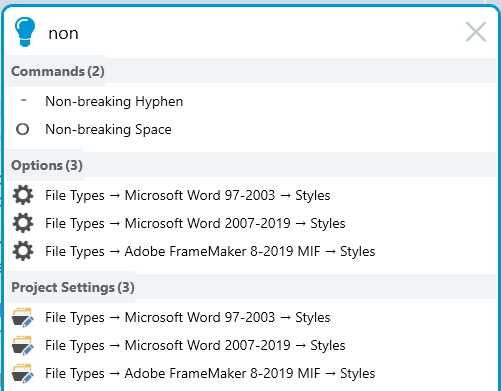
    If I write just non, it will to show both items enabled:

    Trados Studio search box displaying results for 'non' with two commands: Non-breaking Hyphen and Non-breaking Space, and six file type options under Styles.

    With a DOCX file open, if I click on the 1st item on the list, it'll insert a tag in target. If I click on the 2nd item on the list, it'll insert the usual hard space:

    Trados Studio Editor showing an inserted tag for a non-breaking hyphen in the target text area.

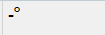
    Or if it's a TXT file, a non-breaking hyphen and a hard space:

    Close-up of Trados Studio Editor with a non-breaking hyphen and a hard space symbols inserted in the target text area.

    Did you update your Trados Studio 2019?

    BTW: The xyz error message is fixed in Trados Studio 2021.

    emoji


    Generated Image Alt-Text
    [edited by: Trados AI at 2:27 AM (GMT 0) on 29 Feb 2024]
  • Hi 

    Thank you for the explanation. I thought the "light bulb" tool was for providing help. I did not realise it would offer me "commands," like inserting a non-breaking space.

    And the commands were "greyed out" sometimes and available other times because I was not always in Editor view with a Word file open.

    The only other thing that was confusing was that hyphens are apparently not allowed in the search field.

    As soon as I type the hyphen at the end of "non-", both "non-breaking hyphen" and "non-breaking space" disappear from the list.

    This also happens, for example, if I try to search for "cs4-cc".

    Everything is fine if I type "cs4", but as soon as I type the hyphen, i.e. "cs4-", everything disappears from the search list.

    To search for "cs4-cc", I have to type "cs4 cc", and to search for "non-breaking space" I have to type "non breaking space".

    So my confusion was due to the *combination* of three things:

    (1) Not knowing that commands would be offered.

    (2) Not knowing that the list contents would be conditional on whether I was in Editor view in a certain type of file.

    (2) Not knowing that hyphens are not allowed.

    What initially seemed confusing and inconsistent now makes sense. Problem solved thanks to your help :-)