How to export translated segments only

I am translating a big CVS with thousands of Segments. The customer wants to send every month only the "new translated" segments without the untranslated following segments, and without the translated segments from last month. How can I export only translated segments?

Parents
  • What format does your client want these in?

    1. if he wants a TM, just create a new TM and attach it to your project.  Update your file into that TM and send your client the SDLTM or a TMX... whichever he wants.
    2. if he wants an SDLXLIFF with only the translated segments then download and install studioViews from the appstore.  This will make it simple to export only the translated segments to a new SDLXLIFF.
    3. if he wants the CSV first install the "Export to Excel" app from the appstore, then take the SDLXLIFF you created in 2.  and open it in Studio.  Now export to excel and finally save the Excel as a CSV.

    These are just examples of how you'll need to think to tackle this question.  The 3rd option may not be possible if the CSV is a complex CSV, but if it's a simple single column list the it should be fine.  If not then you'll have to try and get creative.  For example:

    1. lock all the translated segments you've done so far
    2. pseudo translate the rest of the file using an option to populate the target with dollar symbols for example
    3. save the target CSV file
    4. open the CSV in Excel and filter out the lines containing dollar symbols so you only have the translated text left

    How you tackle the next drop will be more complicated... unless someone has a good idea?

    OR... be a little more inventive.  Split the CSV up into separate files containing a months work each time.  Then at the end of each month you send the file for that month.  That is probably the simplest approach and it'll help you with your planning!

    Ultimately there is no right and wrong answer.  Only your ability to think about how to handle the problem and to make sure you understand what your customer really wants..

    Paul Filkin | RWS

    Design your own training!
    You've done the courses and still need to go a little further, or still not clear? 
    Tell us what you need in our Community Solutions Hub

Reply
  • What format does your client want these in?

    1. if he wants a TM, just create a new TM and attach it to your project.  Update your file into that TM and send your client the SDLTM or a TMX... whichever he wants.
    2. if he wants an SDLXLIFF with only the translated segments then download and install studioViews from the appstore.  This will make it simple to export only the translated segments to a new SDLXLIFF.
    3. if he wants the CSV first install the "Export to Excel" app from the appstore, then take the SDLXLIFF you created in 2.  and open it in Studio.  Now export to excel and finally save the Excel as a CSV.

    These are just examples of how you'll need to think to tackle this question.  The 3rd option may not be possible if the CSV is a complex CSV, but if it's a simple single column list the it should be fine.  If not then you'll have to try and get creative.  For example:

    1. lock all the translated segments you've done so far
    2. pseudo translate the rest of the file using an option to populate the target with dollar symbols for example
    3. save the target CSV file
    4. open the CSV in Excel and filter out the lines containing dollar symbols so you only have the translated text left

    How you tackle the next drop will be more complicated... unless someone has a good idea?

    OR... be a little more inventive.  Split the CSV up into separate files containing a months work each time.  Then at the end of each month you send the file for that month.  That is probably the simplest approach and it'll help you with your planning!

    Ultimately there is no right and wrong answer.  Only your ability to think about how to handle the problem and to make sure you understand what your customer really wants..

    Paul Filkin | RWS

    Design your own training!
    You've done the courses and still need to go a little further, or still not clear? 
    Tell us what you need in our Community Solutions Hub

Children
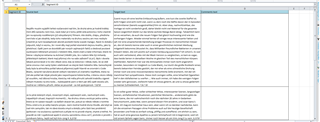
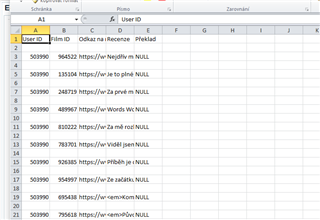
  • I am really sorry, but this plugins are for this case just crap :(  instead of exporting the .csv it just makes a new file with the visuals of Trados, and it also changed all the column names and deleted complete 3 columns, which is complete wrong and not acceptable, it just destroyed all the work.

    It looks like this

    Screenshot of Trados Studio plugin error showing a new file with incorrect visual format and altered column names.

    and should look like this.

    Screenshot of a correctly formatted .csv file with proper column names and data structure for comparison.

    This is so wrong i can't use that :(

    emoji


    Generated Image Alt-Text
    [edited by: Trados AI at 2:42 AM (GMT 0) on 29 Feb 2024]
  • It's not the plugin that is crap!  I did say this:

    "The 3rd option may not be possible if the CSV is a complex CSV, but if it's a simple single column list the it should be fine. "

    You have asked a question without providing any information at all until now about the file you are handling.  You called it a CVS... I assumed this was a mistake and you meant a CSV, but without seeing the file how can anyone give you a definitive answer?  I gave you some ideas, you need to take them and think about how you would handle it.  Now we know it's not a simple single column list so of course it won't work!

    I suggest you go with this option if your client wants a CSV back and is not working with a CAT tool himself:

    "Split the CSV up into separate files containing a months work each time.  Then at the end of each month you send the file for that month.  That is probably the simplest approach and it'll help you with your planning!"

    Paul Filkin | RWS

    Design your own training!
    You've done the courses and still need to go a little further, or still not clear? 
    Tell us what you need in our Community Solutions Hub