Filter out filled excel cells

Hi there

In Trados Studio editor: is there a way to filter out segments of Excel table that relate to the cells filled with a certain color? Not text font color, but the cell fill color.

Trados Studio Advanced Display Filter 2.0 window showing options to apply filter, reverse, clear, highlight, and generate. Display segments with colors: black, blue, dark green, and red.


Generated Image Alt-Text
[edited by: Trados AI at 12:03 PM (GMT 0) on 29 Feb 2024]

emoji
  • Hello,

    I understand you're looking to filter out segments in Trados Studio that correspond to Excel cells filled with a specific color. Currently, Trados Studio does not support filtering based on cell fill color in Excel files. The color filtering feature in Trados Studio is designed to work with font color, not cell fill color.

    However, you can use a workaround to achieve your goal:

    Step 1: In your Excel file, use the "Find and Replace" feature (Ctrl+H) to find cells with the specific fill color you're interested in.

    Step 2: Replace these cells with a unique character or string that does not appear elsewhere in your document.

    Step 3: Save and close your Excel file.

    Step 4: Open the file in Trados Studio.

    Step 5: Use the Display Filter in Trados Studio to filter out segments containing the unique character or string you used in Step 2.

    Please note that this is a workaround and may not be suitable for all situations. Always remember to save a backup of your original file before making any changes.

    I hope this helps! If you have any other questions, feel free to ask.

    Best regards,

    RWS Community AI

    emoji
  • I don't need to translate a unique character or string that does not appear elsewhere in my document. I need to translate text in the given filled cells.

    emoji
  • ,

    I don’t think you can filter segments based on the cell fill color.

    This was discussed years ago here:

     Automatic Confirmation of 100% Matches 

    The workaround used a VBA macro, I didn’t tried though…

    If you don’t have multiple text colurs in the spread sheet (i.e., all is black colour, for example, at least in the cells that you need to translate), you can pre-process the spread-sheet in Excel and only then open it in Trados.

    Pre-processing:

    1. Find all cells with blue colur (for example):
      Excel's Find and Replace dialog box with 'Find All' button highlighted.
    2. Select all instances shown below.
    3. Keep open the previous Find and Replace dialog box and set their text colour to red (for example) using the Excel ribbon:
      Excel's font color selection dropdown showing theme colors and standard colors.
    4. Now all your cells filled with blue will have the red text color:
      A cell in Excel with blue fill color and red text labeled 'blue cell'.

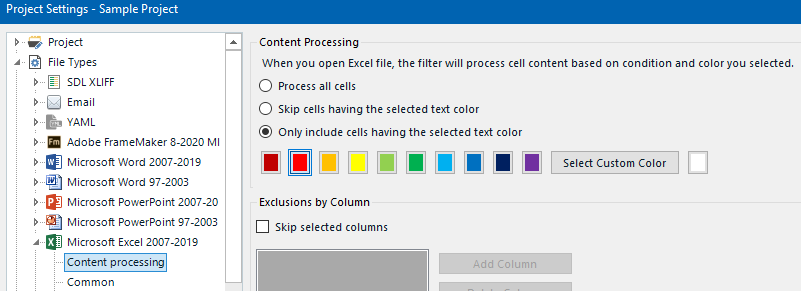
    In Trados Studio: In your Project Settings, select the red text colour as the only one to be translated:

    Trados Studio Project Settings showing content processing options with red text color selected for translation.

    Re-open the pre-processed spread-sheet in Trados Studio.

    Translate as usual and generate the target document.

    Open the translated spread-sheet and select all to set all cells with the original black colour.

    emoji


    Generated Image Alt-Text
    [edited by: Trados AI at 12:04 PM (GMT 0) on 29 Feb 2024]
  •  

    I don't believe this is possible out of the box without some sort of workaround.  So in addition to the idea from  you could use this macro in Excel (change the colour codes to whatever you need)

    Sub ChangeFontColor()
        Dim ws As Worksheet
        Dim cell As Range
    
        ' Set the active worksheet
        Set ws = ThisWorkbook.ActiveSheet
    
        ' Loop through all cells in the active worksheet
        For Each cell In ws.UsedRange
            ' Check if the fill colour is "RGB 255, 255, 0"
            If cell.Interior.Color = RGB(255, 255, 0) Then
                ' Change the font colour to "RGB 255, 243, 253"
                cell.Font.Color = RGB(255, 243, 253)
            End If
        Next cell
    End Sub
    

    The idea being you change the colour of the text in the cells that contain the highlighted colour to some unusual colour not used anywhere else in the file and then filter on that colour.  For example:

    Paul Filkin | RWS

    Design your own training!
    You've done the courses and still need to go a little further, or still not clear? 
    Tell us what you need in our Community Solutions Hub

    emoji
  • you can pre-process the spread-sheet in Excel and only then open it in Trados.

    Thank you, that is what I usually do, by changing font color. Sad there is no way to filter filling color straight away.

    =======

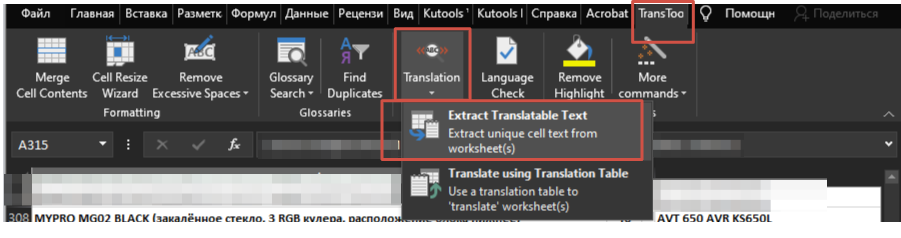
    The other option of mine is to extract selection by given fill color using TransTools

    Screenshot of Excel with TransTools menu open showing options 'Extract Translatable Text' and 'Translate using Translation Table'.

    emoji


    Generated Image Alt-Text
    [edited by: Trados AI at 12:03 PM (GMT 0) on 29 Feb 2024]
  • ,

    Good to see there are other methods! In Excel, pre-processing takes really only 10 seconds (assuming you know the exact colour of the cells you need to extract). Probably the same timing as with TransTools…

    Thank you, that is what I usually do, by changing font color. Sad there is no way to filter filling color straight away.

    You can add a request to the Ideas section: Trados Studio Ideas

    emoji
  • Awesome!

    I'll save the macro for future use in translating multiple Excel sheets. However, having the filtering option for cell fill color readily available would be even better. This would significantly reduce the time it takes to translate dozens of spreadsheets that fall under this specific scenario.

    Thank you!

    emoji