The Trados cloud platform will be undergoing maintenance on Saturday, 9th May 2026 between 05:00 to 17:00 UTC. During this time, you will not be able to log in to the Trados platform.

"Dubious" tags in CSV file

Hi,

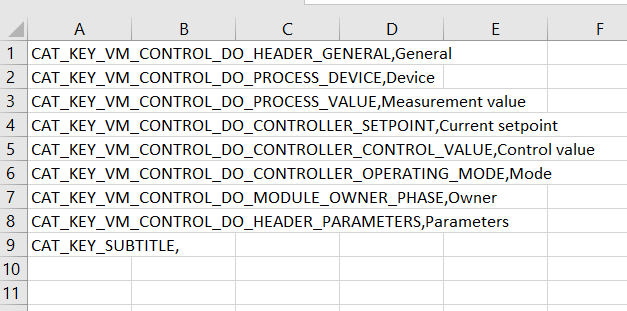
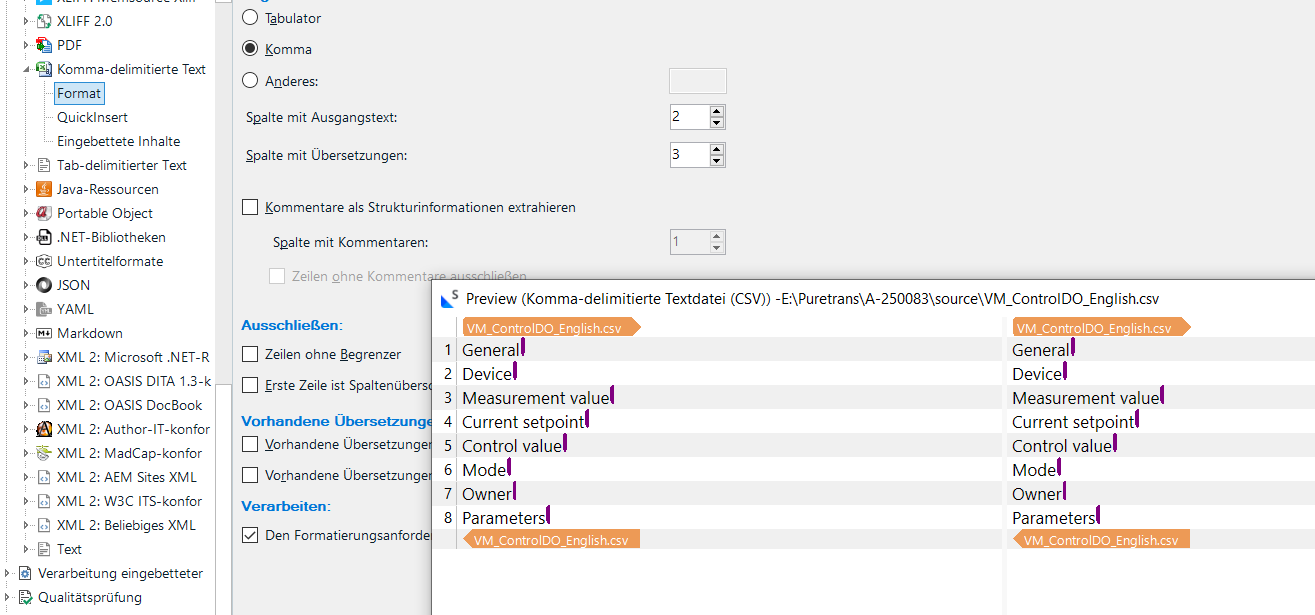
I do have a package of CSV files (exported UI) to translate. Opening them in Studio as "Comma-delimited text file (CSV)" adds a tag at the end of each segment.

Where does this tag come from, it's not in the CSV file?

Is it related to some setting?

Find attached all information (screenshot, source file, settings). Sorry, I can't add the csv file directly, the type is not allowed.

Besides that, the source text is automatically added in the target column, why is that?

I know I had CSV files before without that behavour.

Thanks,

Johannes
emoji
  • Probability score: 0.6  

    Question improvement suggestion: Provide specific details about the version of Trados Studio you are using and clarify the settings you have applied when opening the CSV files.  

    In the meantime, based on the information you have provided, here is a suggested answer to your question:  

    Hello Johannes,

    Thank you for your question! It seems you're encountering a couple of issues with the CSV files in Trados Studio. Let's address them step by step:

    **Step 1: Understanding the "Dubious" Tags**  

    The tags you see at the end of each segment when opening the CSV file in Trados Studio are likely related to the way the software handles segment boundaries and whitespace. These tags are automatically generated to maintain the structure of the text and ensure that spaces outside of segments are preserved. If you want to avoid these tags, you can check the settings in the File Type configuration for Comma Delimited Text (CSV) and adjust the segmentation rules.

    **Step 2: Source Text in Target Column**  

    Regarding the source text being automatically added to the target column, this behavior can occur if the settings for the CSV file type are configured to include the source text as a fallback. You can modify this in the File Type settings by ensuring that the "First line is column headings" option is enabled and reviewing any other relevant settings that might affect how the source and target texts are handled.

    **Step 3: Suggested Actions**  

    - Go to **File > Options > File Types > Comma Delimited Text (CSV)** and review the settings.  

    - Ensure that the "First line is column headings" option is checked.  

    - Check the segmentation rules to see if any adjustments can be made to prevent the addition of extra tags.  

    - If the issue persists, consider resetting the CSV file type settings to default or updating your version of Trados Studio, as older versions may have different default behaviors.

    If you continue to experience issues, please provide more details about your version of Trados Studio and the specific settings you are using, as this will help in diagnosing the problem more accurately.

    I hope this answer addressed your question. If not, please reject the answer, add the question improvement suggestion information, and click the RWS Community AI checkbox on the right to try again.  

    RWS Community AI

    emoji
  •  

    Sorry, I can't add the csv file directly, the type is not allowed.

    Zip it first and then insert the zip file.

    emoji
  •  

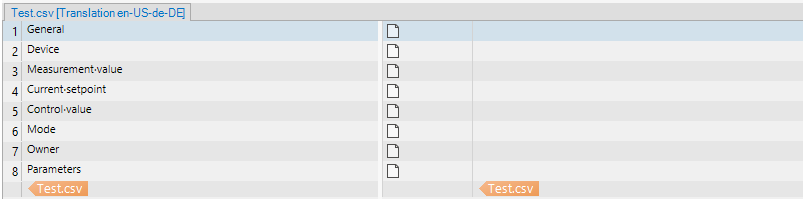
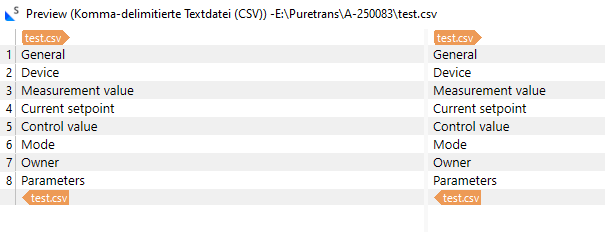
    Interesting... I tested your file in 2024 and see this:

    Trados Studio interface showing a CSV file with columns labeled General, Device, Measurement value, Current setpoint, Control value, Mode, Owner, and Parameters.

    I wonder if something was changed in the transport of the file?  Carriage returns (\r), line feeds (\n), and combinations (\r\n) differ across systems and can change when files move between environments:

    • Windows uses CRLF (\r\n)
    • Linux/Unix/macOS uses LF (\n)
    • Older MacOS (pre-OSX) used CR (\r)

    When a CSV created on one system is opened on another, Trados (or any parser) may interpret these endings differently.  If Studio detects extra carriage returns (\r) where it expects only line feeds, it inserts inline tags to preserve them.

    So maybe when I unzipped the download my system rewrote the line endings as my file now contains mixed CR/LF when it could have been different for your original?  Or maybe opening/saving in Excel, Notepad++, or another tool altered the line endings?  Some zip utilities can also normalise or convert endings so when you zipped it that could have changed something in the file?

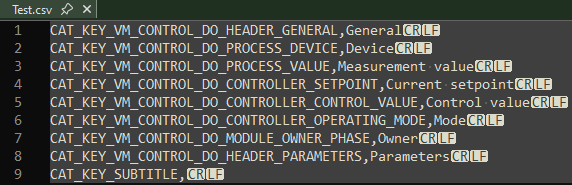
    Anyway... that's where the difference is.  I am not opening the same file you are as the line endings have probably changed.  You can confirm by opening your in a hex editor or Notepad++ and enabling View → Show Symbol → Show End of Line.  That might explain the difference.  This is what I see:

    Hex editor view of Test.csv file showing hexadecimal values and corresponding text, with highlighted sections indicating line endings and carriage return symbols.

    Text editor view of Test.csv file showing rows with headers like CAT_KEY_VM_CONTROL_DO_HEADER_GENERAL and corresponding values like General and Device, with visible line feed symbols.

    Paul Filkin | RWS

    Design your own training!
    You've done the courses and still need to go a little further, or still not clear? 
    Tell us what you need in our Community Solutions Hub

    emoji


    Generated Image Alt-Text
    [edited by: RWS Community AI at 4:56 PM (GMT 1) on 24 Sep 2025]
  •  

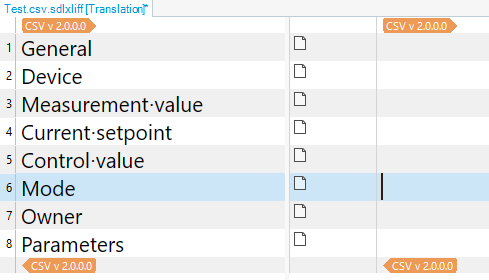
    It’s OK in Trados Studio 2022 (I can’t check in 2024):

    Trados Studio 2022 interface showing a CSV file with columns for translation, including rows labeled General, Device, Measurement-value, and others.

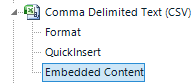
    Have you got any Embedded Content enabled?

    Trados Studio settings menu highlighting the Embedded Content option under Comma Delimited Text (CSV).

    emoji


    Generated Image Alt-Text
    [edited by: RWS Community AI at 5:06 PM (GMT 1) on 24 Sep 2025]
  •   

    This is what Notepad++ shows, which is fine:

    Screenshot of a Notepad++ window displaying a CSV file with rows containing keys and values separated by commas. Each row ends with 'CRLF'.

    It’s true that at least the file names are different (test vs VM_ControlDO_English).

    emoji


    Generated Image Alt-Text
    [edited by: RWS Community AI at 5:13 PM (GMT 1) on 24 Sep 2025]
  • Hi Paul, Jesus,

    thanks for your replies, those are really helpful.

    Sorry, I changed the file name before I sent it to you. It is the same file.

    Notepad++ did not show these extra characters at the end of each segment on my computer, so I had to change the setting, so all characters are displayed. These characters are in the file, hidden.

    I had embedded content activated, as other files in this set of files we have to work on do contain some code (\n, \t).. I now removed these settings and the extra tags at the end of the segment are removed. I still have the source text copied into the target, but this does not really bother.

    Regards,

    Johannes

    Screenshot of a CSV file preview in Trados Studio showing two columns labeled 'test.csv'. Rows include 'General', 'Device', 'Measurement value', 'Current setpoint', 'Control value', 'Mode', 'Owner', and 'Parameters'.

    emoji


    Generated Image Alt-Text
    [edited by: RWS Community AI at 7:27 PM (GMT 1) on 24 Sep 2025]