Studio 2022 project, 9 .docx files, 1 file won't save, "Could not find part of the path"

Hi

I'm working in Trados Studio 2022, a project with 9 .docx files. One of the files will not save, I get the error message "Could not find part of the path". The other 8 files are all saving without a problem.

Any advice appreciated. 


Removed AI Suggestion
[edited by: brendan mcnally at 10:25 AM (GMT 0) on 8 Dec 2025]
emoji
  • Probability score: 0.7  

    Question improvement suggestion: Provide the exact file path and any recent changes made to your system or Trados Studio to help diagnose the issue more effectively.  

    In the meantime, based on the information you have provided, here is a suggested answer to your question:  

    Hello,  

    It sounds like you're encountering a frustrating issue with saving one of your .docx files in Trados Studio 2022. Here are some steps you can take to troubleshoot and hopefully resolve the "Could not find part of the path" error:

    **Step 1:** Check the File Path  

    Ensure that the file path for the document you are trying to save does not exceed 255 characters. If it does, consider shortening the folder names or the file name itself.

    **Step 2:** Verify Permissions  

    Make sure that you have the necessary permissions to access the folder where you are trying to save the file. You can do this by right-clicking the folder, selecting 'Properties', and checking the 'Security' tab.

    **Step 3:** Close Other Applications  

    Ensure that the .docx file is not open in any other application, such as Microsoft Word. Close any instances of the file and try saving again.

    **Step 4:** Check Antivirus Settings  

    Sometimes, antivirus software can interfere with file saving. Add Trados Studio to your antivirus's exception list, particularly for the temporary files folder located at `C:\Users\%username%\App Data\Local\Temp`.

    **Step 5:** Create a New Temporary Folder  

    You can create a new folder in the temporary directory. Type `%temp%` in Windows File Explorer, create a new folder named `SDLTemp File Regen`, and try saving the file again.

    **Step 6:** Check for OneDrive Issues  

    If you are using OneDrive, it may be causing conflicts. Try pausing OneDrive syncing or excluding the Trados Studio folder from syncing.

    **Step 7:** Run as Administrator  

    Try running Trados Studio as an administrator. Right-click the Trados Studio icon and select 'Run as administrator'.

    If these steps do not resolve the issue, please provide additional details such as the exact file path you are using and any recent changes to your system or Trados Studio. This information will help in diagnosing the problem more effectively.  

    I hope this answer addressed your question. If not, please reject the answer, add the question improvement suggestion information, and click the RWS Community AI checkbox on the right to try again.  

    RWS Community AI

    emoji
  •  

    Do you use OneDrive? Where are your files stored? Have you created the project yourself?

    _________________________________________________________

    When asking for help here, please be as accurate as possible. Please always remember to give the exact version of product used and all possible error messages received. The better you describe your problem, the better help you will get.

    Want to learn more about Trados Studio? Visit the Community Hub. Have a good idea to make Trados Studio better? Publish it here.

    emoji
  • Hi  Jerry,

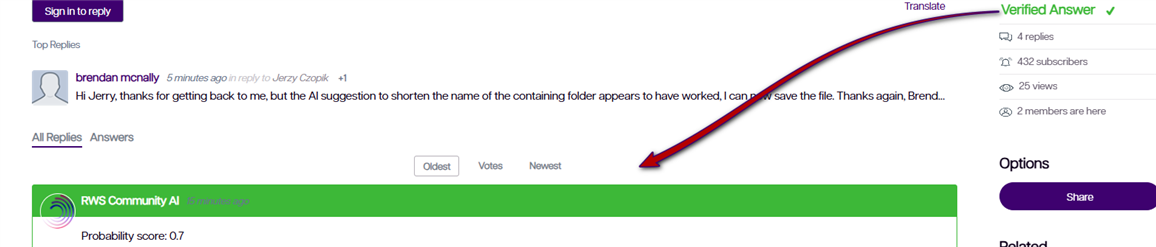
    thanks for getting back to me, but the AI suggestion to shorten the name of the containing folder appears to have worked, I can now save the file.

    Thanks again,
    Brendan

    emoji
  • Do I need to mark this question as resolved? If so, please advise how to do this.  

    emoji
  •  

    It already is!

    Screenshot of a forum reply by Brendan McNally mentioning an AI suggestion to shorten a folder name, with a green banner labeled 'RWS Community AI' and a probability score of 0.7.

    Paul Filkin | RWS Group

    ________________________
    Design your own training!

    You've done the courses and still need to go a little further, or still not clear? 
    Tell us what you need in our Community Solutions Hub

    emoji


    Generated Image Alt-Text
    [edited by: RWS Community AI at 10:41 AM (GMT 0) on 8 Dec 2025]