Windows size reduced after downloading and installing the last update

Good afternoon,

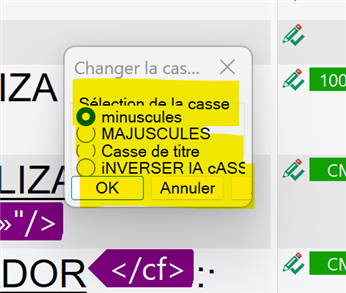
I've just downloaded and installed the last update and now all the windows in Studio are little and the text is cut or layer. Can you tell me how to correct this. It is very inconvenient.

Thank you in advance.

Trados Studio 2024 SR1 - 18.1.3.6657

Computer screen: 21 in.

Best regards,

Sandrine
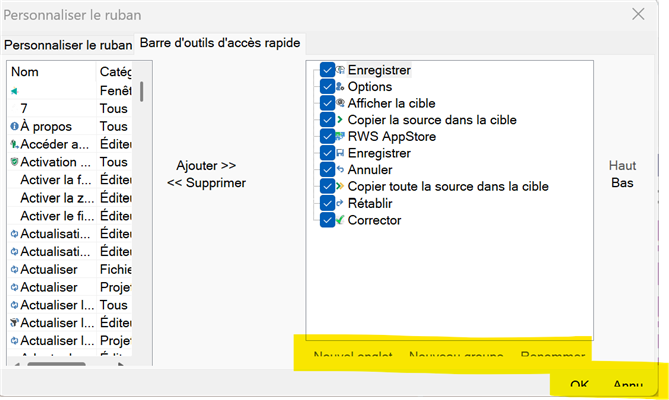
Trados Studio customization window showing ribbon options and quick access toolbar settings with highlighted buttons for adding and removing items.Trados Studio dialog box for changing text case with options for lowercase, uppercase, title case, and inverted case, highlighted OK and Cancel buttons.Screenshot showing a portion of the Trados Studio interface with text partially cut off and overlapping, with a red arrow and the word 'hidden' written on the image.


Removed AI Suggestion
[edited by: SANDRINE ZEROUALI at 12:25 PM (GMT 0) on 18 Dec 2025]

emoji
Parents
  • Probability score: 0.8  

    Question improvement suggestion: Provide more details about the specific update you installed and any other changes made to your system prior to the issue occurring.  

    In the meantime, based on the information you have provided, here is a suggested answer to your question:  

    Hello Sandrine,  

    I understand how inconvenient it can be when the windows in Trados Studio are not displaying correctly after an update. Here are some steps you can take to resolve the issue:  

    **Step 1: Disable Display Scaling**  

    1. Locate the Trados Studio icon on your desktop or Start menu.  

    2. Right-click the icon and select **Properties**.  

    3. Click on the **Compatibility** tab.  

    4. Under **Compatibility mode**, select **Windows 7/8** from the dropdown menu.  

    5. Tick the box for **Disable display scaling on high DPI settings**.  

    6. Click **OK** to confirm the changes.  

    **Step 2: Adjust Windows Display Settings**  

    1. Go to **Control Panel** > **Appearance and Personalization** > **Display**.  

    2. Select **Make text and other items larger or smaller**.  

    3. Choose **Medium - 125%** and click **Apply**.  

    4. Sign out of your profile and sign back in to see the changes.  

    **Step 3: Reset Trados Studio Settings**  

    1. Close all RWS applications.  

    2. Navigate to the following path in File Explorer:  

      `C:\Users\%username%\AppData\Roaming\Trados\Trados Studio\`  

    3. Rename the **Studio17** folder to **Studio17_old**.  

    4. Restart Trados Studio.  

    If these steps do not resolve the issue, you may want to consider running a repair installation of Trados Studio through the Control Panel.  

    I hope this answer addressed your question. If not, please reject the answer, add the question improvement suggestion information, and click the RWS Community AI checkbox on the right to try again.  

    RWS Community AI

    emoji
Reply Children
No Data