Generate Target Translation/Save as Target to WORD not working due to XML parsing error

Hello there,

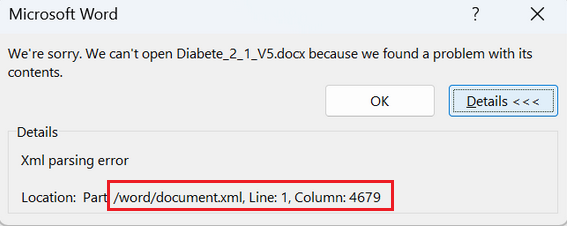
In November, I had issues with my company's XLF files consistently crashing. Unfortunately, we were unable to find a solution. Virgil recommended that I work from my C drive, since my company network had a lot going on. But the XLF files continued to crash within 10 to 45 minutes. As a workaround, I asked my colleagues to convert the XLF files to Word. In this format, TRADOS did not crash. However, now that I am ready to generate the target translations, the Batch tasks "Generate Target Translations" is not working. Save Target as also does not work. I get the following error message.
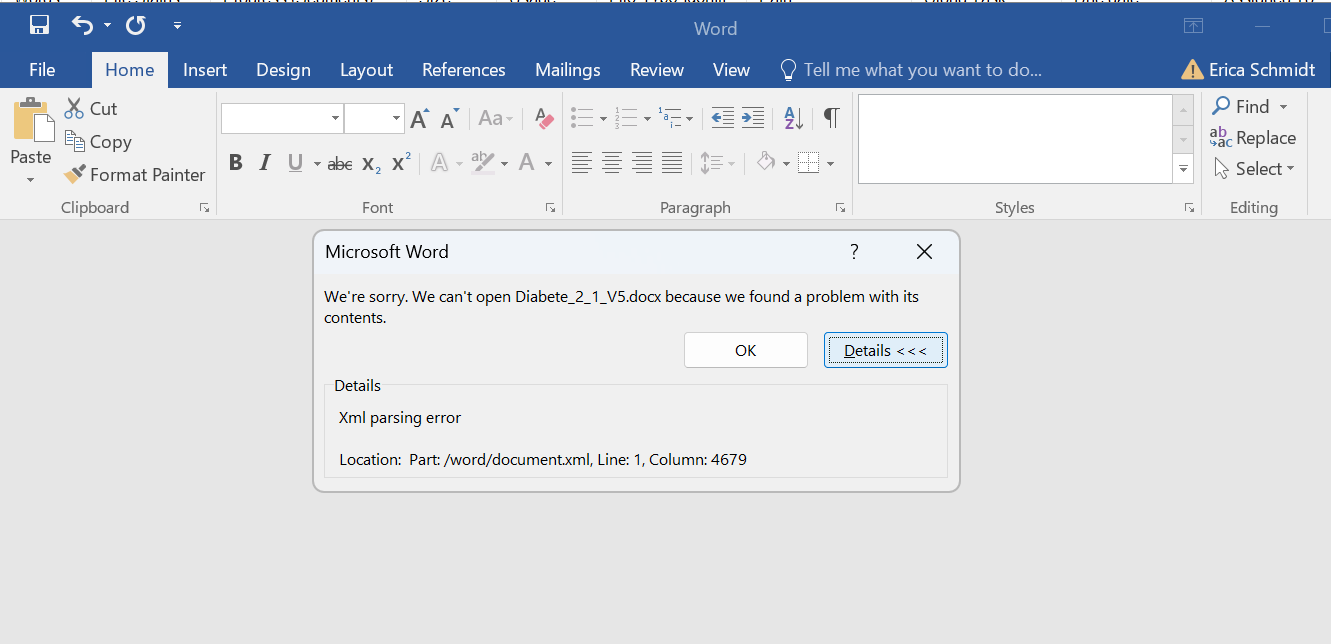
Microsoft Word error message stating 'We can't open Diabete_2_1_V5.docx because we found a problem with its contents.' Details show 'XML parsing error' at Line 1, Column 4679.

As recommended by tech support, I have recently updated to the latest version of TRADOS but to no avail. As suggested in various TRADOS queries, I tried converting the target translation file to RTF of uploading it to Google docs. The files were unusable. 

There is no Column 4679 in the document, so I don't know what I would do correct this. 

Both my IT team and Trados support has done everything they could to find a solution here, but it is truly baffling. I welcome your feedback and suggestions. 

Thank you and best wishes, Erica


Generated Image Alt-Text
[edited by: RWS Community AI at 3:29 PM (GMT 0) on 30 Dec 2025]
emoji
Parents
  •  

    There is no Column 4679 in the document, so I don't know what I would do correct this. 

    That 4679 column is in the document.xml file under the word folder, as reported by Word:

    Microsoft Word error message stating it cannot open Diabetes_2_1_V5.docx due to a problem with its contents. Details show an XML parsing error at worddocument.xml, Line 1, Column 4679.

    You can see what’s there if you change the extension from DOCX file to ZIP. Then go to the word folder in Windows Explorer and open the document.xml file with a decent text editor, such as Notepadd++. Now go to that 4679 column number (you’ll see the column number in the status bar):

    Notepad++ status bar showing the cursor position at Line 1, Column 4679.

    My bet is that there is a wrong character there (it can be a blank square character □) that you may delete it (at least to test if it works). Now save the document.xml file and close it in Notepad++ and recreate the docx file. Can you open it now in Word? If so, you may consider delete that offending character from the original XLF file. Your IT team should be able to help you here, but if you are stuck, please come back.

    emoji


    Generated Image Alt-Text
    [edited by: RWS Community AI at 7:54 AM (GMT 0) on 31 Dec 2025]
  •  

    Converting any xml based format to Word is the worst idea you could have. Word will destroy the source file structure and what you get in the end will never comply to the standard your source file was created with.

    So solving the problem with saving Word as target is not really what you need. We should try to figure out why the xlf files cause problems.

    To do that, I need a little bit more information. Which software has created the xlf files? Have you used a dedicated xlf file type or just tried to add the files to your project as is? If so, which project template did you use? Have you possibly imported any project templates from previous Studio versions to your current one? Can you possibly share such xlf file with me in private? If so, please post to info at tts-td dot com.

    _________________________________________________________

    When asking for help here, please be as accurate as possible. Please always remember to give the exact version of product used and all possible error messages received. The better you describe your problem, the better help you will get.

    Want to learn more about Trados Studio? Visit the Community Hub. Have a good idea to make Trados Studio better? Publish it here.

    emoji
  • Hello there,

    Thank you both for your input. After downloading Notepad++, I am unable to open the document.xml file using the application. When I right-click the file, I am not given the option to open with Notepad++. It automatically opens with the regular notepad which does not yield answers. In any case, according to Jerzy, it seems like converting to XLF to Word is not a long-term solution, as it seems I am discovering.  

    I worked extensively with IT support and TRADOS community for three weeks trying to resolve the XLF crashing issues before resorting to Word files. The XLF files were created by integrators who converted Storyline Articulate templates in November 2025.

    The files are set up using SDL XLIFF file type in TRADOS project settings. This is the same configuration I've used successfully for 1.5 years on previous projects without issues. But I am happy to try something different. I'm also happy to send sample files to info@tts-td.com. The files crash after 30 seconds to 45 minutes with stack overflow errors.

    Let me know what you recommend.

    Once again, thank you so much, Erica

    emoji
  •  

    Anna-Maria has already offered you a direct support. Nonetheless you can send me a sample file and I will look into it. If the xlf is not standard, a dedicated file type might be necessary.

    _________________________________________________________

    When asking for help here, please be as accurate as possible. Please always remember to give the exact version of product used and all possible error messages received. The better you describe your problem, the better help you will get.

    Want to learn more about Trados Studio? Visit the Community Hub. Have a good idea to make Trados Studio better? Publish it here.

    emoji
Reply Children
No Data