


TECHNICAL URGENT ISSUE WITH TRADOS - UNABLE TO VIEW MY PROJECTS

Dear Trados team,

I am writing because I am in urgent need of solving a technical problem with Trados (Trados Studio 2024 yearly subscription) that is preventing me from working on a project.

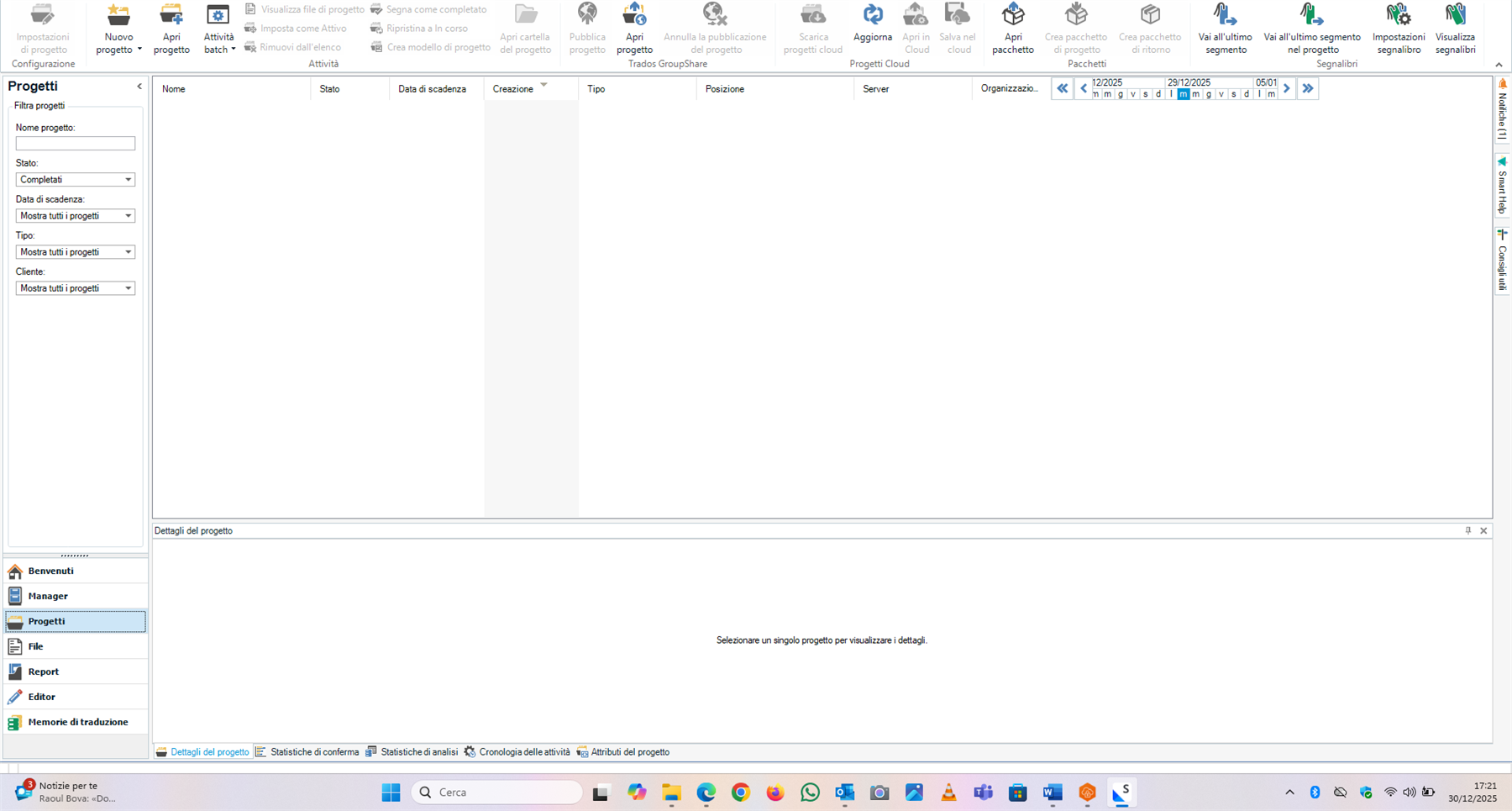
 I started my procedures as usual, downloading Trados package and opening it. However, this time, after the smooth installation procedure, I was not able to view all my projects, since the section "project" on Trados seemed to be completely empty, although the folder of the last project had been created successfully. 

I have repeated the procedures several times and I have already restarted both Trados and the pc itself, without any result. 


Finally, I have been able to open the sdlx files clicking on "Manager" (although I cannot understand the reason). Now I am able to work on the project only clicking on the section "files" because the section "projects" keeps on being empty and some features (including "project settings" and "open the project folder") are no longer active. 

It is the first time that something like that happened. I have attached a screenshot for your reference. It would be really appreciated if you could reply to this email asap.


Thank you so much in advance for your help.


Regards,


De Giorgi MoiraScreenshot of Trados Studio showing an empty 'Projects' section with no projects listed, despite filters being set to show all projects. The interface displays various menu options and tools.


Removed AI Suggestion
[edited by: Moira De Giorgi at 5:53 PM (GMT 0) on 30 Dec 2025]

emoji
Parents
  • Probability score: 0.7  

    Question improvement suggestion: Please provide the exact error message you are encountering, if any, and specify your operating system version for better assistance.  

    In the meantime, based on the information you have provided, here is a suggested answer to your question:  

    Hello Moira,

    I understand that you're facing an urgent issue with Trados Studio 2024 where your projects are not visible. Let's try to resolve this step by step:

    **Step 1:** Restart Trados Studio and your computer again to ensure that any temporary glitches are cleared.

    **Step 2:** Check if you are in the correct view. Make sure you are in the "Projects" view and not in the "Files" view. Sometimes, switching views can help refresh the project list.

    **Step 3:** Navigate to the location where your projects are saved. You can do this by going to the Projects view and using the "Open Project Folder" option. Ensure that the project files are indeed present in that folder.

    **Step 4:** If the projects are still not visible, try resetting the settings for Trados Studio. You can do this by closing all RWS applications and renaming the Trados Studio folder located at:

    - For Trados Studio 2024: `C:\Users\%USERNAME%\AppData\Roaming\Trados\Trados Studio` to `Trados Studio_old`.

    **Step 5:** After renaming the folder, restart Trados Studio. This will reset the application to its default settings.

    **Step 6:** If the issue persists, consider running a repair installation of Trados Studio. You can do this through the Control Panel by selecting Trados Studio from the list of installed programs and choosing the Repair option.

    **Step 7:** Lastly, if none of the above steps work, please check if there are any updates available for Trados Studio and install them.

    If you continue to experience issues, please provide any error messages you encounter, and let me know your operating system version for further assistance.

    I hope this answer addressed your question. If not, please reject the answer, add the question improvement suggestion information, and click the RWS Community AI checkbox on the right to try again.  

    RWS Community AI

    emoji
  • HI  

    Please remove the filter for completed projects (Completati) you set on the left side. I assume your current projects are in progress.

    Kind regards,

    Elisa Maxim| RWS Group

    Design your own training!
    You've done the courses and still need to go a little further, or still not clear?
    Tell us what you need in our Community Solutions Hub

    emoji
  • So ashamed that I had not noticed it!  Fortunately, it was not a big issue. 


    Thank you so much Elisa for your kind reply.

    emoji
  • No worries, can happen to anyone. It's good it wasn't a big issue and you can resume your work.

    Kind regards,

    Elisa Maxim| RWS Group

    Design your own training!
    You've done the courses and still need to go a little further, or still not clear?
    Tell us what you need in our Community Solutions Hub

    emoji
Reply Children
No Data
