


Hyperlink anchors and Segmentation

I’m trying to stop Trados 2024 SR1 from segmenting hyperlinks at the anchor in Word documents. I’ve been playing around with the segmentation rules, but cannot seem to figure out the proper format or options to achieve this purpose. Surely others must have come across this issue. In segmenting the hyperlink, Trados also somehow removes the sharp symbol.

In the image provided, segments 485 to 496 are what my file looks like after regular Trados segmentation. When I manually merge the segments to recreate the proper hyperlinks, I first get what appears in segments 481 and 483. In those, the sharp symbol has disappeared and been replaced by a regular space. The proper hyperlinks would ideally show as segments 477 and 479 (in which I have manually added the sharp symbol).

Any pointer would be greatly appreciated!
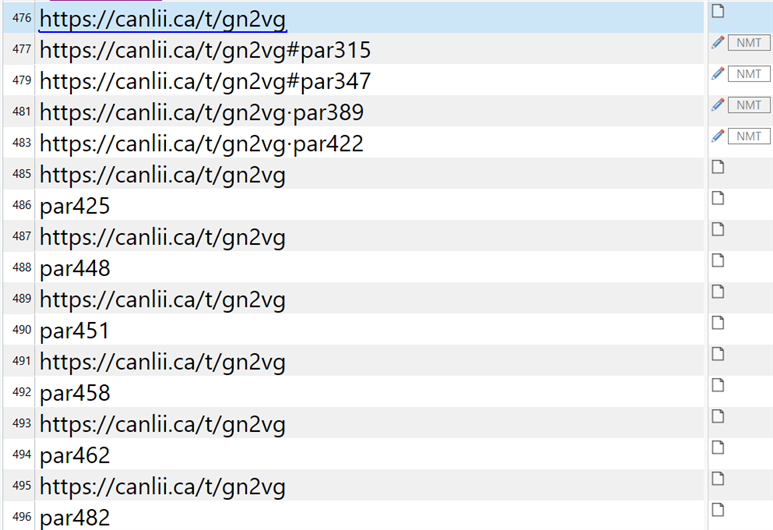
Screenshot of Trados Studio showing segments 476 to 496. Segments include hyperlinks and text, with some hyperlinks missing the sharp symbol and replaced by spaces.


Removed AI Suggestion
[edited by: Yannic Piché at 3:28 AM (GMT 0) on 5 Jan 2026]

emoji
Parents
  • Probability score: 0.6  

    Question improvement suggestion: Provide specific details about the segmentation rules you have tried and any error messages or unexpected behavior you encountered during your attempts.  

    In the meantime, based on the information you have provided, here is a suggested answer to your question:  

    Hello,  

    To prevent Trados 2024 SR1 from segmenting hyperlinks at the anchor in Word documents, you can follow these steps:  

    **Step 1:** Open Trados Studio and navigate to the **File Types** settings for Microsoft Word 2007-2019.  

    **Step 2:** In the **Embedded Content** section, ensure that the option for processing embedded content is enabled. This will help manage how hyperlinks are treated during segmentation.  

    **Step 3:** Go to the **Segmentation Rules** section. Here, you can add or modify rules to prevent segmentation at hyperlink anchors. You might want to create a rule that specifically addresses the structure of hyperlinks.  

    **Step 4:** If you are experiencing issues with the sharp symbol being removed, check the **Tag Definition Rules** to ensure that the formatting tags are correctly defined and not causing the symbol to be lost during segmentation.  

    **Step 5:** Test your changes by importing a sample document with hyperlinks and checking if the segmentation behaves as expected.  

    If the issue persists, consider reviewing the document structure to ensure that segments are correctly aligned and that there are no hidden formatting issues causing the segmentation to behave unexpectedly.  

    I hope this answer addressed your question. If not, please reject the answer, add the question improvement suggestion information, and click the RWS Community AI checkbox on the right to try again.  

    RWS Community AI

    emoji
Reply
  • Probability score: 0.6  

    Question improvement suggestion: Provide specific details about the segmentation rules you have tried and any error messages or unexpected behavior you encountered during your attempts.  

    In the meantime, based on the information you have provided, here is a suggested answer to your question:  

    Hello,  

    To prevent Trados 2024 SR1 from segmenting hyperlinks at the anchor in Word documents, you can follow these steps:  

    **Step 1:** Open Trados Studio and navigate to the **File Types** settings for Microsoft Word 2007-2019.  

    **Step 2:** In the **Embedded Content** section, ensure that the option for processing embedded content is enabled. This will help manage how hyperlinks are treated during segmentation.  

    **Step 3:** Go to the **Segmentation Rules** section. Here, you can add or modify rules to prevent segmentation at hyperlink anchors. You might want to create a rule that specifically addresses the structure of hyperlinks.  

    **Step 4:** If you are experiencing issues with the sharp symbol being removed, check the **Tag Definition Rules** to ensure that the formatting tags are correctly defined and not causing the symbol to be lost during segmentation.  

    **Step 5:** Test your changes by importing a sample document with hyperlinks and checking if the segmentation behaves as expected.  

    If the issue persists, consider reviewing the document structure to ensure that segments are correctly aligned and that there are no hidden formatting issues causing the segmentation to behave unexpectedly.  

    I hope this answer addressed your question. If not, please reject the answer, add the question improvement suggestion information, and click the RWS Community AI checkbox on the right to try again.  

    RWS Community AI

    emoji
Children
No Data
