The Trados cloud platform will be undergoing maintenance on Saturday, 9th May 2026 between 05:00 to 17:00 UTC. During this time, you will not be able to log in to the Trados platform.

Problems with file types and importing settings from an SDLFTSETTINGS file

A customer uses a special file type for website exports (XML files) and sends us project packages for translation.

We can open the packages and translate the files but can't run a verification on them or save them to target because we don't have the corresponding file type on our system. (Error message: The file type with ID: 'FirstSpirit Webseite' is required to process this content, but it could not be found.)

On request, the customer sent us an SDLFTSETTINGS file so we could add the appropriate file type in Trados.

I have seemingly been able to do that (just going with the default options in the wizard and not adding or editing anything), but when I now attempt to run a verification, I get the error message "Failed to verify document: The paragraph unit supplied should always have Contexts properties defined!"

I don't really know where to start with troubleshooting or whether there is something else I need to ask the customer to provide.

Any help would be greatly appreciated!

Thanks,

Andrew

p.s. Not sure if the following screenshots may be helpful for context:
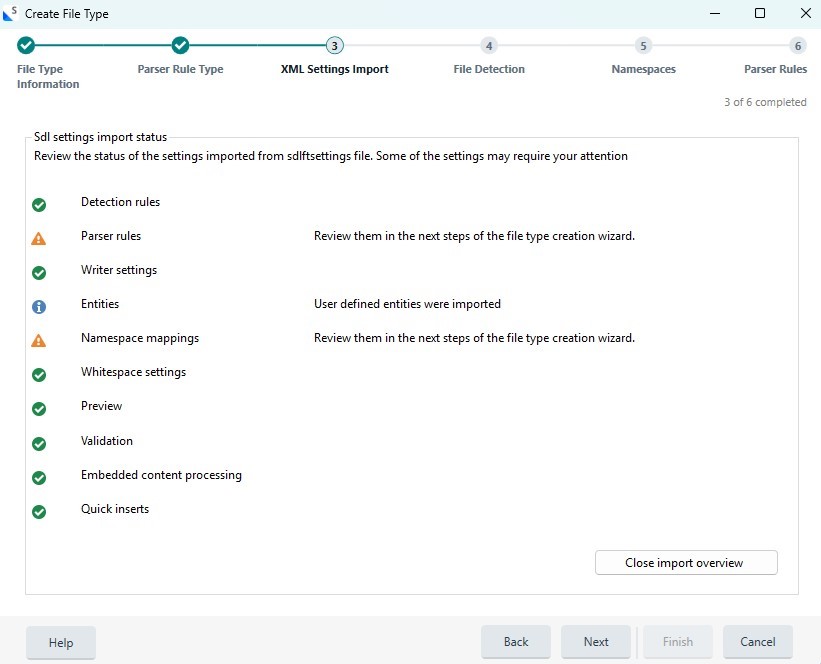
Create File Type wizard showing XML Settings Import step with a list of settings, including Detection rules, Parser rules, and Namespace mappings, some with warnings.

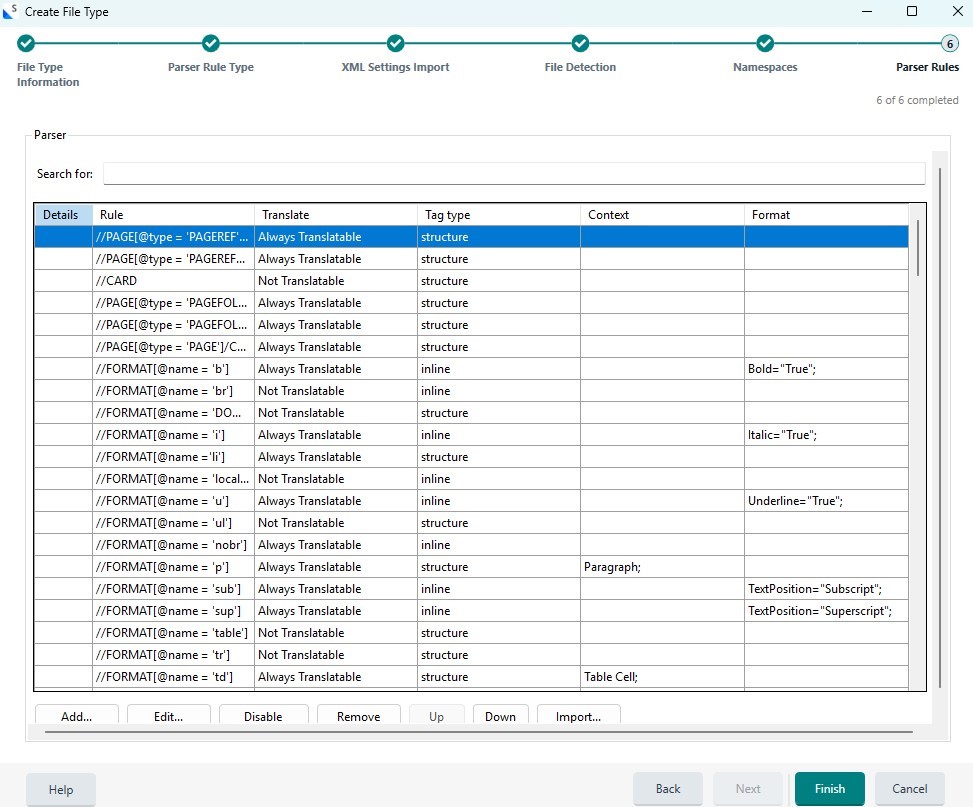
Create File Type wizard showing Parser Rules step with a table of rules, including details, rule paths, translate status, tag type, context, and format information.


Removed AI Suggestion
[edited by: Andrew Wood at 4:53 PM (GMT 0) on 5 Jan 2026]

emoji
  • Probability score: 0.6  

    Question improvement suggestion: Provide the exact version of Trados Studio you are using, as well as any specific steps you took when importing the SDLFTSETTINGS file. This will help in diagnosing the issue more effectively.  

    In the meantime, based on the information you have provided, here is a suggested answer to your question:  

    Hello Andrew,

    It sounds like you're encountering a couple of issues related to the file type and the SDLFTSETTINGS file. Let's break down the steps you can take to troubleshoot and resolve the verification error you're facing.

    **Step 1:** Verify the SDLFTSETTINGS Import  

    Ensure that the SDLFTSETTINGS file was imported correctly. Sometimes, default options may not suffice. You might want to check if there are any specific settings or configurations that need to be adjusted after importing.

    **Step 2:** Check for Context Properties  

    The error message "The paragraph unit supplied should always have Contexts properties defined!" suggests that there may be missing context properties in the file type configuration. Review the settings in the SDLFTSETTINGS file to ensure that all necessary properties are defined.

    **Step 3:** Test with a Dummy File Type  

    If the issue persists, consider creating a dummy file type as a temporary workaround. This can allow you to edit and save the SDLXLIFF file without the verification step. You can create a new file type in Project Settings > File Types and select a basic XML type.

    **Step 4:** Request Additional Information from the Customer  

    If you continue to experience issues, it may be helpful to ask the customer for more details about the original file type and any specific configurations they used. This can provide insights into what might be missing in your setup.

    **Step 5:** Review the Screenshots  

    The screenshots you provided may contain valuable information. Ensure that they are reviewed for any clues regarding the settings or errors that could be affecting the import and verification process.

    By following these steps, you should be able to identify the root cause of the issue and find a suitable solution. If you have any further questions or need additional assistance, feel free to reach out!

    I hope this answer addressed your question. If not, please reject the answer, add the question improvement suggestion information, and click the RWS Community AI checkbox on the right to try again.  

    RWS Community AI

    emoji