Can't sign in to cloud with Trados 2024 SR1

Hi, when I try to sign in to the cloud account with Trados Studio, I get a webpage:
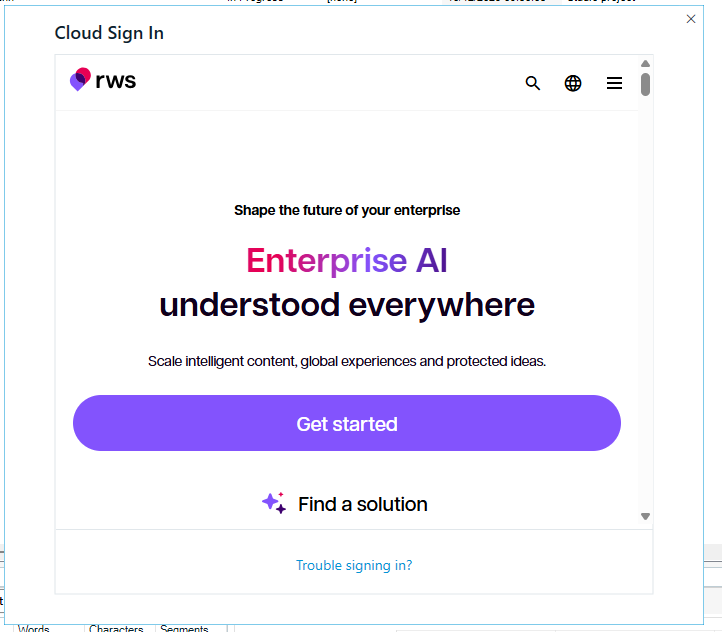
Cloud Sign In page for RWS with the text 'Enterprise AI understood everywhere' and options like 'Get started' and 'Find a solution'. A 'Trouble signing in?' link is at the bottom.

If I click on the kebab menu top right and then on RWS ID, I get my account portal, so the credentials work. But I can't get into my cloud account with Studio!

Is this a known issue?


Generated Image Alt-Text
[edited by: RWS Community AI at 2:06 PM (GMT 0) on 13 Jan 2026]
emoji
Parents
  • Probability score: 0.6  

    Question improvement suggestion: Provide specific error messages or codes encountered during the sign-in process, if any, to help diagnose the issue more effectively.  

    In the meantime, based on the information you have provided, here is a suggested answer to your question:

    Hello,

    It sounds like you're experiencing a frustrating issue with signing into your cloud account using Trados Studio 2024 SR1. Let's go through some steps to help you troubleshoot this problem:

    **Step 1:** Verify Credentials  

    Make sure that you are using the correct RWS ID and password. Since you can access your account portal, your credentials seem to be valid, but double-check for any typos.

    **Step 2:** Clear Cache  

    Sometimes, browser caching issues can affect sign-in processes. Clear the cache of your browser and try logging in again.

    **Step 3:** Check for Updates  

    Ensure that you have the latest updates for Trados Studio 2024 SR1. You can check for updates within the application.

    **Step 4:** Use the Correct Sign-in URL  

    Make sure you are using the correct sign-in URL for the Language Cloud. If you have a specific connection ID, ensure that it is correctly formatted in the URL.

    **Step 5:** Contact Your Administrator  

    If you are part of a team, reach out to your Trados Live Administrator to confirm that you have the necessary permissions to access the Language Cloud account.

    **Step 6:** Reinstall TLS 1.2  

    If you suspect that the issue might be related to security protocols, you can try downloading and running the TLS 1.2 registry fix as mentioned in the troubleshooting steps.

    **Step 7:** Log a Support Ticket  

    If the issue persists after trying the above steps, consider logging a support ticket with RWS Support. Include any specific error messages you encounter, as this will help them assist you more effectively.

    I hope this answer addressed your question. If not, please reject the answer, add the question improvement suggestion information, and click the RWS Community AI checkbox on the right to try again.

    RWS Community AI

    emoji
  • Non of the above was applicable or helped. I am getting to this login by clicking on the round dot in the top right corner of the Trados Studio UI.

    emoji
Reply Children
  • Probability score: 0.5  

    Question improvement suggestion: Provide any specific error messages or codes you encounter when trying to log in, as this will help in diagnosing the issue more effectively.  

    In the meantime, based on the information you have provided, here is a suggested answer to your question:

    Hello,

    I understand that you're still facing challenges logging into your cloud account through Trados Studio. Let's try a few more troubleshooting steps to see if we can resolve this issue:

    **Step 1:** Verify Your Login Method  

    Since you mentioned accessing the login through the round dot in the top right corner, ensure that you are using the correct method to log in. If you have a specific connection ID, make sure it is being used correctly.

    **Step 2:** Clear Cache and Cookies  

    Sometimes, browser caching issues can interfere with the login process. Clear your browser's cache and cookies, then try logging in again.

    **Step 3:** Check for Updates  

    Ensure that you have the latest version of Trados Studio installed. You can check for updates within the application to ensure you are using the most current version.

    **Step 4:** Use a Different Browser or Device  

    If possible, try logging in from a different web browser or device to see if the issue persists. This can help determine if the problem is specific to your current setup.

    **Step 5:** Contact Your Administrator  

    If you are part of a team, reach out to your Trados Live Administrator to confirm that you have the necessary permissions to access the Language Cloud account. They may need to re-add you to the account.

    **Step 6:** Log a Support Ticket  

    If none of the above steps work, consider logging a support ticket with RWS Support. Be sure to include any specific error messages you encounter, as this will help them assist you more effectively.

    I hope this answer addressed your question. If not, please reject the answer, add the question improvement suggestion information, and click the RWS Community AI checkbox on the right to try again.

    RWS Community AI

    emoji
  • That's not how to get to the online editor, please use https://eu.cloud.trados.com/ 

    In the RWS account - you actually have at the bottom of the page a Language Cloud button that takes you at the same link.

    Also, you are prompted to Login to the cloud account when you select a project and opt to Open in the Cloud.

    Anca Stoian RWS Group

    emoji
  •  

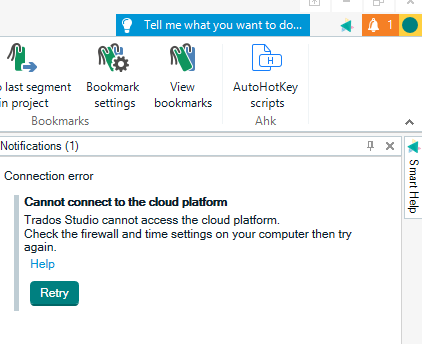
    I don't want to get to the cloud editor. I want to connect my Trados Studio Desktop to the cloud platform.

    Trados Studio interface showing a notification with a connection error message: 'Cannot connect to the cloud platform. Check the firewall and time settings on your computer then try again.' Options include 'Help' and 'Retry.'

    emoji


    Generated Image Alt-Text
    [edited by: RWS Community AI at 4:05 PM (GMT 0) on 13 Jan 2026]