


Opening a package fails in Studio 2015 after reactivation on new laptop

I have reactivated my licence of Studio 2015 SR3 (12.3.5281.10) on a new laptop.

Trados opens fine and I can see all my previous projects listed.

But when I open a new package to import it, the Finish button stays grayed out in the Create a package dialog and I cannot go further with the importation. No error message displays.
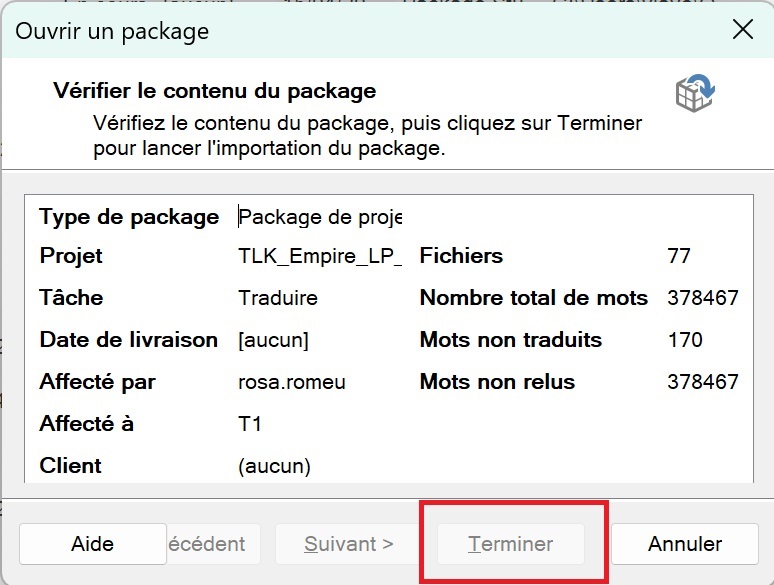
Screenshot of the 'Open a package' dialog in Trados Studio 2015. The 'Finish' button is grayed out, preventing the import process. Package details are displayed, including project name, task, and word counts.


Removed AI Suggestion
[edited by: Valérie Lavoyer at 6:17 PM (GMT 0) on 23 Jan 2026]

emoji
Parents
  • Probability score: 0.6  

    Question improvement suggestion: Please provide any error messages you may have encountered, and specify if you have tried the suggested steps to open the package.  

    In the meantime, based on the information you have provided, here is a suggested answer to your question:  

    Hello,  

    It seems you're experiencing an issue with opening a package in Trados Studio 2015 after reactivating your license on a new laptop. Here are some steps you can follow to troubleshoot this issue:  

    **Step 1:** Ensure you are opening the package correctly. Go to the Welcome view and select "Open project package."  

    **Step 2:** If the Finish button remains grayed out, try the following:  

    - Close Trados Studio completely.  

    - Navigate to the project folder where the package is located.  

    - Open the .sdlproj file in an XML editor (like Notepad++).  

    - Search for the line `<Setting Id="Project Origin">Offline cloud package</Setting>` and replace it with `<Setting Id="Project Origin">LC project</Setting>`.  

    - Save the changes and close the editor.  

    **Step 3:** Reopen Trados Studio and try to import the package again.  

    **Step 4:** If the issue persists, consider resetting Trados Studio's basic settings:  

    - Close all RWS applications.  

    - Go to the folder: `C:\Users\[USER_NAME]\App Data\Roaming\SDL\SDL Trados Studio\12.0.0.0` and rename the folder to something like `12.0.0.0_old`.  

    - Restart Trados Studio.  

    **Step 5:** Make sure your Trados Studio is updated to the latest version. You can check for updates by clicking on Help > Check for Updates.  

    If you continue to face issues, please provide any error messages you may have encountered, and let me know if you have tried the suggested steps.  

    I hope this answer addressed your question. If not, please reject the answer, add the question improvement suggestion information, and click the RWS Community AI checkbox on the right to try again.  

    RWS Community AI

    emoji
  • I don't have the .sdlproj file, only the .sdlppx file.

    Can I do something with it?

    emoji
  • Probability score: 0.7  

    Question improvement suggestion: Please clarify if you have access to the original project files or if you need assistance in creating a new project from the .sdlppx file.  

    In the meantime, based on the information you have provided, here is a suggested answer to your question:  

    Hello,  

    It seems you are working with a .sdlppx file and are looking for ways to utilize it in Trados Studio. Here are some steps you can follow to create a working project from your .sdlppx package:  

    **Step 1:** Unzip the .sdlppx file.  

    - Use a tool like 7Zip or rename the file to .zip and extract it to a folder.  

    **Step 2:** Locate the project file.  

    - Inside the extracted folder, you should find a subfolder with the same name as the package. Open this subfolder to find the actual project file, which will have a .proj extension.  

    **Step 3:** Move the project file.  

    - Copy the .proj file and paste it into the main folder (the one that contains the source and target language folders).  

    **Step 4:** Clean up the folder.  

    - After pasting the project file, you can delete the subfolder that contained it.  

    **Step 5:** Repackage the files.  

    - Select the source and target language folders along with the .proj file, and create a new zip file.  

    - Rename the new zip file to have a .sdlppx extension.  

    **Step 6:** Open the new package in Trados Studio.  

    - You should now be able to open this newly created .sdlppx package in Trados Studio without issues.  

    If you encounter any problems during this process or if you need further assistance, please let me know!  

    I hope this answer addressed your question. If not, please reject the answer, add the question improvement suggestion information, and click the RWS Community AI checkbox on the right to try again.  

    RWS Community AI

    emoji
  • I followed the process but with the new .sdlppx file created, the issue is the same: the Open a package dialog opens but the Finish button stays grayed out and I cnanot complete the import process.

    emoji
  • Probability score: 0.8  

    Question improvement suggestion: Please provide any additional details about the contents of the .sdlppx file or any specific steps you have taken to troubleshoot the issue further.  

    In the meantime, based on the information you have provided, here is a suggested answer to your question:  

    Hello,  

    I understand that you're still facing the issue with the Finish button remaining grayed out when trying to import the new .sdlppx package. Let's go through some additional troubleshooting steps to help resolve this:  

    **Step 1:** Ensure the project is closed in Trados Studio.  

    - Before attempting to open the package, make sure that no projects are currently open in Trados Studio.  

    **Step 2:** Verify the contents of the .sdlppx file.  

    - Unzip the .sdlppx file again and check if all necessary files are present, including the .proj file and the source/target language folders.  

    - Ensure that the .proj file is correctly placed in the main folder alongside the language folders.  

    **Step 3:** Check for any discrepancies in the project file.  

    - Open the .proj file in a text editor (like Notepad++) and look for any unusual settings or errors.  

    - Specifically, check for the `<Setting Id="Project Origin">` line and ensure it is set correctly. If it says `Offline cloud package`, change it to `LC project` and save the file.  

    **Step 4:** Reset Trados Studio settings.  

    - If the issue persists, consider resetting Trados Studio's basic settings as follows:  

     1. Close all RWS applications.  

     2. Navigate to the folder: `C:\Users\[USER_NAME]\App Data\Roaming\SDL\SDL Trados Studio\12.0.0.0` and rename the folder to something like `12.0.0.0_old`.  

     3. Restart Trados Studio.  

    **Step 5:** Check for updates.  

    - Make sure your Trados Studio is updated to the latest version. You can check for updates by clicking on Help > Check for Updates.  

    If you continue to experience the same issue after trying these steps, please let me know if there are any specific error messages or behaviors you observe, as this information can help in further diagnosing the problem.  

    I hope this answer addressed your question. If not, please reject the answer, add the question improvement suggestion information, and click the RWS Community AI checkbox on the right to try again.  

    RWS Community AI

    emoji
  • After following these new steps, the issue still exists.

    Please note this is happening after a reactivation of Trados on a new laptop, after the reactivation of my licence on this laptop, so I guess it is related to this since I had nevere experienced this problem before

    emoji
Reply Children
No Data
