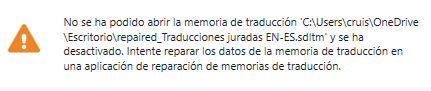
No se pudo encontrar el archivo de datos solicitado

Error: No se ha podido abrir la memoria de traducción y se ha desactivado. Intente reparar los datos de la memoria de traducción en una aplicación de reparación de memorias de traducción.

Ya he hecho esto pero sigue sin funcionarme y me dice que no se pudo encontrar el archivo de datos solicitado


Removed AI Suggestion
[edited by: Cristina Martínez at 4:52 PM (GMT 0) on 11 Feb 2026]
emoji
Parents
  • Probability score: 0.7  

    Question improvement suggestion: Provide the exact version of Trados Studio you are using and any specific steps you have already taken to troubleshoot the issue.  

    In the meantime, based on the information you have provided, here is a suggested answer to your question:  

    Hello,  

    It seems you are encountering an issue with your Translation Memory (TM) in Trados Studio. Here are some steps you can take to troubleshoot and potentially resolve the problem:  

    **Step 1:** Ensure you have closed all instances of Trados Studio.  

    **Step 2:** Navigate to the following location on your computer to find the `Translation Memory Repository.xml` file:  

    - For Trados Studio 2022: `C:\Users\%User Name%\App Data\Local\Trados\Trados Studio\Studio17`  

    - For Trados Studio 2021: `C:\Users\%User Name%\App Data\Local\SDL\SDL Trados Studio\Studio16`  

    - For Trados Studio 2019: `C:\Users\%User Name%\App Data\Local\SDL\SDL Trados Studio\15.0.0.0`  

    - For Trados Studio 2017: `C:\Users\%User Name%\App Data\Local\SDL\SDL Trados Studio\14.0.0.0`  

    **Step 3:** Rename the `Translation Memory Repository.xml` file to `Translation Memory Repository_old.xml` or delete it.  

    **Step 4:** Restart Trados Studio and check if the issue persists.  

    **Step 5:** If the problem continues, consider using the SDLTM Repair tool to attempt to repair the TM. You can download it from the RWS AppStore.  

    **Step 6:** If your TM is stored on a network drive, try copying it to your local drive and see if the error still occurs.  

    **Step 7:** If none of the above steps work, you may need to create a new Translation Memory and import the existing TM into it.  

    If you continue to experience issues, please provide the exact version of Trados Studio you are using and any specific troubleshooting steps you have already taken. This will help in providing more tailored assistance.  

    I hope this answer addressed your question. If not, please reject the answer, add the question improvement suggestion information, and click the RWS Community AI checkbox on the right to try again.  

    RWS Community AI

    emoji
Reply
  • Probability score: 0.7  

    Question improvement suggestion: Provide the exact version of Trados Studio you are using and any specific steps you have already taken to troubleshoot the issue.  

    In the meantime, based on the information you have provided, here is a suggested answer to your question:  

    Hello,  

    It seems you are encountering an issue with your Translation Memory (TM) in Trados Studio. Here are some steps you can take to troubleshoot and potentially resolve the problem:  

    **Step 1:** Ensure you have closed all instances of Trados Studio.  

    **Step 2:** Navigate to the following location on your computer to find the `Translation Memory Repository.xml` file:  

    - For Trados Studio 2022: `C:\Users\%User Name%\App Data\Local\Trados\Trados Studio\Studio17`  

    - For Trados Studio 2021: `C:\Users\%User Name%\App Data\Local\SDL\SDL Trados Studio\Studio16`  

    - For Trados Studio 2019: `C:\Users\%User Name%\App Data\Local\SDL\SDL Trados Studio\15.0.0.0`  

    - For Trados Studio 2017: `C:\Users\%User Name%\App Data\Local\SDL\SDL Trados Studio\14.0.0.0`  

    **Step 3:** Rename the `Translation Memory Repository.xml` file to `Translation Memory Repository_old.xml` or delete it.  

    **Step 4:** Restart Trados Studio and check if the issue persists.  

    **Step 5:** If the problem continues, consider using the SDLTM Repair tool to attempt to repair the TM. You can download it from the RWS AppStore.  

    **Step 6:** If your TM is stored on a network drive, try copying it to your local drive and see if the error still occurs.  

    **Step 7:** If none of the above steps work, you may need to create a new Translation Memory and import the existing TM into it.  

    If you continue to experience issues, please provide the exact version of Trados Studio you are using and any specific troubleshooting steps you have already taken. This will help in providing more tailored assistance.  

    I hope this answer addressed your question. If not, please reject the answer, add the question improvement suggestion information, and click the RWS Community AI checkbox on the right to try again.  

    RWS Community AI

    emoji
Children