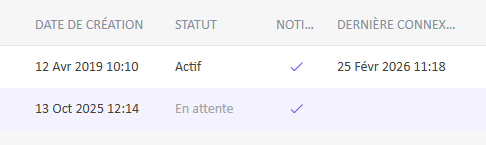
affectation package

bonjour, 

je viens de changer de pc. il a fallu reinstaller Trados. je viens de creer un projet et je souhaite envoyer le package a l'agence de traduction. 

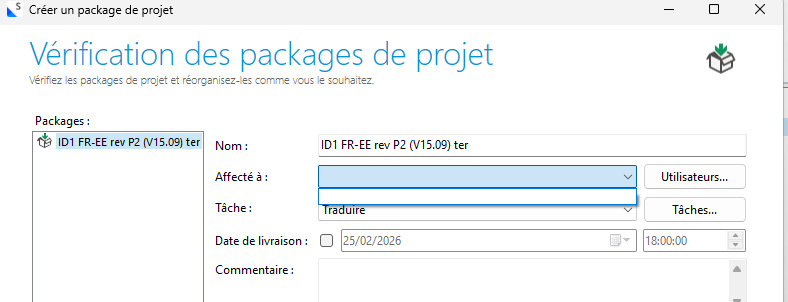
Sur mon ancien PC, lorsque je creais un package, je selectionnais les fichiers et lorsque j'arrivais a la page "verification des packages de projet" je selectionnais "Affecté à" : ALG (que j'avais ajouté).

Sur mon nouveau PC, je n'ai aucun choix qui apparait Screenshot of the 'Cr er un package de projet' window showing the 'V rification des packages de projet' section with fields for 'Affect   ', 'T che', and 'Date de livraison'.
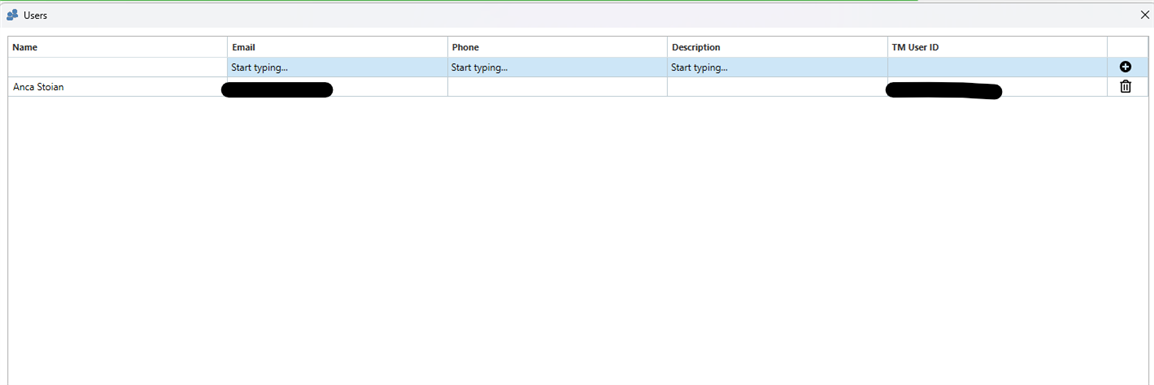
quand je clique sur utilisateur et que je veux en ajouter (en l'occurence ALG) en appuyant sur + je rempli les champs "nom" e-mail" . mais je ne peux pas remplir ID d'utilisateur MT. je clique sur Ok mais cela ne semble pas prendre l'ajout d'utilisateur et je me retrouve dans la meme situation .

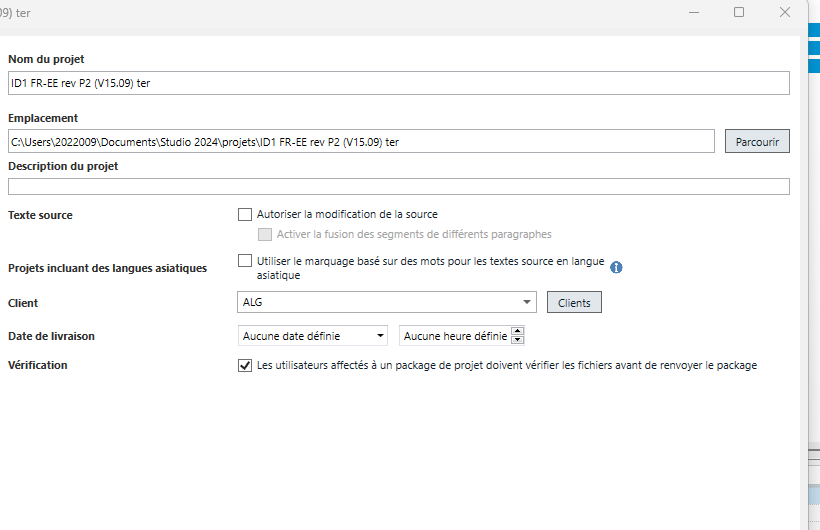
j'ai créé un nouveau projet en ajoutant ALG comme client Screenshot of the project settings window displaying fields for 'Nom du projet', 'Emplacement', 'Client', and a checkbox for verification requirements., mais cela ne semble pas etre la solution puisque lorsque je creee le package, je me retrouve dans la meme situation .
je ne peux pas terminer la creation du package car le champ "affecté a " doit obligatoirement etre rempli. Après-vente

Auriez vous la solution a mon probleme, svp?


Removed AI Suggestion
[edited by: Anne-Laure Galaud at 10:03 AM (GMT 0) on 25 Feb 2026]

emoji
Parents
  • Probability score: 0.6  

    Question improvement suggestion: Provide specific details about the version of Trados Studio you are using and any error messages you encounter during the process.  

    In the meantime, based on the information you have provided, here is a suggested answer to your question:  

    Hello,  

    It seems you are experiencing issues with assigning users when creating a project package in Trados Studio after reinstalling it on your new PC. Here are some steps you can follow to troubleshoot and potentially resolve the issue:  

    **Step 1:** Verify User Setup  

    - Ensure that the user "ALG" is correctly set up in Trados Studio. Go to **File > Setup > Users** and check if "ALG" appears in the list. If not, try adding the user again.  

    **Step 2:** Check User Permissions  

    - Make sure that the user "ALG" has the necessary permissions to be assigned to projects. If you are using a Professional version, you can manage user permissions through the Account Administrator group in your Cloud account.  

    **Step 3:** Repair Installation  

    - If the issue persists, consider running a repair installation of Trados Studio. Close all RWS applications, go to the Control Panel, find Trados Studio, and select the repair option.  

    **Step 4:** Reset Settings  

    - If repairing does not help, you can reset Trados Studio's settings. Close all applications, navigate to `C:\Users\%username%\App Data\Roaming\Trados\Trados Studio\`, and rename the folder corresponding to your version (e.g., Studio17) to something like Studio17_old. Restart Trados Studio afterward.  

    **Step 5:** Check for Updates  

    - Ensure that you have the latest updates for Trados Studio installed. Sometimes, bugs are fixed in newer releases.  

    If you continue to face issues, please provide more details about the version of Trados Studio you are using and any specific error messages you encounter. This will help in diagnosing the problem more effectively.  

    I hope this answer addressed your question. If not, please reject the answer, add the question improvement suggestion information, and click the RWS Community AI checkbox on the right to try again.  

    RWS Community AI

    emoji
Reply
  • Probability score: 0.6  

    Question improvement suggestion: Provide specific details about the version of Trados Studio you are using and any error messages you encounter during the process.  

    In the meantime, based on the information you have provided, here is a suggested answer to your question:  

    Hello,  

    It seems you are experiencing issues with assigning users when creating a project package in Trados Studio after reinstalling it on your new PC. Here are some steps you can follow to troubleshoot and potentially resolve the issue:  

    **Step 1:** Verify User Setup  

    - Ensure that the user "ALG" is correctly set up in Trados Studio. Go to **File > Setup > Users** and check if "ALG" appears in the list. If not, try adding the user again.  

    **Step 2:** Check User Permissions  

    - Make sure that the user "ALG" has the necessary permissions to be assigned to projects. If you are using a Professional version, you can manage user permissions through the Account Administrator group in your Cloud account.  

    **Step 3:** Repair Installation  

    - If the issue persists, consider running a repair installation of Trados Studio. Close all RWS applications, go to the Control Panel, find Trados Studio, and select the repair option.  

    **Step 4:** Reset Settings  

    - If repairing does not help, you can reset Trados Studio's settings. Close all applications, navigate to `C:\Users\%username%\App Data\Roaming\Trados\Trados Studio\`, and rename the folder corresponding to your version (e.g., Studio17) to something like Studio17_old. Restart Trados Studio afterward.  

    **Step 5:** Check for Updates  

    - Ensure that you have the latest updates for Trados Studio installed. Sometimes, bugs are fixed in newer releases.  

    If you continue to face issues, please provide more details about the version of Trados Studio you are using and any specific error messages you encounter. This will help in diagnosing the problem more effectively.  

    I hope this answer addressed your question. If not, please reject the answer, add the question improvement suggestion information, and click the RWS Community AI checkbox on the right to try again.  

    RWS Community AI

    emoji
Children