


Crash when adding term

Trados Studio 2024 SR1 - 18.1.3.6657
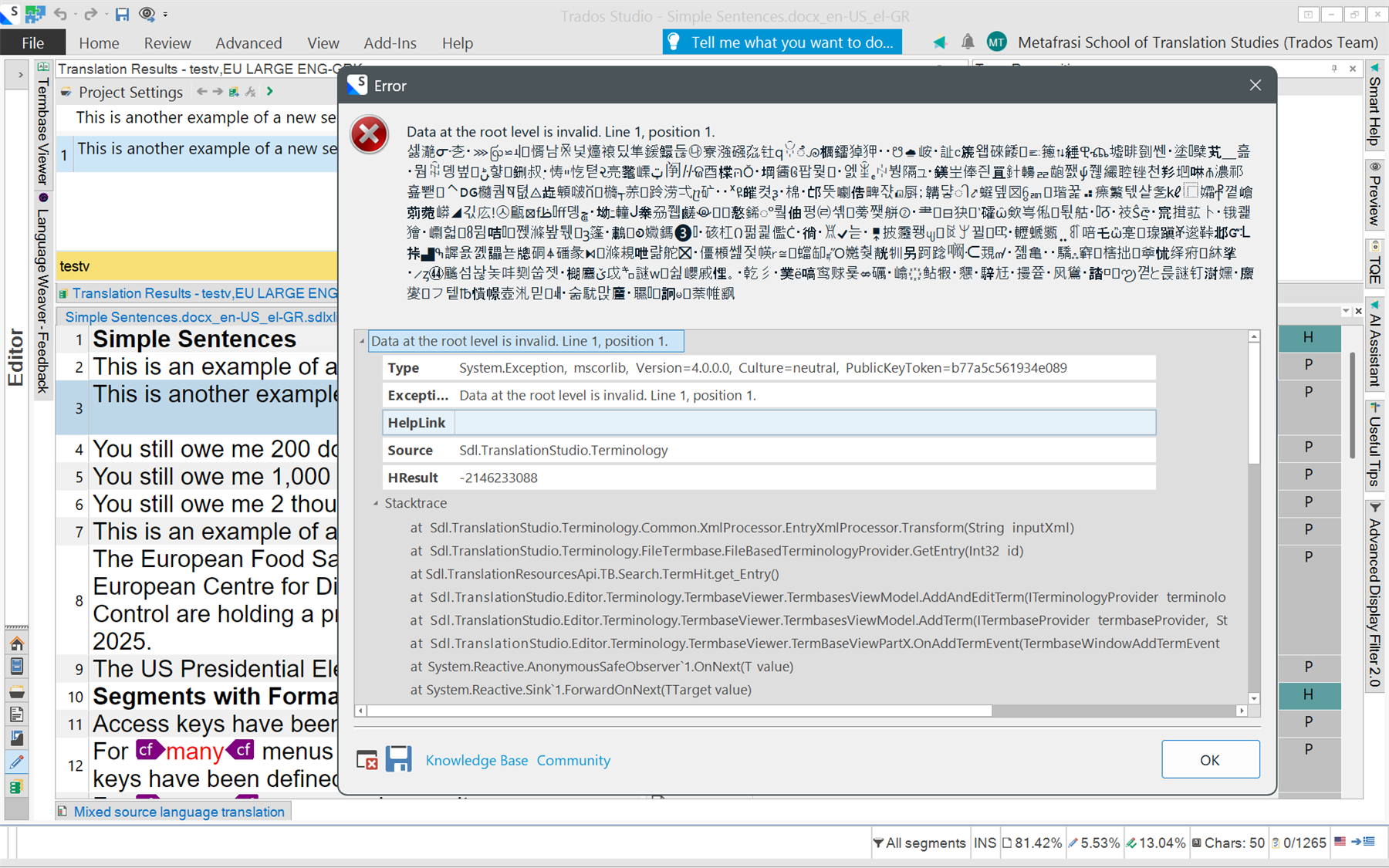
Screenshot of Trados Studio showing an error message window. The error states 'Data at the root level is invalid. Line 1, position 1.' with additional details and a stack trace.

<SDLErrorDetails time="3/5/2026 7:57:51 AM">
  <ErrorMessage>Data at the root level is invalid. Line 1, position 1.
셇濪ᣇ朰⋙ꩺ⋍ᅬ᝭㥠남ꍰ넟㸀䙑딨隼鍰鱞듢㉯寮漒䃨㌴钍qꃻೊ櫔鐂㹿狎☋峖訨ᥴ篪왭䂾餧


Generated Image Alt-Text
[edited by: RWS Community AI at 6:03 AM (GMT 0) on 5 Mar 2026]
Parents
  • Probability score: 0.6  

    Question improvement suggestion: Please provide a clear description of the steps you took before the crash occurred, and specify any error messages you received. Additionally, including screenshots or logs would be helpful.  

    In the meantime, based on the information you have provided, here is a suggested answer to your question:  

    Hello,  

    It seems you are experiencing a crash when adding a term in Trados Studio 2024 SR1. Here are some steps you can follow to troubleshoot and potentially resolve the issue:  

    **Step 1:** Ensure that you have the latest version of Trados Studio 2024 installed. You mentioned version 18.1.3.6657, so check for any updates that may address this issue.  

    **Step 2:** Repair your Trados Studio installation. You can do this by going to Control Panel > Programs and Features, selecting Trados Studio, and choosing the Repair option.  

    **Step 3:** Verify that you have the .NET Framework 4.7.2 or later installed, as this is required for Trados Studio 2024. If you have .NET Framework 4.8, that should be sufficient.  

    **Step 4:** Refresh your .NET Framework installation by toggling the .NET 4.5 (or higher) feature off and on in Windows features.  

    **Step 5:** If the crash occurs consistently at a specific segment, try disabling your Translation Memories (TMs) and Termbases one by one to identify if any are corrupted.  

    **Step 6:** If your translation resources are stored on a shared drive or cloud service, try moving them locally to see if that resolves the issue.  

    **Step 7:** If the problem persists, consider resetting Trados Studio to its default settings.  

    If none of these steps resolve the issue, please provide additional details about the crash, including any error messages or logs, and I would be happy to assist you further.  

    I hope this answer addressed your question. If not, please reject the answer, add the question improvement suggestion information, and click the RWS Community AI checkbox on the right to try again.  

    RWS Community AI

    emoji
Reply
  • Probability score: 0.6  

    Question improvement suggestion: Please provide a clear description of the steps you took before the crash occurred, and specify any error messages you received. Additionally, including screenshots or logs would be helpful.  

    In the meantime, based on the information you have provided, here is a suggested answer to your question:  

    Hello,  

    It seems you are experiencing a crash when adding a term in Trados Studio 2024 SR1. Here are some steps you can follow to troubleshoot and potentially resolve the issue:  

    **Step 1:** Ensure that you have the latest version of Trados Studio 2024 installed. You mentioned version 18.1.3.6657, so check for any updates that may address this issue.  

    **Step 2:** Repair your Trados Studio installation. You can do this by going to Control Panel > Programs and Features, selecting Trados Studio, and choosing the Repair option.  

    **Step 3:** Verify that you have the .NET Framework 4.7.2 or later installed, as this is required for Trados Studio 2024. If you have .NET Framework 4.8, that should be sufficient.  

    **Step 4:** Refresh your .NET Framework installation by toggling the .NET 4.5 (or higher) feature off and on in Windows features.  

    **Step 5:** If the crash occurs consistently at a specific segment, try disabling your Translation Memories (TMs) and Termbases one by one to identify if any are corrupted.  

    **Step 6:** If your translation resources are stored on a shared drive or cloud service, try moving them locally to see if that resolves the issue.  

    **Step 7:** If the problem persists, consider resetting Trados Studio to its default settings.  

    If none of these steps resolve the issue, please provide additional details about the crash, including any error messages or logs, and I would be happy to assist you further.  

    I hope this answer addressed your question. If not, please reject the answer, add the question improvement suggestion information, and click the RWS Community AI checkbox on the right to try again.  

    RWS Community AI

    emoji
Children
No Data
