How to Import Multiple .sdlproj Simultaneously

Good day everyone,

I am running Trados Studio 2024 Professional SR - 18.1.3.6657.

Transferred all projects/files to a new laptop.
Existing license was deactivated. New license activated. Trados opens fine on new laptop.
When wanting to import projects back into Trados:
  • selecting multiple files is not allowed
  • drag and drop into Projects view is not allowed
  • performing Open Project for each file, individually works (BUT that is time consuming and requires manual re-setting of project path and TM path for EACH file, one by one!!)
 How can I import multiple .sdlproj (200+ projects) without having to manually select each file and readjust settings and paths individually for each project.
If not the .sdlproj, is there something else that I can import that would carry over all projects faster/better?
Regards,
Pascale


Removed AI Suggestion
[edited by: Pascale Bijoux at 3:20 PM (GMT 0) on 12 Mar 2026]

emoji
Parents
  •  

    The list of projects lives in this XML: C:\Users\%USERNAME%\Documents\Studio 2024\Projects\projects.xml

    Create a copy of the old and new XML files (just in case you mess something and need to rest the original projects.xml).

    Ensure the application Trados Studio is closed.

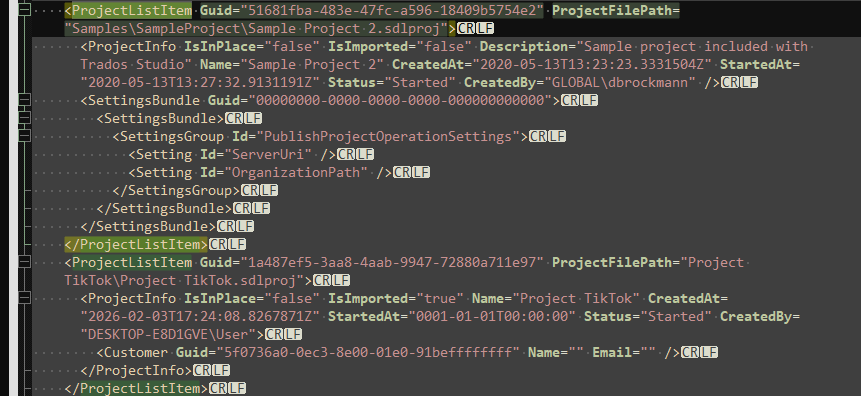
    Open the old XML file in a text editor, such as Notepad++ or Notepad. The projects are in the <Projects> section.

    projects.xml file

    Copy all of the <ProjectListItems> elements from the old XML and paste them to the same position of the new XML (1 single copy-paste operation for all the projects, only 2 in my screenshot). Copy the leading spaces as well and ensure you don't delete anything.

    Then you may want to replace the paths. Finally, save the new XML file. If you do it carefully, this should work.

    If you messed up anything, Trados Studio will complain; if so, close Trados Studio and try again with your backup XML file.

    emoji
Reply
  •  

    The list of projects lives in this XML: C:\Users\%USERNAME%\Documents\Studio 2024\Projects\projects.xml

    Create a copy of the old and new XML files (just in case you mess something and need to rest the original projects.xml).

    Ensure the application Trados Studio is closed.

    Open the old XML file in a text editor, such as Notepad++ or Notepad. The projects are in the <Projects> section.

    projects.xml file

    Copy all of the <ProjectListItems> elements from the old XML and paste them to the same position of the new XML (1 single copy-paste operation for all the projects, only 2 in my screenshot). Copy the leading spaces as well and ensure you don't delete anything.

    Then you may want to replace the paths. Finally, save the new XML file. If you do it carefully, this should work.

    If you messed up anything, Trados Studio will complain; if so, close Trados Studio and try again with your backup XML file.

    emoji
Children
No Data