Impossibility to create retun package using Microsoft Windows 11 and OneDrive

I have used for many years Trados Studio with satisfaction  but since using One Drive I cannot  run batch type tasks such as "Return package".

I tried to reinstall Studio after creating Studio related files in my local disk but Studio automatically creates Studio files in OneDrive.

Is there any solution (such as upgrading to newer vesion of Studio?)?


Removed AI Suggestion
[edited by: Francis Lecroisey at 1:24 PM (GMT 1) on 2 Apr 2026]

emoji
Parents
  • Probability score: 0.6  

    Question improvement suggestion: Provide specific error messages or behaviors encountered when trying to create the return package, and clarify if you have already tried any specific troubleshooting steps.  

    In the meantime, based on the information you have provided, here is a suggested answer to your question:  

    Hello,  

    It sounds like you're experiencing challenges with creating return packages in Trados Studio while using OneDrive on Windows 11. Here are some steps you can take to potentially resolve this issue:  

    **Step 1:** **Check OneDrive Settings**  

    Ensure that your OneDrive settings allow Trados Studio to access the necessary files. You may need to adjust permissions or check if files are set to "cloud-only," which can prevent access.  

    **Step 2:** **Change Default File Locations**  

    Open Trados Studio and navigate to 'File' > 'Options'. Under 'Files', change the default save location to a local folder on your computer instead of OneDrive. This can help avoid issues related to file syncing.  

    **Step 3:** **Run Trados Studio as Administrator**  

    Right-click on the Trados Studio icon and select 'Run as administrator'. This can help with permission issues that may be preventing the creation of return packages.  

    **Step 4:** **Reinstall Trados Studio**  

    If the issue persists, consider uninstalling and then reinstalling Trados Studio. Make sure to back up your projects and settings before doing this.  

    **Step 5:** **Check for Updates**  

    Ensure that you are using the latest version of Trados Studio (2.15.1.0 is quite outdated). Check for updates within the application to see if newer versions have resolved any known issues.  

    **Step 6:** **Create Return Packages Locally**  

    If you continue to face issues with OneDrive, try creating return packages while saving your project files locally. This can help bypass any OneDrive-related complications.  

    If these steps do not resolve your issue, please provide more details about any specific error messages you encounter, and I would be happy to assist further.  

    I hope this answer addressed your question. If not, please reject the answer, add the question improvement suggestion information, and click the RWS Community AI checkbox on the right to try again.  

    RWS Community AI

    emoji
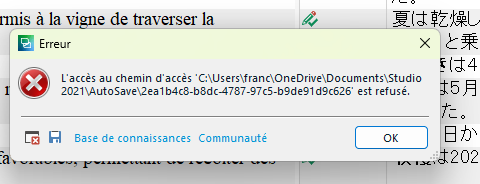
  • Error message in Trados Studio stating access to the path 'C:UsersfrancOneDriveDocumentsStudio 2021AutoSave2ea1b4c8-8d8c-4787-97c5-b9de91d9c626' is denied, with options for 'Base de connaissances', 'Communaut ', and 'OK'.

    emoji


    Generated Image Alt-Text
    [edited by: RWS Community AI at 1:27 PM (GMT 1) on 2 Apr 2026]
  • Probability score: 0.7  

    Question improvement suggestion: Provide specific details about the error message or behavior you are encountering when trying to create the return package, and clarify if you have already attempted any troubleshooting steps.  

    In the meantime, based on the information you have provided, here is a suggested answer to your question:  

    Hello,  

    It seems you're still facing challenges with creating return packages in Trados Studio while using OneDrive on Windows 11. Here are some steps you can take to potentially resolve this issue:  

    **Step 1:** **Check OneDrive Permissions**  

    Ensure that Trados Studio has the necessary permissions to access the files in OneDrive. You may need to adjust the settings to allow full access, especially if you are encountering access denied errors.  

    **Step 2:** **Change Default File Locations**  

    Open Trados Studio and navigate to 'File' > 'Options'. Under 'Files', change the default save location to a local folder on your computer instead of OneDrive. This can help avoid issues related to file syncing.  

    **Step 3:** **Run Trados Studio as Administrator**  

    Right-click on the Trados Studio icon and select 'Run as administrator'. This can help with permission issues that may be preventing the creation of return packages.  

    **Step 4:** **Reset Trados Studio Settings**  

    If the issue persists, consider resetting Trados Studio to its default settings. You can do this by renaming the folder located at `C:\Users\[USER_NAME]\AppData\Roaming\SDL\SDL Trados Studio\14.0.0.0` to `14.0.0.0_old`. Make sure to back up your projects and settings before doing this.  

    **Step 5:** **Check for Updates**  

    Ensure that you are using the latest version of Trados Studio. Since you mentioned version 2.15.1.0, it is quite outdated. Check for updates within the application to see if newer versions have resolved any known issues.  

    **Step 6:** **Create Return Packages Locally**  

    If you continue to face issues with OneDrive, try creating return packages while saving your project files locally. This can help bypass any OneDrive-related complications.  

    If these steps do not resolve your issue, please provide more details about any specific error messages you encounter, and I would be happy to assist further.  

    I hope this answer addressed your question. If not, please reject the answer, add the question improvement suggestion information, and click the RWS Community AI checkbox on the right to try again.  

    RWS Community AI

    emoji
Reply
  • Probability score: 0.7  

    Question improvement suggestion: Provide specific details about the error message or behavior you are encountering when trying to create the return package, and clarify if you have already attempted any troubleshooting steps.  

    In the meantime, based on the information you have provided, here is a suggested answer to your question:  

    Hello,  

    It seems you're still facing challenges with creating return packages in Trados Studio while using OneDrive on Windows 11. Here are some steps you can take to potentially resolve this issue:  

    **Step 1:** **Check OneDrive Permissions**  

    Ensure that Trados Studio has the necessary permissions to access the files in OneDrive. You may need to adjust the settings to allow full access, especially if you are encountering access denied errors.  

    **Step 2:** **Change Default File Locations**  

    Open Trados Studio and navigate to 'File' > 'Options'. Under 'Files', change the default save location to a local folder on your computer instead of OneDrive. This can help avoid issues related to file syncing.  

    **Step 3:** **Run Trados Studio as Administrator**  

    Right-click on the Trados Studio icon and select 'Run as administrator'. This can help with permission issues that may be preventing the creation of return packages.  

    **Step 4:** **Reset Trados Studio Settings**  

    If the issue persists, consider resetting Trados Studio to its default settings. You can do this by renaming the folder located at `C:\Users\[USER_NAME]\AppData\Roaming\SDL\SDL Trados Studio\14.0.0.0` to `14.0.0.0_old`. Make sure to back up your projects and settings before doing this.  

    **Step 5:** **Check for Updates**  

    Ensure that you are using the latest version of Trados Studio. Since you mentioned version 2.15.1.0, it is quite outdated. Check for updates within the application to see if newer versions have resolved any known issues.  

    **Step 6:** **Create Return Packages Locally**  

    If you continue to face issues with OneDrive, try creating return packages while saving your project files locally. This can help bypass any OneDrive-related complications.  

    If these steps do not resolve your issue, please provide more details about any specific error messages you encounter, and I would be happy to assist further.  

    I hope this answer addressed your question. If not, please reject the answer, add the question improvement suggestion information, and click the RWS Community AI checkbox on the right to try again.  

    RWS Community AI

    emoji
Children
No Data