


Odd behaviour of editor screen in Studio 2024

Since last week, I have been working in Studio 2024 and besides an unusual number of sudden deaths without warning or error messages, my editor screen suddenly became cross-eyed. Can I simply proceed, should I stop, save and restart? And more importantly: why is it happening?
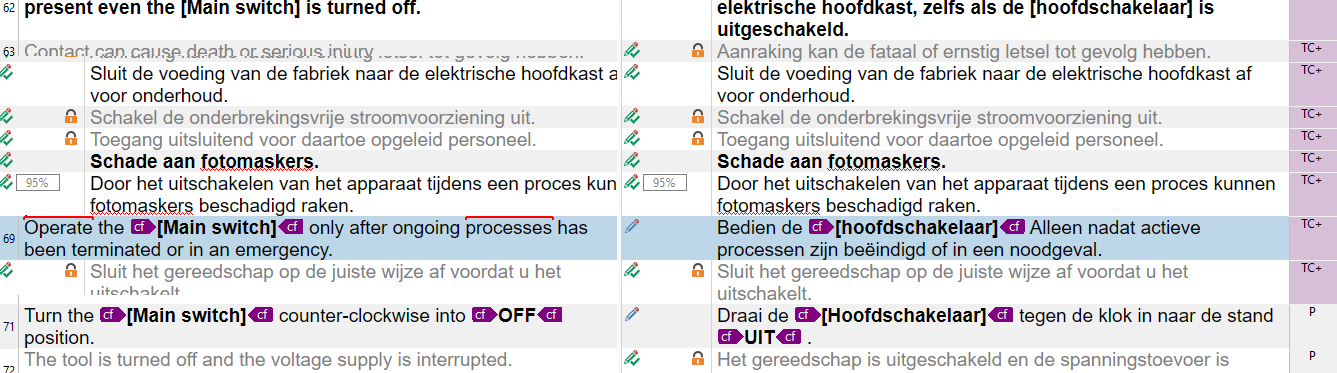
A screenshot of Trados Studio editor showing bilingual text with English and Dutch translations. Some segments are marked with icons, and a red underline highlights a specific text issue.


Removed AI Suggestion
[edited by: Frank Van T Veer at 6:17 PM (GMT 1) on 12 Apr 2026]

emoji
Parents
  • Probability score: 0.7  

    Question improvement suggestion: Provide more details about the specific behavior of the editor screen and any error messages encountered, if applicable.  

    In the meantime, based on the information you have provided, here is a suggested answer to your question:  

    Hello,  

    It sounds like you're experiencing a known issue with Trados Studio 2024, particularly when opening the first file after starting the application. Here are some steps you can take to address the situation:  

    **Step 1:** If the editor screen appears distorted or "cross-eyed," it is advisable to save your work immediately.  

    **Step 2:** Close the file and reopen it. This is a recommended workaround for this specific issue.  

    **Step 3:** If the problem persists, consider restarting Trados Studio after saving your work.  

    **Step 4:** To prevent this issue from occurring in the future, ensure that you keep your software updated, as fixes for known issues are often included in updates.  

    **Step 5:** If you continue to experience crashes or unusual behavior, you may want to run a repair installation of Trados Studio. You can do this by going to the Control Panel, selecting Trados Studio, and choosing the repair option.  

    **Step 6:** Additionally, resetting Trados Studio's basic settings may help resolve persistent issues. You can do this by renaming the relevant folder in your App Data directory as outlined in the troubleshooting steps.  

    If you have any further questions or if the issue continues, please feel free to ask!  

    I hope this answer addressed your question. If not, please reject the answer, add the question improvement suggestion information, and click the RWS Community AI checkbox on the right to try again.  

    RWS Community AI

    emoji
Reply
  • Probability score: 0.7  

    Question improvement suggestion: Provide more details about the specific behavior of the editor screen and any error messages encountered, if applicable.  

    In the meantime, based on the information you have provided, here is a suggested answer to your question:  

    Hello,  

    It sounds like you're experiencing a known issue with Trados Studio 2024, particularly when opening the first file after starting the application. Here are some steps you can take to address the situation:  

    **Step 1:** If the editor screen appears distorted or "cross-eyed," it is advisable to save your work immediately.  

    **Step 2:** Close the file and reopen it. This is a recommended workaround for this specific issue.  

    **Step 3:** If the problem persists, consider restarting Trados Studio after saving your work.  

    **Step 4:** To prevent this issue from occurring in the future, ensure that you keep your software updated, as fixes for known issues are often included in updates.  

    **Step 5:** If you continue to experience crashes or unusual behavior, you may want to run a repair installation of Trados Studio. You can do this by going to the Control Panel, selecting Trados Studio, and choosing the repair option.  

    **Step 6:** Additionally, resetting Trados Studio's basic settings may help resolve persistent issues. You can do this by renaming the relevant folder in your App Data directory as outlined in the troubleshooting steps.  

    If you have any further questions or if the issue continues, please feel free to ask!  

    I hope this answer addressed your question. If not, please reject the answer, add the question improvement suggestion information, and click the RWS Community AI checkbox on the right to try again.  

    RWS Community AI

    emoji
Children
No Data
