


exception error

Hi there,

I hope there's someone who can help me.

After my lunch break, I was unable to open this large file (a novel) that I had translated 88% of. View the error message in a screenshot below. My deadline is approaching, so I need to restore this file as soon as possible. What can I do?

Thank you so much in advance!

I'm using Trados Studio 2024
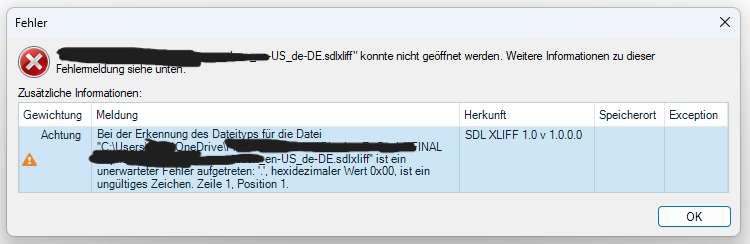
Error message in Trados Studio stating that the file cannot be opened. Additional information mentions an invalid character at line 1, position 1, with hexadecimal value 0x00.


Removed AI Suggestion
[edited by: Katrin Dolle at 2:10 PM (GMT 1) on 13 May 2026]

emoji
Parents
  • Probability score: 0.6  

    Question improvement suggestion: Please provide the exact error message you are encountering, as well as any troubleshooting steps you have already attempted. This will help in diagnosing the issue more effectively.  

    In the meantime, based on the information you have provided, here is a suggested answer to your question:  

    Hello,  

    It sounds like you're facing a frustrating issue with your Trados Studio project. Here are some steps you can take to try and resolve the problem:  

    **Step 1:** **Check the Error Message**  

    Make sure to note the exact error message you are receiving when trying to open the file. This information is crucial for diagnosing the issue.  

    **Step 2:** **Restart Trados Studio**  

    Sometimes, simply restarting Trados Studio can resolve temporary issues. Save your work, close the application, and then reopen it to see if the problem persists.  

    **Step 3:** **Open the File in Its Native Application**  

    If your file is a Microsoft Word document, try opening it in Word to check for any issues. You can also use the Repair function in Word to fix any potential corruption.  

    **Step 4:** **Recreate the Project**  

    If the file still won't open, consider recreating the project in Trados Studio. You can do this by creating a new project and using the Pre-translate batch task to retrieve previously translated segments from your translation memory.  

    **Step 5:** **Check for File Compatibility**  

    Ensure that the file type you are using is compatible with Trados Studio. If you suspect the file may be corrupted, try creating a new file and copying the content over.  

    **Step 6:** **Run a Check Disk**  

    If you suspect there may be issues with your hard drive, you can run a Check Disk operation. Open Command Prompt as an administrator and type `chkdsk /r`, then follow the prompts.  

    **Step 7:** **Clear Temporary Files**  

    Close Trados Studio, press Windows + R, type `%temp%`, and clear the temporary files. This can sometimes resolve unexpected errors.  

    If these steps do not resolve the issue, please provide the exact error message and any troubleshooting steps you have already attempted. This will help in offering more specific assistance.  

    I hope this answer addressed your question. If not, please reject the answer, add the question improvement suggestion information, and click the RWS Community AI checkbox on the right to try again.  

    RWS Community AI

    emoji
Reply
  • Probability score: 0.6  

    Question improvement suggestion: Please provide the exact error message you are encountering, as well as any troubleshooting steps you have already attempted. This will help in diagnosing the issue more effectively.  

    In the meantime, based on the information you have provided, here is a suggested answer to your question:  

    Hello,  

    It sounds like you're facing a frustrating issue with your Trados Studio project. Here are some steps you can take to try and resolve the problem:  

    **Step 1:** **Check the Error Message**  

    Make sure to note the exact error message you are receiving when trying to open the file. This information is crucial for diagnosing the issue.  

    **Step 2:** **Restart Trados Studio**  

    Sometimes, simply restarting Trados Studio can resolve temporary issues. Save your work, close the application, and then reopen it to see if the problem persists.  

    **Step 3:** **Open the File in Its Native Application**  

    If your file is a Microsoft Word document, try opening it in Word to check for any issues. You can also use the Repair function in Word to fix any potential corruption.  

    **Step 4:** **Recreate the Project**  

    If the file still won't open, consider recreating the project in Trados Studio. You can do this by creating a new project and using the Pre-translate batch task to retrieve previously translated segments from your translation memory.  

    **Step 5:** **Check for File Compatibility**  

    Ensure that the file type you are using is compatible with Trados Studio. If you suspect the file may be corrupted, try creating a new file and copying the content over.  

    **Step 6:** **Run a Check Disk**  

    If you suspect there may be issues with your hard drive, you can run a Check Disk operation. Open Command Prompt as an administrator and type `chkdsk /r`, then follow the prompts.  

    **Step 7:** **Clear Temporary Files**  

    Close Trados Studio, press Windows + R, type `%temp%`, and clear the temporary files. This can sometimes resolve unexpected errors.  

    If these steps do not resolve the issue, please provide the exact error message and any troubleshooting steps you have already attempted. This will help in offering more specific assistance.  

    I hope this answer addressed your question. If not, please reject the answer, add the question improvement suggestion information, and click the RWS Community AI checkbox on the right to try again.  

    RWS Community AI

    emoji
Children
No Data
